This section describes the various toolbars available in the Composites Forming workbench.
The toolbars
are located on the right in the default set-up
Parameters Toolbar

Available in the Composites Design Workbench and the Composites Grid Design Workbench
 |
Composites Parameters See Defining the Composites Parameters |

Contour Toolbar

 |
Create Standard Contour See Defining a Contour |
Plies Design Toolbar

 |
Plies Group See Defining a Plies Group |
 |
Ply See Creating Plies Manually |
Review Toolbar

 |
For all On the Fly Information icons See Displaying Information on the Fly |
 |
Check Contours See Checking Contours |
 |
Multiple Core Samples See Creating Multiple Core Samples |
 |
Stacking Management See Using the Stacking Management |
 |
Rosette Preview See Previewing the Rosette |
 |
Fiber Direction See Displaying the Fiber Direction |
 |
Forming Results Table See Checking Forming Results |
Producibility Toolbar

 |
Producibility for Forming See Running a Quick Forming Simulation |
 |
Detailed
Forming Simulation See Running a Detailed Simulation |
 |
Producibility Inspection See Performing a Simulation at Inspection Points |
 |
Set Forming Material Data See Defining Forming Material Data |
 |
Add Blank Holder See Editing Inputs of the Detailed Simulation |
 |
Edit Punch See Editing Inputs of the Detailed Simulation |
 |
Edit Grippers
See Editing Inputs of the Detailed Simulation |
 |
Edit Diaphragm See |
Wireframe Toolbar
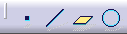
 |
Point See Creating Points |
 |
Line See Creating Lines |
 |
Plane See Creating Planes |
 |
Circle See Creating Circles |
Surface Tools Toolbar
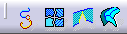
 |
Curve Smooth See Smoothing Curves |
 |
Join See Interoperability With Generative Shape Design |
 |
Healing See Healing Geometry |
 |
Surface Simplification See Simplifying Surfaces |