|
-
On the PPR tree, select either the process or the
activity after which you wish the move activity to appear.
-
Click Move Activity  on the Simulation Activity Creation toolbar.
| The following items appear: |
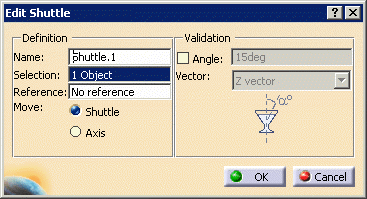
- The Edit Shuttle dialog box
|
- The Manipulation pop-up toolbar, with shuttle
definition options
|
- An empty, unexpanded Preview window appears.
The Preview window has two tabs:
- The Tree tab shows the names of items
selected
- The 3D tab shows a graphic representation
of the parts.
|
 |
Within the Preview window, you can use the mouse
buttons to rotate, pan, or zoom. However, the comparable
commands within the View toolbar are disabled. |
-
Select the product or products that you wish to move.
| In the Selection field of the Edit Shuttle
dialog box, the number of product(s) selected is incremented as
each product is selected. In addition, the object(s) appear
in the Preview window. |
-
When all the products to be moved have been selected,
click OK .
| The Preview window and Edit Shuttle
dialog box are replaced by: |
- The Manipulation pop-up toolbar (with track
definition options)
|
- The Player pop-up toolbar
|
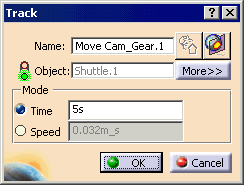
- The Track dialog box
|
|
 |
 |
See Using Bind Analysis
for information on how to use Activate Analysis . . |
| |
See
Associating Sections to Move Trajectories
for information on how to use Sectioning . . |
| |
See To Edit
Time Between Shots for information on using the options
available when you click More > > . |
|
- The Recorder pop-up toolbar.
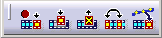 |
| The Recorder toolbar enables you to control
the track you are creating for the move activity. The
function of each command is listed in the table below: |
 |
Record (Insert): Records the
shot or position of the part. |
 |
Modify: Modifies
the position of a shot of track (This command can be used
to correct a mistake while creating a move activity.
For an explanation of how to use it, see
Editing a Move Activity). |
 |
Delete: Deletes a shot of
track (This command can be used to correct a mistake
while creating a move activity. For an explanation
of how to use it, see Editing a
Move Activity). |
 |
Reorder:
Reorders shots of track (This command can be used to
modify the sequence of shots. For an explanation of
how to use it, see Editing a
Move Activity.) |
 |
Reuse: Reuses shots from a
track other than the one being edited or created.
(For an explanation of how to use this command, see
Editing a Move Activity. |
|
|
-
(Optional) You can accept the default
name for the move in the Track dialog box or you can enter a
name. The name entered in this step is the name associated with
this move activity on the PPR tree.
-
Select
Time or
Speed for the movement's pace.
- If you select Time, the simulation assumes that
the movement takes one second per unit of distance measurement
(e.g., if you have cm selected as your unit of distance, each
shot's speed is one second per centimeter).
- If you select Speed, you must input a speed.
The simulation uses the speed input.
|
-
Use the compass to make the first movement of the
selected part(s); click Record
(Insert)
.
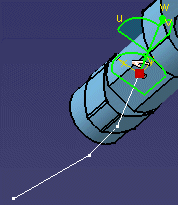
| A track (shown as a white line, below) appears on the part
geometry. |
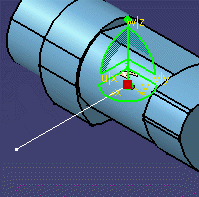 |
| Every subsequent move (or modification of a move) creates a new
or different shot for the track. |
 |
-
Once you have created all the shots that comprise the
complete move, click OK on the Track dialog box.
|
|
|
- About Automatic
Insert mode gives you a shortcut for creating the shots that comprise
a move track.
- Undo
 and
Redo and
Redo are unavailable when a move activity is being defined/modified. As a
consequence, users can only manually undo discrete move activity details
such as the definition of trajectory targets, analysis settings, and
associated sections. Once a move activity is defined, Undo
and Redo
are available once again, and they control addition or removal of the
complete move activity.
are unavailable when a move activity is being defined/modified. As a
consequence, users can only manually undo discrete move activity details
such as the definition of trajectory targets, analysis settings, and
associated sections. Once a move activity is defined, Undo
and Redo
are available once again, and they control addition or removal of the
complete move activity.
- Move activties do not support storing of the initial position of
the object for the Move path. The initial position of a Product
moved within a Move activity is dependent on:
- The Simulation initial position, or
- The last position, or
- The 3D State defined for this activity.
- If you add the same part to two Manufacturing Asemblies (MAs),
and assign the two MAs to a move activities, the product moves
twice, one move for each activity.
|