|
The Manipulation toolbar offers different options, depending on where you are in the move activity creation process. | ||||||||||||||||||
| When you are defining the shuttle, the following Manipulation toolbar appears: | |||||||||||||||||||
 |
|||||||||||||||||||
| This toolbar provides the following options: | |||||||||||||||||||
|
|||||||||||||||||||
| When defining the track, following Manipulation toolbar is displayed: | |||||||||||||||||||
 |
|||||||||||||||||||
The command unique to this toolbar is Save Initial State  . .
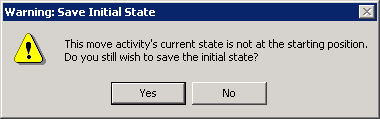
The command enables you to save an initial state for the entire process prior to moving the geometry as part of a Move Activity command. If you attempt to save the initial state after you have moved the geometry, you are prompted to verify that you wish to do this:
The Attach/Detach command in the Manipulation toolbar can be used to relocate object(s) in the Move activity to a new position in a creation or edit scenario. Save Initial State is used to store the initial position. This initial position is saved for the entire process and is not effective immediately inside the current Move Activity simulation scenario. To see the effect of the Save Initial State command, current Move Activity command must be exited and re-launched. |
|||||||||||||||||||
 |
See also Pop-Up Toolbar Command Availability During Track Editing. |