 |
-
Select Move Activity
 ,
and then select the product or products for the shuttle. ,
and then select the product or products for the shuttle.
| The Player, Manipulation, and
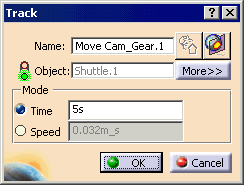
Recorder pop-up toolbars, and the Track dialog
box appear. |
 |
-
Click Activate Analysis . .
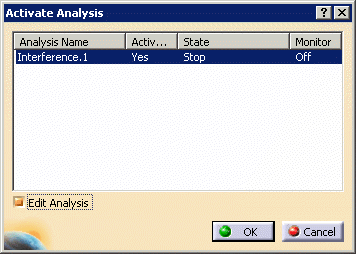
| The Activate Analysis dialog box appears. |
|
-
Select the analysis object desired.
| When selected, the values for the analysis functions appear. |
 |
-
(Optional) Select the Edit Analysis check box, and click
on the analysis object under Analysis Name.
| The dialog box used to create the analysis object appears
(in this case, the Check Clash dialog box). |
-
Using the Check Clash dialog box, modify the analysis
object as desired, then click OK.
| The Check Clash dialog box disappears. |
-
In the Activate Analysis dialog box, click on the values under each option to alter
the values.
The table below shows the values for the different options.
| Option |
Value |
Effect |
| Activated |
Yes |
(default) The analysis object should be
checked. |
| No |
The analysis object will not be checked.
If this option is set to No, the values of the options will
not take effect. |
| State |
Off |
Turns off analysis object. If the option is set to
off, the values of the other options will not take effect. |
| On |
Turns on analysis object. Highlights data that is in
violation. |
| Verbose |
Turns on analysis object. Provides feedback regarding the
analysis object to an analysis information window throughout
track creation. |
| Stop |
(default) Turns on analysis object. Stops track creation
when a violation occurs; also, provides feedback regarding the
analysis object to an analysis information window throughout
track creation. |
| Monitor |
Off |
(default) The Analysis
Monitor window will not appear. |
| On |
The Analysis Monitor window will appear. |
|
-
For both a distance and interference object, set them
to Yes, Verbose, and On, then click
OK.
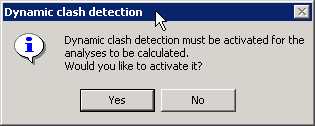
| The system asks about turning on dynamic clash detection. |
 |
-
Click the Yes button.
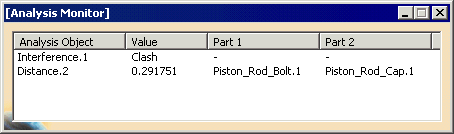
| As you create a track for the object, the Analysis
Information and Analysis Monitor windows provide
feedback data on the track. The type of feedback provided
depends on the analysis object selected. The Analysis
Monitor provides the outcome of the analysis. It is
most useful when a user has many analysis objects. The
Analysis Information window provides detailed information
regarding analysis information throughout the simulation.
Because the Analysis Information window provides so
much information, users often rely on the
Filter option. |
 |
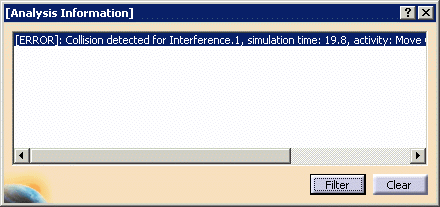 |
If an object is bound in Verbose mode, then
the message in the Analysis Information dialog box
contains two additional pieces of information:
- the name of the activity to which the analysis
object is bound
- the linear distance that the shuttle moved by the
move activity has traveled from the beginning of its motion.
|
 |
-
On the Analysis Information window, select
the Filter button.
| The Filter dialog box appears. |
 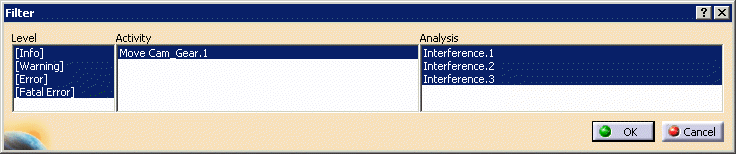 |
| By default, all types of information are selected. |
-
Deselect any items not wanted or select any items
wanted. (Use Ctrl + LMB to multi-select.)
| The messages corresponding to the selected error levels, move
activities,
and analysis objects are displayed; the other ones are hidden. |
-
To see more detailed analysis information regarding an
item in the Analysis Information window, double
click on the item.
|


