
- Modify the location of a shot
- Delete the location of multiple shots that are part of a sequence
- Delete one or more shots that are not sequential.
- Reorder the shots.
- Reuse shots from another track within this track.
- Edit the interval between shots


To Modify the Position of a Shot within the Track
-
Select the shot with the left mouse button (when you click on the shot, the part moves to the shot).
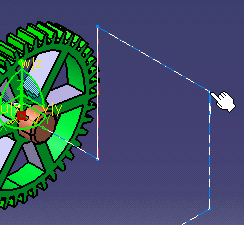
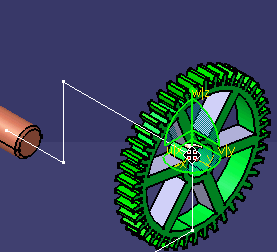
-
Use the compass to move the part to the new position for the shot.
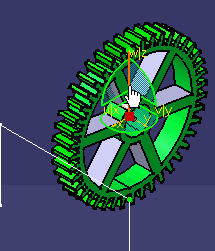
-
Click Modify
 on the Recorder toolbar.
The new position of the shot is recorded, and the track is modified accordingly. 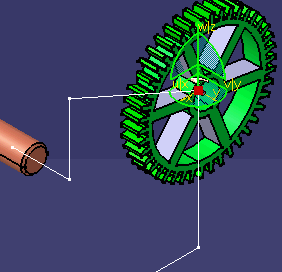
To Delete Multiple Sequential Shots
-
Press the Shift key while using the left mouse button to select the first and last shots to be deleted.
In the example below, the shots highlighted in pink were selected. Consequently, those shots as well as those highlighted in blue will be deleted. 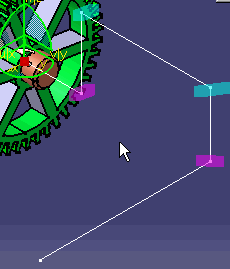
-
Click Delete
 .
. The image below shows the effect of the deletion in the example above. 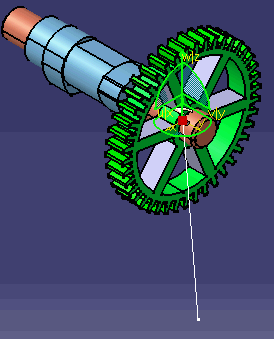
To Delete Single or Non-Sequential shots
-
Select the shot or shots. You can use the left mouse button to select a single or first shot, and Ctrl+LMB to select subsequent multiple shots.
The image below shows the selected shots highlighted in pink. 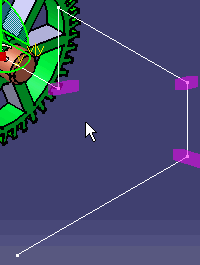
-
Click Delete
.
The image below shows the effect of the deletions. 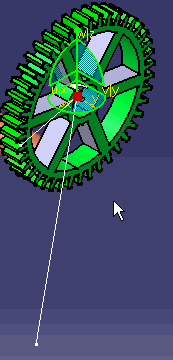
To Reorder Shots
 |
All other Recorder commands and all the Player commands are disabled when using the Reorder Shot dialog box. |
-
Click Reorder Shots
 .
.
The Reorder Shots dialog box appears. 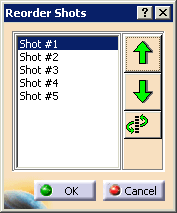
-
Select one of the methods below to reorder the shots:
- To move a shot up one place in the list, select the shot, and
press the Up
 button.
- To move a shot down one place in the list, select the shot, and
press the Down
 button.
- To insert a selected shot after next clicked shot, select the
shot, click on the shot you wish it to follow, and push the
After
 button.
- To move a shot up one place in the list, select the shot, and
press the Up
-
Click OK when reordering is complete.
To Reuse Shots
-
Click Reuse Shots
 .
.The Reorder Shots and Reuse Shot commands become unavailable. -
On the PPR tree, select the move activity that contains the shot or shots you want to reuse.
The Reuse Shots dialog box appears. 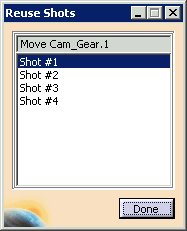
-
Select a shot from the dialog box.
The item being moved jumps from its initial location to the selected shot. -
Click Record
 .
.The shot is now part of the track. You can select another shot from this move activity, or select the Done button. You can then continue editing or adding to the track.
To Edit the Time Between Shots
-
On the Track dialog box, click the More > > button.
The Edit Time area appears. 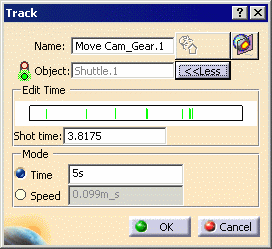
Each vertical green bar represents a shot. If you run the mouse over the bar, you see the time the shot occurs and the delta between that time and the time of the previous shot. 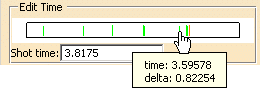
-
Verify that Time is selected in the Mode area.
-
Hold down the left mouse button to move the shot so that it reflects the desired time interval.
You can also select a shot, and then enter a time in the Shot time field. You cannot alter the time of the first or last shots. The Player pop-up toolbar shows the time of the current shot. -
Repeat as necessary for additional shots.
-
Click OK.