 |
The Player pop-up toolbar provides
users with VCR-like buttons or a slider to simulate the movement of parts
along the track of a move activity. |
|
 |
|
This toolbar provides the
following options: |
| |
|
|
Loop Mode |
 |
Single loop (shows
simulation once, from beginning to end).
Note: This is the default value. To see
other loop options, click on this button. The option that is
visible is the one that will be operating. |
 |
Continuous loop, from beginning to end,
then jumps back to beginning. |
 |
Continuous loop, from
beginning to end, then end to beginning. |
|
|
Clicking
Player
Parameters  brings up the Player Parameters dialog box, which enables you
to set a sampling size. The Sampling Step size enables you to
see the simulation at steps of every 1, 2, or 5 seconds or at set
distances. You can
also select a Temporization, which enables you to determine
how quickly you see the simulation. Without selecting the
parameters, you see one second of the simulation in one second of real
time. If you want to view the simulation more quickly, you can set
the temporization size smaller (e.g., to .25 s) and the sample size
larger (e.g., 5 s).
brings up the Player Parameters dialog box, which enables you
to set a sampling size. The Sampling Step size enables you to
see the simulation at steps of every 1, 2, or 5 seconds or at set
distances. You can
also select a Temporization, which enables you to determine
how quickly you see the simulation. Without selecting the
parameters, you see one second of the simulation in one second of real
time. If you want to view the simulation more quickly, you can set
the temporization size smaller (e.g., to .25 s) and the sample size
larger (e.g., 5 s). |
| |
 |
Note that Player Parameters are not saved between sessions.
Edited values remain in effect for the current session, however
new sessions start with the default parameter values. |
|
|
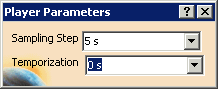
Sampling Step
The sampling step corresponds to the sampling step value in seconds
(the total duration is divided into intervals calculated in seconds).
By default, four sampling time steps are available, but you may edit
these values whenever you need to.
Temporization
Allows you introduce a short pause between sampling steps. |


