|
This procedure describes how to
edit move
activities.
Each move activity can be modified in one of several ways. Users
can edit:
- the shuttle, which defines
the object or objects to be moved,
- the track, which defines
the path along which the object or objects on the shuttle are moved,
- both
|
 |
Editing an activity can only be done after an activity has been
created in a process. |
 |
|
|
-
On the PPR tree, select the move activity you wish to
change by double-clicking (with the left mouse button) on the activity.
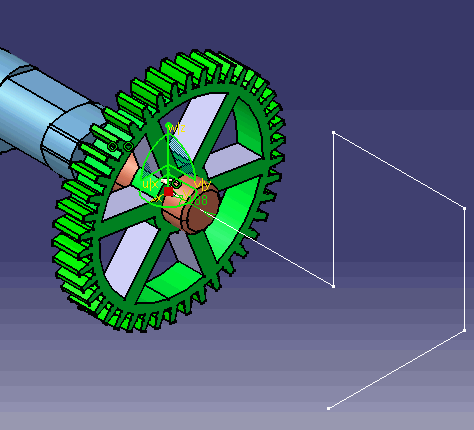
| The track appears visible on the geometry. Note that the
track consists of points (called "shots") and line segments
connecting them. When you edit the track definition, you
either add or delete the shots, modify a shot's position, or
reorder the shots. |
 |
| In addition, the following pop-up
toolbars appear: |
- Manipulation (for tracks):

|
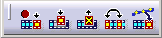
- Recorder
|
- Player

|
Also, the Track dialog box appears: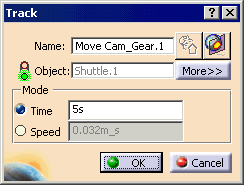 |
| The functions of each are explained in
Creating a Move Activity. |
-
You can edit the track in several ways:
|
|
 |
Once you have performed on of the tasks listed above, you can
select another shot from this Move Activity. You can then
continue editing or adding to the track. |
-
Once you have modified the track, click OK
on the Track dialog box.
|
|
|
| |
-
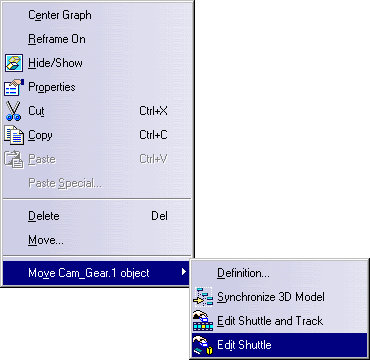
On the PPR tree, right-click the move activity, and
select Edit Shuttle.
 |
 |
See also
Editing
the Shuttle and the Definition of a Track and
Objects within a
Shuttle |
| You see the following: |
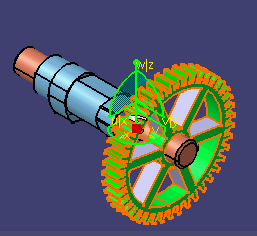
- The 3D geometry assumes the positions of the geometry at the
end of the activity preceding the selected one. For
instance, if the previous activity was also a move activity, the
geometry would appear as that move activity moved it. Also, the
part or parts that are currently part of the shuttle are
highlighted in the 3D geometry.
- A Preview window. The Preview
window has two tabs:
- The Tree tab shows the names of items
selected
- The 3D tab shows a graphic representation
of the parts.
- Manipulation pop-up toolbar (for shuttle
definition)
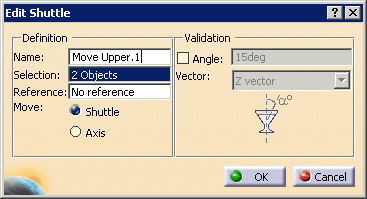
- The Edit Shuttle dialog box
|
-
On the geometry, select or de-select the appropriate
part(s); on the dialog box, select the OK button.
| The geometry moves to the position the current move activity
positions it, and the parts of the shuttle become deselected. |
|
|
|
| |
-
On the PPR tree, right-click the move activity, and
select Edit Shuttle and Track.
| A Preview window (containing an image of
the part selected) and the
Edit Shuttle dialog box also
appears. Also, the part selected is highlighted in the 3D
geometry. |
In addition the Manipulation pop-up
toolbar (for the shuttle) appears: |
| The state of the geometry is that at the end of
activity preceding the one you are editing. |
-
Alter the Edit Shuttle dialog box as
desired, then click OK .
| The Edit Shuttle dialog box and Preview
window disappear and are replaced with the Recorder and
the Player pop-up toolbars, and the Track
dialog box, described above. The
Manipulation pop-up toolbar for the shuttle is replaced
by the Manipulation pop-up toolbar for the track. |
-
Edit the track as described
above, then click OK on the Track dialog box.
|
|
|
See also
Pop-Up Toolbar Command Availability During Track Editing. |
|
|
Objects within the Shuttle |
|
|
Users can select multiple groups of objects for the shuttle.
An object can comprise a group or a manufacturing assembly.
The rules for group selection are as follows:
- a user-defined number of parts, products, groups, or
manufacturing assemblies
- A shuttle can be referenced by a single parent shuttle
- A shuttle may not point to the same object twice.
- A shuttle may not point to a parent and a child in the
same tree.
The above rules are checked when creating or editing a shuttle
changes to what a shuttle is connected. During multi-selection, each
selected object is validated against the existing shuttle and the other
selected objects. |