
This task and its associated web pages describe how to verify a process by viewing all or selected steps of a process, one at a time. Process Verification provides the following options:
- Viewing the end result of each activity in the process as a static or animated image
- Viewing all or selected products
- Viewing all or selected resources
- Viewing all or selected parts
- Viewing or not viewing welds
- Cross highlighting objects with their associated processes
- Viewing or not viewing a variety of simulation activities, such as text message, simulation pause, and viewpoint activities
- Enabling or disabling state management
This procedure provides an example of process verification. You can see engineering requirements within process verification.
The following information is available on this web page:

To perform this procedure, you must have a process on the PPR tree.

Using Process Verification
-
Select the process node on the PPR tree (in blue in the example below) or select an activity in the process.
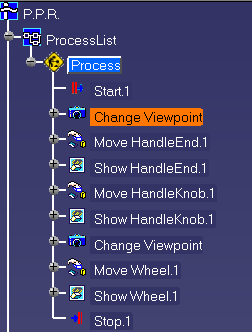
-
Click Process Verification
 in the State Management Tools toolbar.
The Process Verification dialog box appears: 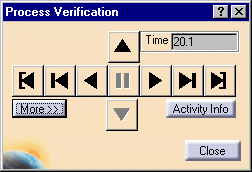
The pointer buttons move you through the activities in your process so that you can view the effects of the activities.
- For an explanation of the unlabeled pointer buttons, click here.
- For an explanation of the dialog box you see when you click the Activity Info button, click here.
- For the options you see when you click the More button, click here.
Once you have selected all the options you want on the dialog box and a pointer button, the 3D geometry shows the effects of the activity. If you have selected animation, you see movement; otherwise, you see a static representation of the effects (e.g., you will see a part's end position after a move).
-
Select as many buttons on the dialog box as you wish to view different aspects of your process.
When you insert a new activity, its location in the process depends on the activity currently selected in Process Verification
. - If the current activity is a physical, higher-level activity (e.g., loading), the new activity becomes a child of the current activity.
- If the current activity is a simulation activity (such as another move activity), the new activity is a successor to the current activity.
-
Click the Close button once you have verified the process.

Additional Information
- The outcome of any activity within a process depends on the associated operator set for that activity when the process library was created. For more information about associated operators, click here.
- You can also view the activities you want by selecting them on the PPR tree or PERT chart after opening the Process Verification dialog box.
- The positions of the parts come from their original positions inside the CATProduct files. Process Verification
does not re-position parts inside the process.
- A number of commands can be used while you run Process Verification
. These shared commands include
simulation commands such as Analysis Configuration
 and view commands such as
Zoom In
and view commands such as
Zoom In
 .
When you click on other commands (e.g., Zoom In), the simulation pauses. Once the command has finished, you
can start a paused simulation from the pause point by clicking Run
.
When you click on other commands (e.g., Zoom In), the simulation pauses. Once the command has finished, you
can start a paused simulation from the pause point by clicking Run
 .
.
When you use Zoom In
, you are using a shared command. Using the mouse to zoom in
is not the same as using Zoom In
in this context.
- Process Verification
works best when the activities in the
process are linked to products with relations, e.g., Process
processes product. When such links are not established, the
following error message appears.
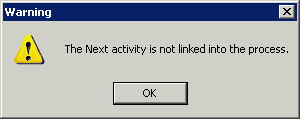
Behavior for Parallel Activities
If parts are assigned to processes that are parallel to the process used in Process Verification (PV), then these parts are also considered within the graphics (see the example below).
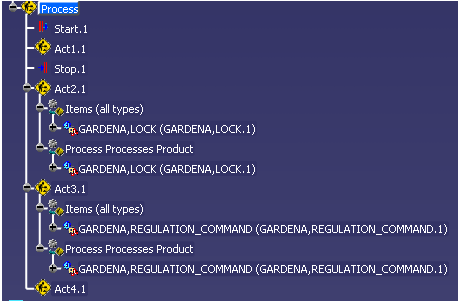
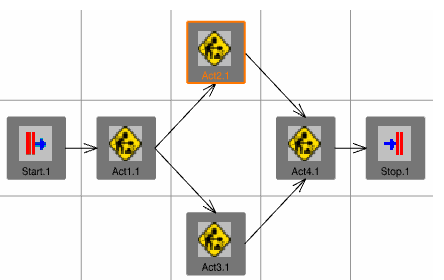
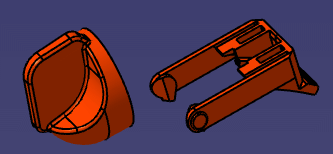
In the example, LOCK is assigned to Act2, and REGULATION COMMAND is assigned to Act3. Act2 and Act3 are parallel processes and have the same cycle time.
If process verification is performed for Act2, then LOCK and REGULATION COMMAND are both shown when Act2 is the current process:
Opening Process Verification with a Parent or a Process
The extent to which you see activities within process verification depends on the level within the process hierarchy that you select when you open process verification.
- When users select an entire process, the scope of the activity is the whole process (e.g., a Text Message Activity remains visible from its insertion point to the end of the process, unless another Text Message Activity is inserted to delete the original).
- When users select a parent activity, the scope of the activity is limited to the parent activity (e.g., a Text Message Activity remains visible from its insertion point to the end of its parent activity; a second Text Message Activity is not required to delete the original).
