
- A simple process
- A process containing Engineering Requirements (ERs)
- Examples contrasting keeping the assembly state after closing Process Verification
Example - Simple Process
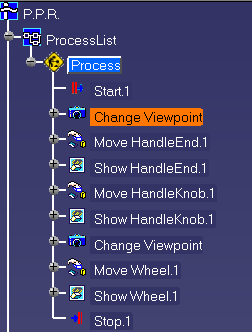
The images below are shown with the Animation and Hide Unassigned Parts check boxes cleared.
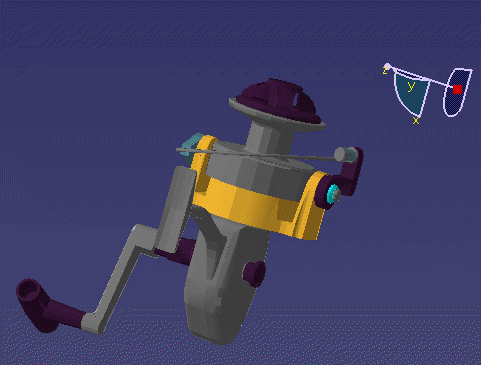
The image below shows the first activity, an alteration of the viewpoint.
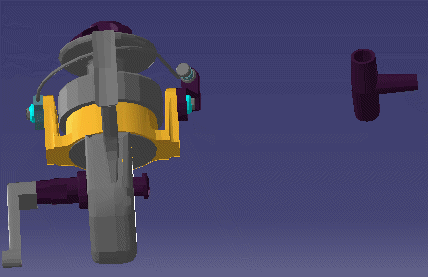
By selecting the next button, the effects of the next activity (a move activity) appear.
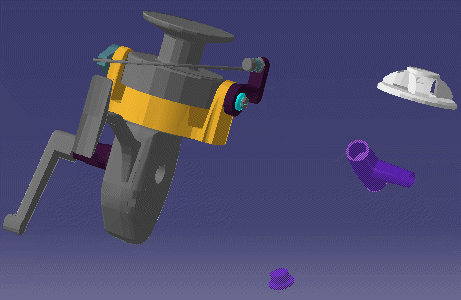
The last step in the process displays the cumulative effects of part movements, visibility changes, and viewpoint changes.
Example - with Assigned ERs
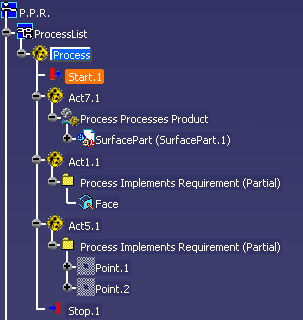
The PPR used in this example is shown below:
The images below are shown with the Show Activity's Products option selected in the Process Verification dialog box.
When you first start Process Verification, no graphic is displayed. Start.1 is the current activity.
By selecting the Next
 button,
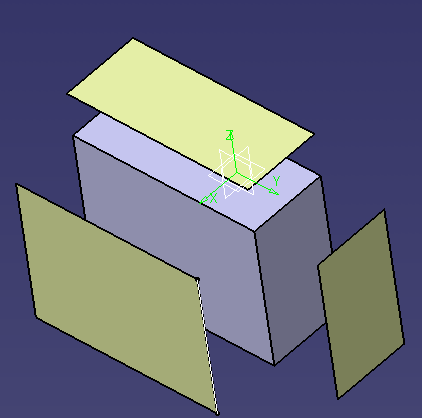
process verification displays the initial activity (Act7.1). The product assigned to this activity with relation
Process
Processes Product (SurfacePart.1) is shown without its ERs:
button,
process verification displays the initial activity (Act7.1). The product assigned to this activity with relation
Process
Processes Product (SurfacePart.1) is shown without its ERs:
By selecting the Next
button,
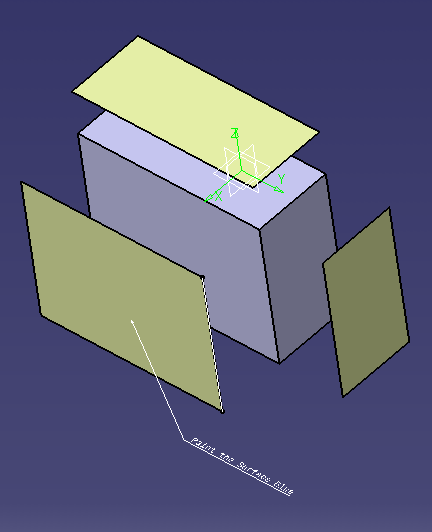
process verification displays the next activity (Act1.1). The SurfacePart.1 is still shown. Also, the ER assigned with
the relation Process Implements Requirement (Face) is now visible:
By selecting the Next
button,
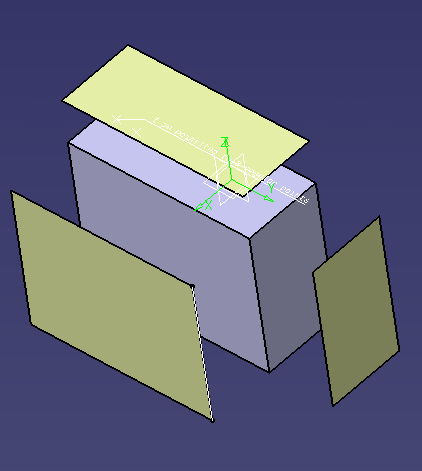
process verification displays the next activity (Act5.1). The SurfacePart.1 is still shown. Also ERs assigned with relation
Process Implements Requirement (Point1, Point2) are visible.
The ER Face,
which was assigned to the previous activity, but not to the current
activity, is no longer displayed:
Examples Contrasting Keeping the Assembly State after Closing Process Verification
The two examples below contrast the typical behavior when not enabling or enabling the option Keep Assembly State after closing PV. When you select this option (or deselect it) that choice is saved and persists as the default when the Process Verification dialog box is opened in your current session or subsequent sessions.
Example – Not Keeping the Assembly State
If the Keep Assembly State after Closing PV check box is not selected, then the visibility states of all parts are restored to the states they had before you started Process Verification.
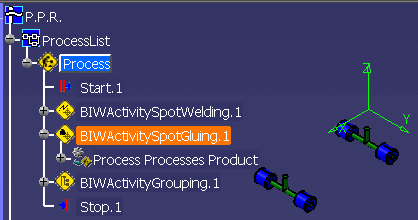
The image below shows the state before closing the Process Verification dialog box.
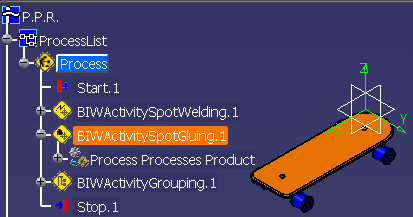
As the image below (which shows the 3D Viewer after the Process Verification dialog box has closed) demonstrates, all parts are shown again.
Example – Keeping the Assembly State
If the Keep Assembly State after Closing PV check box is selected, then the visibility states of all parts persist once the Process Verification dialog box has closed.
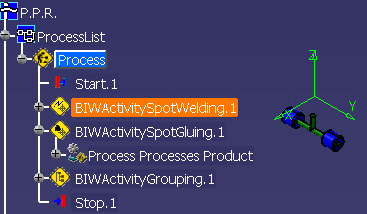
The image below shows the part visibility states before closing the the Process Verification dialog box.
The image below shows the result after you are closing the dialog Process Verification. The current shown state remains. It shows only the parts that are displayed while Process Verification is in session.
When closing some parts/resources, there are may hidden parts (depending on the Process Verification options and the scenario). There is no command to restore all parts and resources to the state they were in before starting Process Verification. Use the Hide/Show command or any transformation tool such as the compass to restore each node individually.