
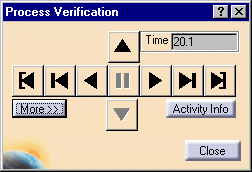
This box shows the amount of time elapsed in the process from the process's start to the current activity.
|
|
Start Process |
Go to the beginning of the entire process. |
|
|
Start Level |
Go to the start of the current level of the process or sub-process. |
|
|
Previous |
Go to the previous activity. This button enables the user to jump levels (from a parent to the next child). |
|
|
Up |
Goes up to the parent activity. (This button does not work if there is not a parent activity.) |
|
|
Pause/Continue |
This button only works when animation is on. It toggles between stopping and continuing. |
|
|
Down |
Goes to the last child activity below the current activity. (This button will not work if there is not a child activity; to go the first child activity by default, see Tools > Options > DPM > Verification.) |
|
|
Next |
Go to next activity. This button enables the user to jump levels (from a parent to the next child). |
|
|
End Level |
Go to the end of the current activity level or sub-activity level |
|
|
End Process |
Go to the highest level or last stop activity. |


Clicking the Activity Info button enables you to see additional information about the current activity. Click here for an explanation.
Clicking the More >> button enables you to refine the options for viewing. Click here for an explanation of the additional options.
When you have the Animation check
box selected (this option is visible after you click the More
button) and you click End Level
 , the
highlighting behavior of the PPR tree during process verification
changes
, the
highlighting behavior of the PPR tree during process verification
changes
) and the final activity of the process or sub-process become highlighted.
As process verification advances to the next activity, that
activity and the last one become highlighted. The final activity
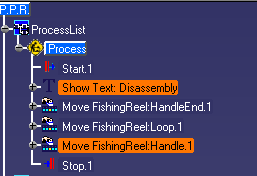
remains highlighted to provide you with feedback on where process verification stops. In the example below, the user selected
End Level
when
Show Text: Disassembly was the selected activity.
As a consequence, Move Fishing Reel:Handle.1 remains highlighted during
process verification, unless a different level of the process is selected.
Closing Process Verification
When you click Close, the graphics are restored to the status they had before you launched process verification.