
You will also learn how to:
You can also copy an existing geometric tolerance. You can set text properties either before or after you create the text.


-
Click Geometrical Tolerance
 in the Dimensioning toolbar (Tolerancing
sub-toolbar).
in the Dimensioning toolbar (Tolerancing
sub-toolbar). -
Select an element (geometry, dimension, dimension value, text or point) or click in the free space to position the anchor point of the geometrical tolerance.
-
If you select an element, the anchor point will be an arrow. Note that you can modify this symbol by editing the annotation leader.
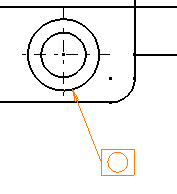
-
If you select a point in the free space, the anchor point will be a small balloon.
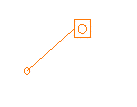
-
If you select a dimension, the anchor point will be at the intersection of the dimension line and the extension line.
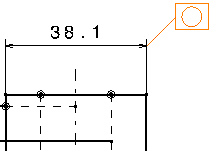
-
If you press the Shift key and select the extension line, the leader is perpendicular to the extension line and the anchor point corresponds to the position of the cursor when you click to create the geometrical tolerance.
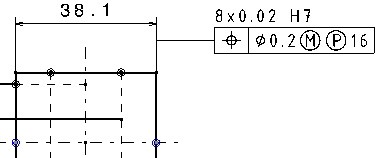
-
If you select a dimension value or a text, no leader will be created. The geometric tolerance will be displayed just below and parallel to the element you selected.
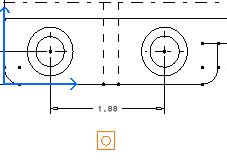
-
-
Move the cursor to position the geometrical tolerance and then click at the chosen location. The Geometrical Tolerance dialog box appears.

- You can move the pointer so that the positioning point is snapped on the privileged direction. For information on privileged direction, see Arrow Orientation.
- At this step, you can apply the parameter values of an existing geometric tolerance to the tolerance you are creating: to do this, simply select the existing geometric tolerance.
- If you have selected the Use style values to create new
objects check box in Tools > Options > Mechanical Design
> Drafting > Administration tab, the Geometrical
Tolerance dialog box is pre-filled with custom style values
(as defined in the Standards Editor). In this case, Properties
toolbars and the Tools Palette are disabled during the
creation of the geometrical tolerance.
On the other hand, if you have not selected this option, the Geometrical Tolerance dialog box is pre-filled with the last entered values (if any). In this case, Properties toolbars and the Tools Palette are active during the creation of the geometrical tolerance. - You can reset the current style values in the Geometrical Tolerance dialog box at any time using the Reset button.
-
In the Geometrical Tolerance dialog box, you can perform the following operations:
-
In the Add Tolerance section, click the required tolerance indicator to add it to the current feature.
You can add as many tolerances as required.
The tolerance indicator is added below the previous one in a separate line. Each line is represented by tabs in the Edit Tolerance section. -
In the Edit Tolerance section, you can replace the selected tolerance indicator with another one from the list.
In the list, you can also select Remove Line to remove the selected line. This option is unavailable if the selected tolerance line is the only one in the list. -
In the Edit Tolerance box, add the tolerance value.
In the Edit Tolerance section, you can also select engineering symbols. -
Optional: In the Reference boxes, add references.
You can add the first reference, by default. To add the second and the third reference, the previous reference must be added. You can also select engineering symbols. The references can be cleared.In Datum systems and datums box and the Datum features box, select the existing datum systems and datum features. -
Optional: In the Auxiliary Feature Indicators list, select a local indicator.
The engineering symbols list and datum feature identifier box are available for modification.
The following Auxiliary Feature Indicators are available:- Intersection Plane: Identifies a line on an extracted surface or a point on an extracted line. It is placed to the right of the tolerance indicator as its extension.
- Orientation Plane: Identifies the orientation of the tolerance zone. It is placed to the right of the tolerance indicator as its extension.
- Collection Plane: Identifies a closed compound contiguous feature. It is placed to the right of the tolerance indicator after the tolerance frame. It can be parallel to the projection plane in which specification is indicated.
- Direction Feature: Identifies the direction of the width of the tolerance zone. The direction feature is a cone, a cylinder, or a plane constructed from the datum or datum system indicated in the second compartment of the direction feature indicator. The geometry of the direction feature depends on the geometry of the tolerance feature. It is placed to the right of the tolerance indicator as its extension.
-
Optional: In the Auxiliary Feature Text Indicator box, add an indication text.
You can also select engineering symbols. -
Optional: In the Global Text Indicators boxes, add an upper and a lower text.
You can also select engineering symbols.
- The availability of engineering symbols and auxiliary feature indicators in the Geometrical Tolerance dialog box is defined and stored in the standard XML file. However, it is possible to programmatically insert any available engineering symbol in any field of a geometrical tolerance.
- The user must be an administrator to define or modify the standards in the xml file.
- Switching the standard of an existing drawing does not change the content of existing geometrical tolerances. However, if the definition of an engineering symbol contained in a geometrical tolerance has been removed, it is displayed using the substitution symbol defined in the standard.
- When you edit an existing geometrical tolerance
with the auxiliary feature indicators, the list of indicators is
initialized with the current auxiliary feature indicator.
If the current auxiliary feature indicator is not allowed in the standard, the indicator is available in the list and is removed from the list as soon as the allowed indicator is selected. - The engineering symbol selected in
the Geometrical Tolerance dialog box is saved as a
user preference for each field.
-
-
Click OK. The geometrical tolerance is created.
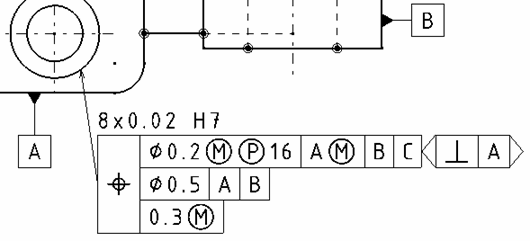
-
You can add an all-around symbol to the leader. To do this, select the geometrical tolerance, right-click the yellow manipulator on the arrow and select Application zone > Global All Around.
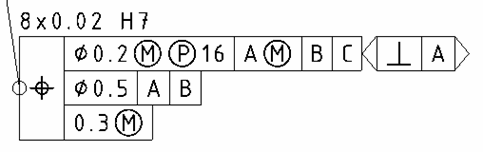
Specifying Leader Orientation
You can orient the geometrical tolerance leader perpendicularly to the element to which it is associated (for example, if the leader is associated to a dimension, you can position the leader parallel to the dimension line and orthogonal to the extension line).
For this, you have two different possibilities:
- Either go to Tools > Options > Mechanical Design > Drafting > Annotation and Dress-up tab and check Snap by default (SHIFT toggles). Then, click the Configure snapping button and select either On orientation or Both. To orient directly the geometrical tolerance leader perpendicularly to the associated element, press the Shift key before clicking in the drawing to position the tolerance (see previous scenario, step 3).
- Or go to Tools > Options > Mechanical Design > Drafting > Annotation and Dress-up tab and check Geometrical tolerance in Annotation Creation. The leader will be oriented perpendicularly to the geometry by default. In this case, pressing the Shift key will let you orient it differently.
Specifying Geometrical Tolerance Orientation
To make the tolerance vertical, hold the Alt key before clicking in the drawing to position the tolerance (previous scenario, step 3).
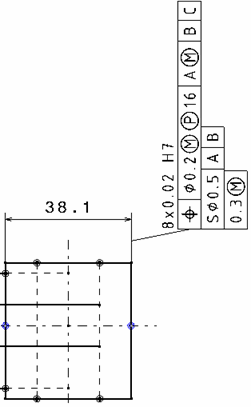 |
