


-
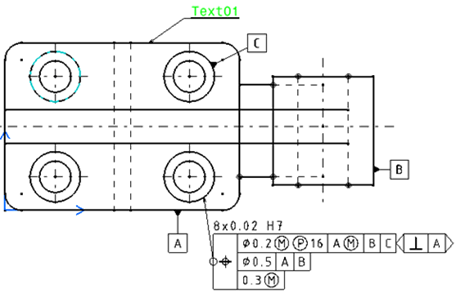
Click on the geometrical tolerance you want to copy.
-
Right-click and select Copy.
-
Select the element to which you want the geometrical tolerance to be associated.
-
Right-click and select Paste.
-
Move the copied geometrical tolerance to position it as required.
-
Double-click the copied geometrical tolerance.
The Geometrical Tolerance dialog box is displayed, with the existing pre-entered values.
-
Modify the values as required, as explained in Creating a Geometrical Tolerance.
-
After you are done entering values in a given field, press the Tab key to move to the next field.
The geometrical tolerance is updated as you define values for each field.
-
Click OK to confirm your operation and close the dialog box.
-
Click anywhere in the drawing to validate.
