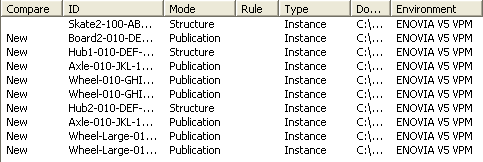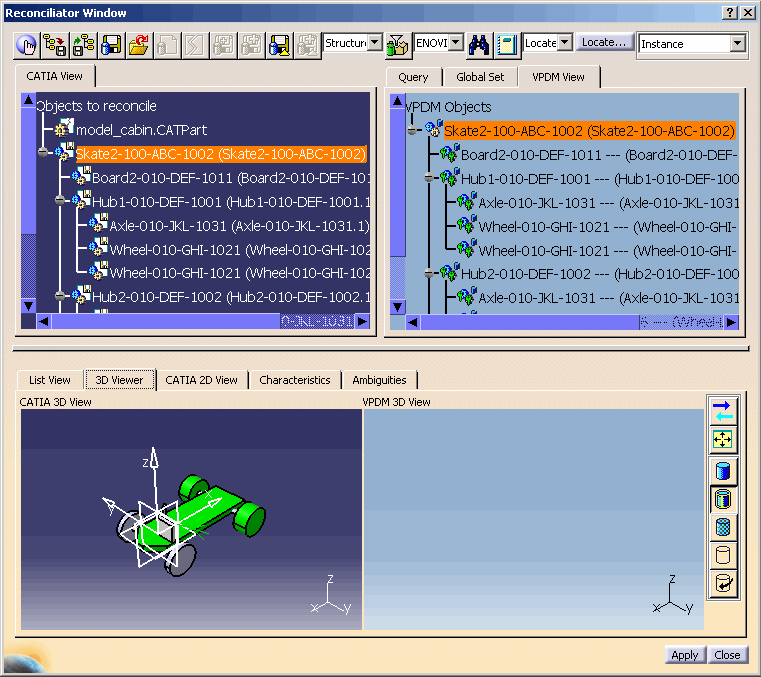
The following user interface elements are described below:
|
|

| The reconciliation toolbar enables you to perform actions on objects to be reconciled. |
 |
Magic Reconciliation: Enables you to launch a Global set with its default options automatically, without any confirmation. |
 |
Save session: Enables you to save
the content of the Reconciliation session. Note: The information is captured in an XML, similar and compliant with the generated batch utility files. |
| Restore session: Enables you to
restore the content of the previous Reconciliation session such as
selection of VPDM system, storage mode, mapping with a VPDM object and
Reconciliation rule. Information such as selection of view, assembly structure filter or display state will not be preserved. |
|
 |
Overwrite in VPDM: The object loaded in the CATIA session overwrites the one stored in the VPDM repository. |
 |
Reload from VPDM: The VPDM object version is kept. This functionality is applicable for both Structure Exposed and Publication Exposed. |
 |
New Object in VPDM: The object is
considered as a new one. Note: This reconciliation rule is available only if the object is saved in Publications Exposed mode. |
 |
Keep as External: The broken link
will be accepted as "broken" during the reconciliation process. After
saving the documents in the database, the external reference will:
|
 |
New revision : The document loaded in the CATIA session overwrites the one stored in the ENOVIA V5 VPM repository and the document will be saved to ENOVIA V5 VPM as a new revision. |
 |
New version : The object loaded in the CATIA session overwrites the one stored in the ENOVIA V5 VPM repository, the part will be saved to ENOVIA V5 VPM as a new version and the corresponding geometry document will be saved as a new revision. |
 |
Overwrite by delta: This rule is applied when the Part is set to Structure Exposed from Storage mode and is mapped on either an ENOVIA V5 Part Version or an ENOVIA V5 Product Root Class (PRC). |
 |
New version by delta: This rule is applied when the Part is set to Structure Exposed from Storage mode and is mapped on ENOVIA V5 Part Version. |
 |
Filter on PRC: Allows you to apply a filter to the VPDM view. |
 |
Locate: Enables you to query the VPDM in order to establish mappings with the CATIA View. |
 |
Report : Generates a report of the current reconciliation choices you have defined. The report is saved in an xml file and displayed in your default web browser. The report can be printed directly from the web browser. |
 |
Storage Mode: See Selecting the Storage Mode. | ||||||||
 |
Save Application Container (ENOVIA ENOVIAVPM only): When CATProduct documents are saved in Structure Exposed mode, you can decide to save the applicative data using an application container. | ||||||||
 |
Destination PDM: Enables you to select the destination PDM. By default, the destination PDM is the one selected in the Tools>Options>Infrastructure>Product Infrastructure-Reconciliation window. | ||||||||
 |
View Type: This scrolling list
enables you to select a view type.
|
Note:
|
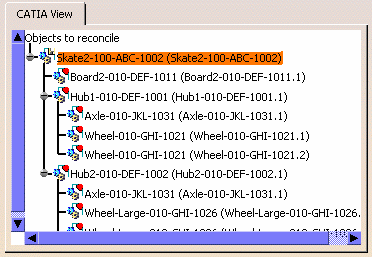
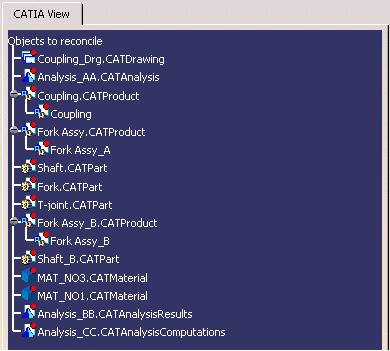
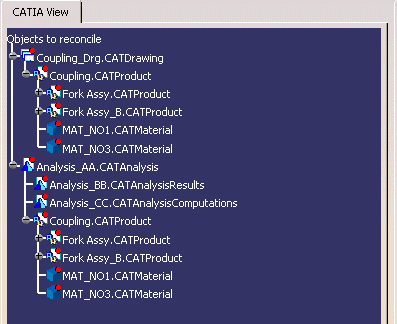
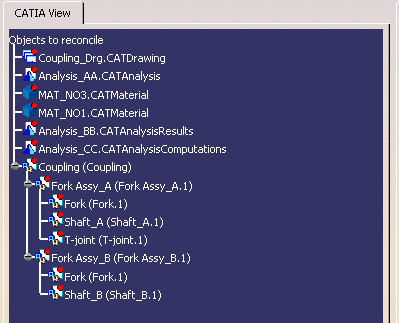
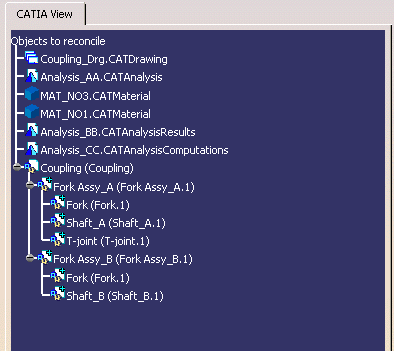
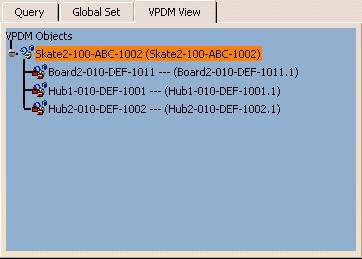
This tree displays the different components
of which the selected product is composed The accompanying icon indicates
a status.
|
||||||||||||||||||||||||||||||
|
The table given below displays
the lock information
|
| Ref Instance |
Not Locked |
Locked by You |
Locked by Another User |
| Not Locked |
|
|
|
| Locked by You |
|
|
|
| Locked by Another User |
|
|
|
 |
ENOVIA V5 VPM
ENOVIAVPM
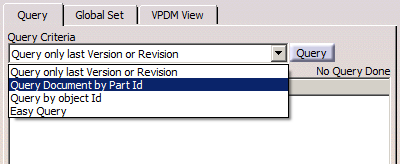
Note that the available query criteria depend on the selected storage mode. |
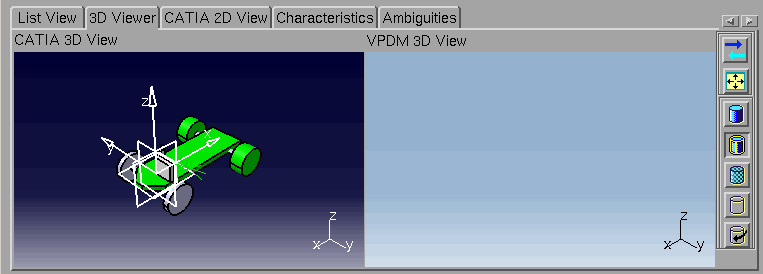
For VPM V4 Server:
For VPM V5 Server:
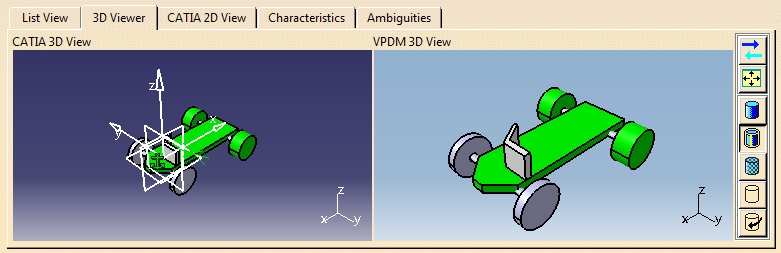
| 3D Viewer: For all PDM,
this tab enables you to visually
compare the object loaded in the CATIA session and the one stored in the
VPDM.
In the VPDM 3D View area, 3D visualization is available for CATParts,
CATShapes, CATIA V4 models and native cgr.
For all PDM, 3D visualization is available in the
VPDM 3D View area, if you activate the
cache by selecting the
Work with the cache
system check box. For more information about Cache
Activation, see
Cache
Management. For ENOVIA V5 reconciliation, the 3D visualization is available in VPDM 3D View area even without activating the cache; as soon as .cgr files are available in ENOVIA V5 server. These .cgr files are generated from the ENOVIA V5 server by enabling the file introspection process on the corresponding V5 server. If CATIA cache and file introspection are not activated on the server, 3D visualization is generated on the fly and is available in VPDM 3D View area. In the CATIA 3D View area, 3D visualization is available for CATProducts, CATParts, CATAnalysis documents and CATIA V4 models. The 3D Viewer Toolbar enables you to define and manage the different viewpoints and visualization modes. | |
 |
Indicates the two viewpoints are synchronized |
 |
Indicates the two viewpoints are independent |
|
|
Indicates the entire set of documents fit within the viewing space |
|
|
Indicates Shading |
 |
Indicates Shading with Edges |
 |
Indicates Shading with material |
 |
Indicates Hidden Line Removal |
|
|
Indicates Dynamic Hidden Line Removal |
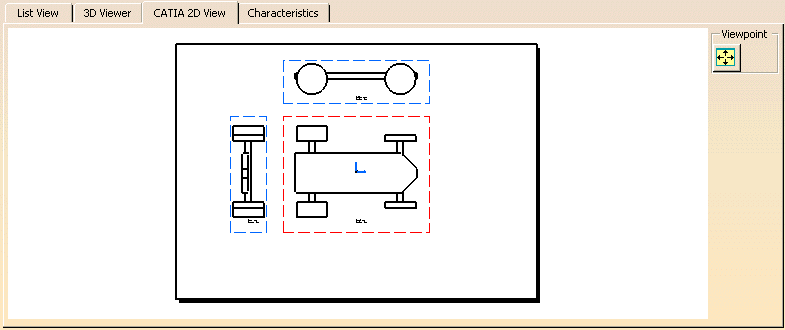
| This tab enables you to preview CATDrawing documents loaded in the CATIA session. | |
 |
For the selected view, fits the entire set of documents within the viewing space. |
|
||||||||||||||||
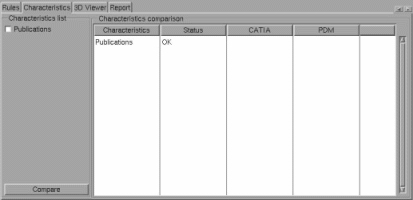
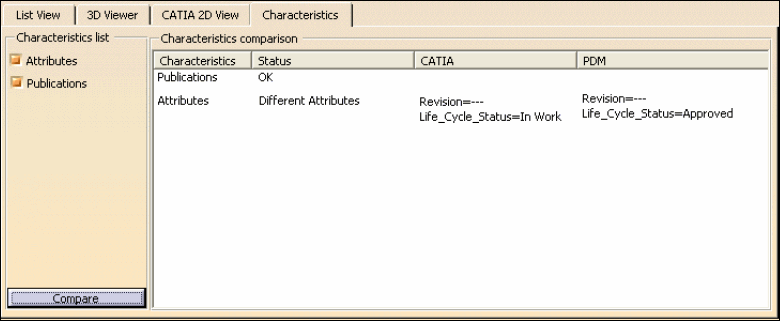
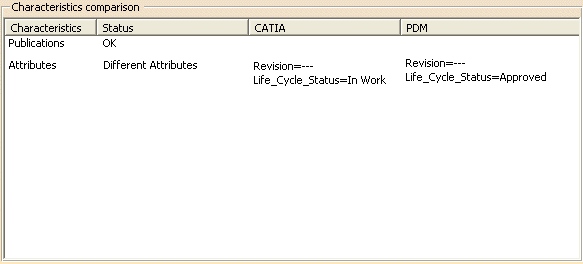
| This tab enables you to access the comparisons result after comparing the document loaded in the CATIA session and the document stored in ENOVIA. |
 |
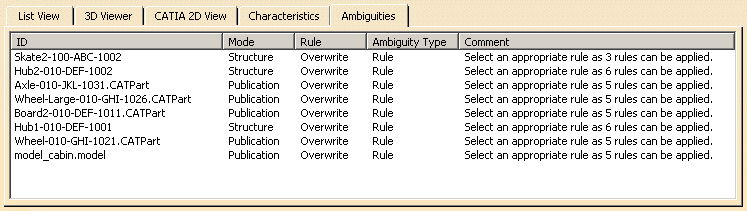
This tab enables you to identify the types of ambiguities occurred while
reconciling an object. The ambiguity types are as follows:
Note: The list of ambiguities disappear from the Ambiguities tab once you manually resolve the issue or if you deliberately set a rule or explicitly confirm the default options.
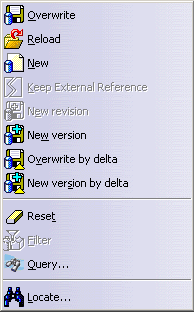
| This contextual menu is available when you right-click an object in the CATIA View. | |
|
|
Overwrite: The object loaded in the CATIA session overwrites the one stored in the VPDM repository. Note that when you work with ENOVIA V5 VPM, the root node must be designated Overwrite. |
|
|
Reload: The VPDM object version is kept. This functionality is applicable for both Structure Exposed and Publication Exposed. |
|
|
New: The object is considered as a new one. |
|
|
Keep External Reference: The broken
link will be accepted as "broken" during the reconciliation process. After
saving the documents in the database, the external reference will:
|
|
|
New revision : The document loaded in the CATIA session overwrites the one stored in the ENOVIA V5 VPM repository and the document will be saved to ENOVIA V5 VPM as a new revision. |
|
|
New version : The object loaded in the CATIA session overwrites the one stored in the ENOVIA V5 VPM repository, the part will be saved to ENOVIA V5 VPM as a new version and the corresponding geometry document will be saved as a new revision. |
|
|
Overwrite by delta: This rule is applied when the Part is set to Structure Exposed from Storage mode and is mapped on either an ENOVIA V5 Part Version or an ENOVIA V5 Product Root Class (PRC). |
|
|
New version by delta: This rule is applied when the Part is set to Structure Exposed from Storage mode and is mapped on ENOVIA V5 Part Version. |
 |
Reset: Enables you to reset the reconciliation rule and the mapping for the current object. |
|
|
Locate: Enables you to query the VPDM in order to establish mappings with the CATIA View. |
 |
|
|
|