
Publications Exposed: The document is kept and saved in the VPDM
vault. In this context, both Product and Part document files are saved in
the vault. The product structure is not viewed inside the VPDM repository.
Other documents such as Part and Drawing document files are also saved in
the vault.
Structure Exposed: The document is not kept in the VPDM
vault. In this case, the product structure is saved in the VPDM repository
and the Product document files will not be saved in the vault.

Note that:
- the storage mode is only available for CATProducts, when working with
ENOVIA V5 VPM, the assembly root should always be a product
- if a CATProduct document is to be reconciled using the Structure Exposed mode, all upper CATProduct documents will be stored using the Structure Exposed mode
- if a CATProduct document is to be reconciled using the Publications Exposed mode, all CATProduct documents referenced by it will be stored using the Publications Exposed mode
- a default value is proposed for the storage mode
- the storage mode can be set automatically (see Automating the Valuation of Reconciliation Parameters)
When selecting the storage mode, only the combinations shown below are supported.
|
The table given below describes how the propagation rule will impact the
reconciliation, when Reload from VPDM rule is selected on
Product Component in Structure Exposed mode:
| Objects | Type | Document | Storage | Authorized Rules | Comments |
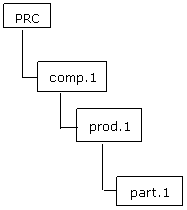 |
PRC | PRC.CATProduct |
Structure |
Reload |
Only Reload |
| Part Version |
Reload |
Scenario Hypothesis | |||
|
Part Version |
prod.CATProduct |
Structure |
Overwrite and Reload |
New is not authorized, because new instance are not authorized below a Reload Part. | |
|
Document |
Part.CATPart |
Publication |
New, Overwrite and Reload |
Note:
Reload from VPDM rule is applicable for all other Products inside the same CATProduct. If you select any other rules, an error message appears either at selection or at Reconciliation Apply.
-
If Reload from VPDM rule is applied on a product structure where some instances exist in CATIA but have no counterpart in ENOVIA, reconciliation will fail.
| Icon | Status | Meaning | Impact of Reload from VPDM |
|
identical |
CATIA instance successfully mapped on an ENOVIA instance with the same 3D position. | CATIA Instance will be refreshed. | |
 |
To be deleted | One ENOVIA instance has no counterpart among CATIA instances. | Nothing to do either in CATIA side or on ENOVIA instance. |
 |
To be moved | CATIA instance successfully mapped on an ENOVIA instance with different 3D position. | CATIA Instance will be refreshed. |
 |
To be created | One CATIA instance has no counterpart among ENOVIA instances. | Reconciliation will fail. |

- activated the cache system (Tools > Options > Infrastructure > Product Structure > Cache Management > check option Work with the cache system)
- have invoked the reconciliation option (View > Toolbars > Reconcile)
- have activated the ENOVIA V5 toolbar (View > Toolbars > ENOVIAV5)
- have connected to the ENOVIA V5 VPM database (click the Connect User to ENOVIA V5 icon)
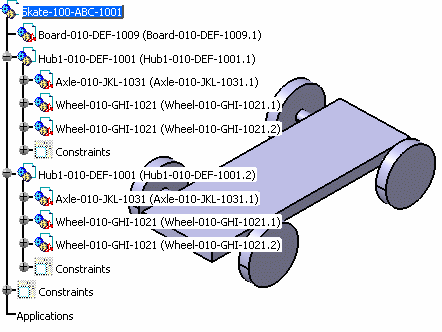 |
The Skate-100-ABC-1001.CATProduct document and its sub-products must have been saved in the VPDM in mode Structure Exposed before you begin the reconciliation process. In the scenario described below, it corresponds to the skate board that the manufacturer sends to his supplier for modification. It is made up of:
- Axle-010-JKL-1031.CATPart
- Board-010-DEF-1009.CATPart
- Wheel-010-GHI-1021.CATPart
- Hub1-010-DEF-1001.CATProduct
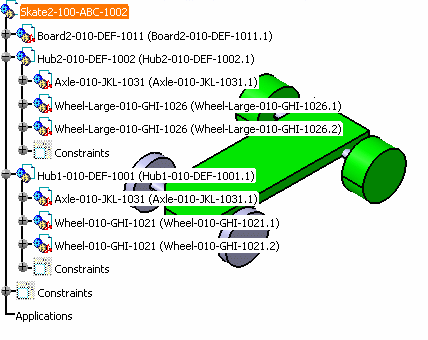 |
The documents listed below are those that will be reconciled using the Supply Chain Engineering Exchange application.
- Axle-010-JKL-1031.CATPart
- Board2-010-DEF-1011.CATPart
- Wheel-010-GHI-1021.CATPart
- Wheel-Large-010-GHI-1026.CATPart
- Hub1-010-DEF-1001.CATProduct
- Hub2-010-DEF-1002.CATProduct
- Skate2-100-ABC-1002.CATProduct

-
Open the Skate2-100-ABC-1002.CATProduct file, switch from Visualization mode to Design mode (if necessary).
-
Click the Launch Reconciliation icon
 .
.
The Reconcile window is displayed. -
Click the root object (Skate2-100-ABC-1002) in the Objects to reconcile tree.
-
Select the Structure Exposed mode in the storage mode combo.
In the List View, Structure Exposed is displayed in the Mode column.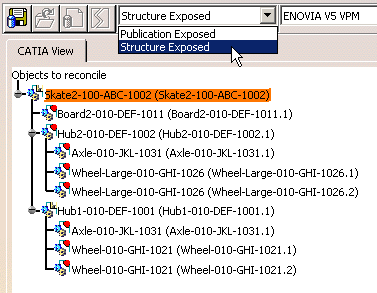
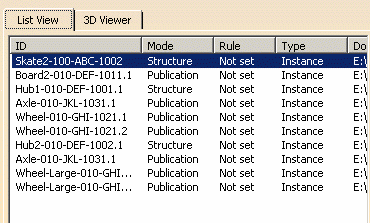
If the root is designated as Publication Exposed, all sub-products will also be set as Publication Exposed.
