|
This task explains how to search
for objects in ENOVIA V5 VPM. There are two different query modes:
Simple Query
Intermediate Query
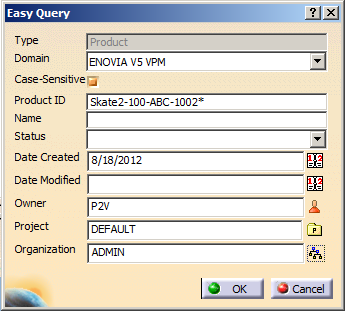
Easy Query |
|
Simple Query
|
|
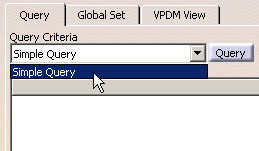
The string you specify in the Simple Query will be used
to search on all attributes wherever possible. The query mechanism
automatically adds a wildcard character before and after the string you
specify. This query is equivalent to the ENOVIAVPM
Simple Query using the With operator.
|
 |
-
Connect to ENOVIAVPM.
-
In CATIA, open a product to reconcile.
-
Launch the
Reconciliation window.
-
Select a node in the Objects to reconcile
tree.
-
Select Simple Query in the
Query Criteria list. Click the Query button. The Simple VPM Query
dialog box is displayed. The fields are pre-set:
- Environment: Default environment. To find out more, see the
VPM User's Guide.
- Object type: Part/Document (this field cannot be modified).
- Search string: Default value will be either a CATIA document or
a Part name. The default value will be built using a few characters
of the CATIA document name or the Part name.
|
-
Click OK to launch the query.
The query result appears on the Query page.
|
 |
The objects returned by your search could be limited by
the set of objects that you are allowed to access as a function of your
user VPM Profile. |
|
Intermediate Query
|
|
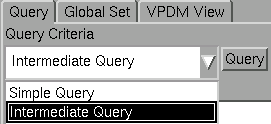
Intermediate Query uses attribute mapping to enable a query
based on multiple attributes. This query is available for parts and
documents and is dependent on the mapping established in the ENOVIAVPM
/ Product Structure Mapping mechanism accessed by selecting
Tools > Options > Infrastructure > Product Structure >
ENOVIAVPM (tab) > CDM
Interoperability Administration (section).
For more information on mapping ENOVIAVPM
attributes, please refer to the VPM User Guide > Interoperability >
Using CDMA Data in a CATIA Version 5 Assembly > Mapping CDMA and
Assembly Attributes.
For set up information to activate the Intermediate Query,
please see Configuring Supply Chain Engineering Exchange for
use with ENOVIAVPM.
|
|
|
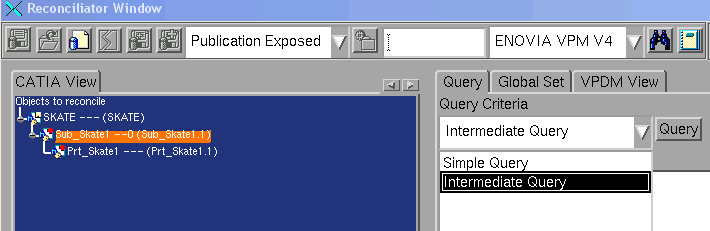
In this example, the query is being executed on a BlackBox assembly (CATProduct) |
|
|
-
Connect to ENOVIAVPM.
-
In CATIA, open a product to reconcile.
-
Launch the
Reconciliation window.
-
Select a node in the Objects to reconcile
tree.
-
Select Intermediate Query in the
Query Criteria list. Click the Query button.
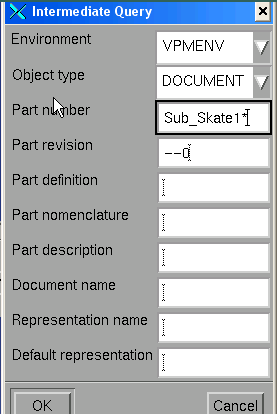
The Intermediate Query dialog box appears.
-
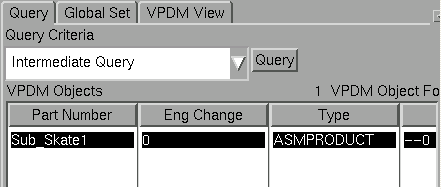
Click OK to launch the query. The query result appears on the Query page.
|
|
|
Support of alternate
representation
functionality enables you to identify the document that is used as an
alternate shape while executing a criterion search. This task searches for all the
parts selected and the documents associated with those selected parts in the PART_LIST.
The list of associated documents is displayed in ALTERNATE_SHAPE
table. This functionality is applicable for both Simple, Intermediate Query
and Easy Query.
Note: If the same document is used as an alternate
representation for two different Parts, reconciliation will fail. |
|
|
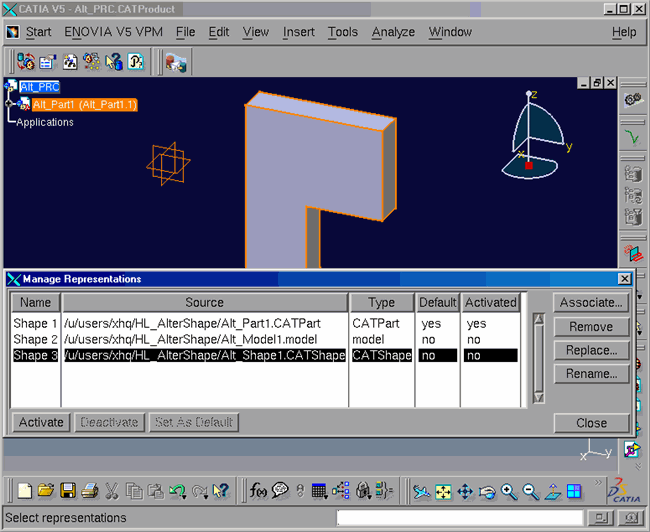
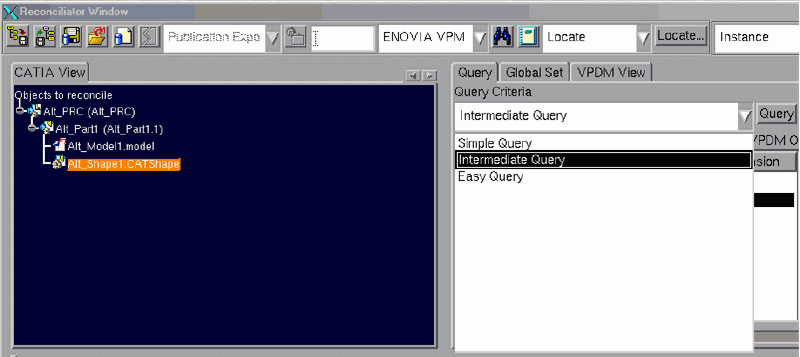
In this
example, the query is executed on CATShape
-
Connect to ENOVIAVPM.
-
In CATIA, open a product
in which CATShape has been alternately associated to the Part.
-
Launch the
Reconciliation window.
-
Select a node in the Objects to reconcile
tree.
-
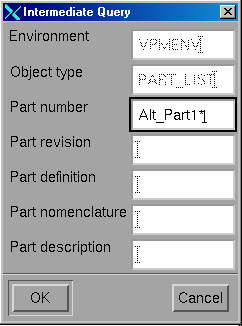
Select Intermediate Query in the
Query Criteria list. Click the Query button.
The Intermediate Query dialog box appears.
-
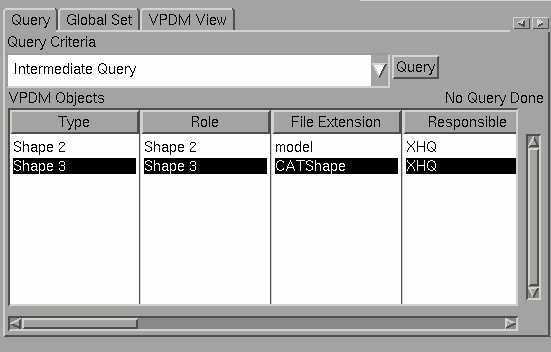
Click OK to launch the query.
The query result appears on the Query page.
|
|
|
Easy Query
|
|
|
Easy Query enables you to search the objects using default values
of Intermediate Query criterion and the attribute values which are
available in ENOVIA VPM. This query is available in VPM application by
selecting Tools > Options > Infrastructure > Product Structure > ENOVIAvpm(tab) > Customize Session Building(section)
> Load all ENOVIAvpm properties. |
|
|
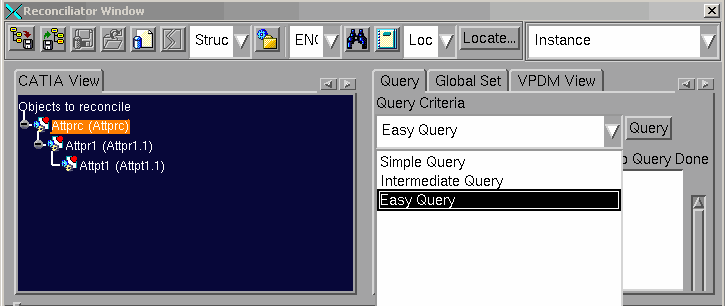
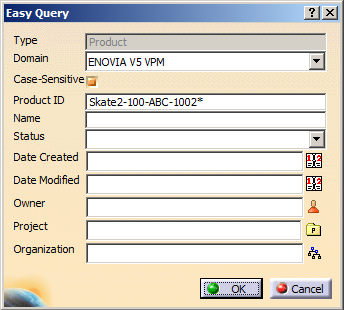
In this example, the query is being executed on
Structure Exposed assembly.(CATProduct): |
|
|
-
Connect to ENOVIAVPM.
-
In CATIA, open a product to reconcile.
-
Launch the
Reconciliation window.
-
Select a node in the Objects to reconcile
tree.
-
Select Easy Query in the Query Criteria
combo box, then click the Query button.
The Easy Query dialog box appears.
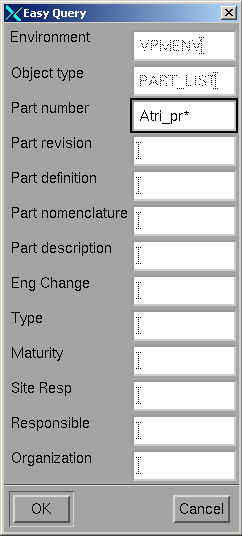
-
Click OK to launch the query.
The query result appears on the Query page.
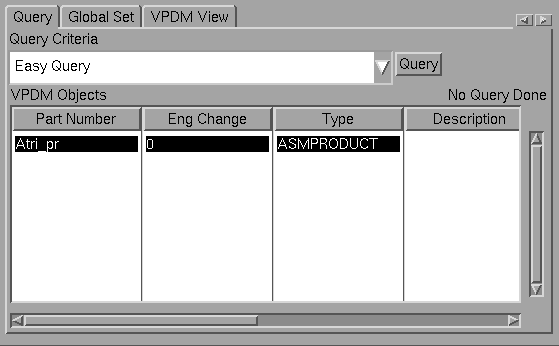
|
|
|
In this example, the query is being executed on Publication Exposed CATPart:
-
Connect to ENOVIAVPM.
-
In CATIA, open a product to reconcile.
-
Launch the
Reconciliation window.
-
Select a node in the Objects to reconcile
tree.
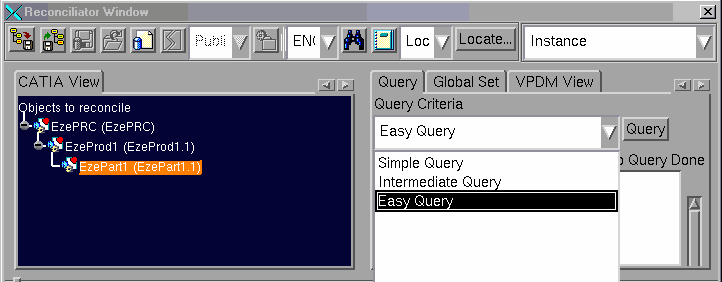
-
Select Easy Query in the Query Criteria
combo box, then click the Query button.
The Easy Query dialog box appears.
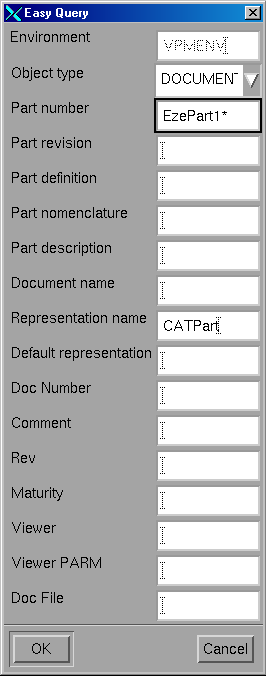
-
Click OK to launch the query.
The query result appears on the Query page.
|
|
|
This task explains how to search
for objects in ENOVIA V5 VPM. There are three different query modes:
Easy Query
Query Document by Part Id
Query by Object Id
Query only
Last Version or Revision
|
|
|
An XML attribute-mapping solution enables
identification in CATIA data of corresponding data in ENOVIA V5 VPM,
thereby enabling an extended automatic pre-valuation of query criterion.For the customization of the attribute mapping, see the VPM
Navigator User's Guide, Customizing ENOVIA V5, User Attribute Mapping.
Note: This functionality is only available when working with
ENOVIA V5 VPM as PDM.
|
| |
When reconciling a CATProduct or a CATPart in Publication
Exposed mode, the search result provides a list of Document
Revisions. Reconciliation fails, if you select a Document Revision which
is not associated to a Part Version as representation. This is because
save in CATIA V5 is performed using the option New Revision
(instead of New Version) on CATPart or a CATProduct. In this
case, the old revision will no more be related to any part version. |
|
Easy Query
|
|
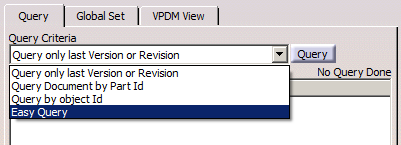
- Easy Query allows you to search for objects in ENOVIA V5 VPM based on
the attributes of the object. The available attributes for each
object type are those attributes which have been defined in the mask as
ezquery attributes. The Easy Query function
is similar to the Easy Search in VPM Navigator.
-
The Easy Query dialog box contains the:
-
Type: This field cannot be
modified, it is based on the selection in the CATIA view.
-
In publication exposed mode, the
type can be
one of the supported document types. For CATProduct or CATPart types,
the query will be done on document attributes, but the part ID is
used to pre-fill the Document ID field. If your part name
differs from the document ID, you will need to modify this
field.
-
In structure exposed
mode, the type can be Product or Part.
-
Attributes available for search are based on the
Type.
-
If your site uses free naming feature to map the identifiers of parts and documents
in CATIA to the V_ID (the default), V_name or V_description in ENOVIA V5 VPM, the Easy Query
will take this mapping into account. The identifier will be
automatically set in the correct field to take into account the
mapping. This mapping applies to ENOVIA Part References and
Documents, therefore, ENOVIA Product Root Class (PRC) does not use
the mapping. The table below shows both the default behavior of
Easy Query along with how the mapping will work if your
site maps the identifier of both parts and documents to the V_name
attribute in ENOVIA V5 VPM (mapping the identifiers to V_description
works similarly, that is, the ID is pre-set in the description
field). Please see the ENOVIA V5 VPM-CATIA Interoperability
User Guide > Managing document Names in ENOVIA V5 VPM and CATIA V5 >
Free Naming in ENOVIA V5 VPM mode for free naming details.
|
Default |
With Document and Part Identifier Mapped to
V_name |
| Publication exposed CATPart |
|
|
| Publication exposed CATProduct |
|
|
| Structure exposed CATProduct |
|
|
|
|
|
-
Connect to ENOVIA V5 VPM.
-
In CATIA, open a product to reconcile.
-
Launch the
Reconciliation window.
-
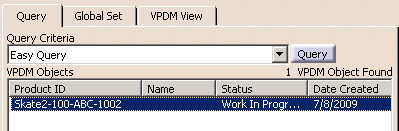
Select Easy Query in the Query Criteria
combo box, then click the Query button.
The Easy Query dialog box appears.
-
In the
Domain list, select the domain from which the product needs to be
searched.
-
Modify the Search string.
-
Click OK to launch the query.
The query result appears on the Query page.
|
|
Query Document by Part Id
|
|
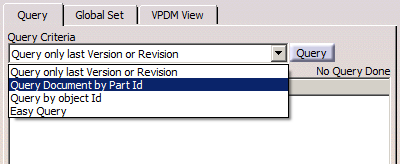
Note:
Query Document by Part Id
does not map the PVR associated to a PRC (root product).
In case of multiple result of query, the auto
selection will be done based on Type and Display ID. Attribute provided
in
Free naming
setting, will decide the way display ID gets build and hence affects the
auto mapping.
|
|
|
-
Connect to ENOVIA V5 VPM.
-
In CATIA, open a product to reconcile.
-
Launch the
Reconciliation window.
-
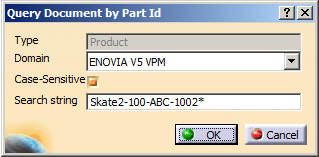
Select Query Document by Part Id in the
Query Criteria combo box, then click the Query button.
The Query dialog box appears.
-
In the
Domain list, select the domain from which the product needs to be
searched.
-
Modify the Search string.
-
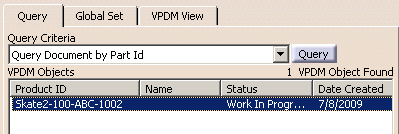
Click OK to launch the query.
The query result appears on the Query page.
|
|
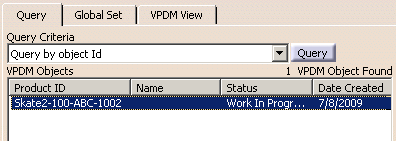
Query by Object Id
|
|
|
|
|
-
Connect ENOVIA V5 VPM.
-
In CATIA, open a product to reconcile.
-
Launch the
Reconciliation window.
-
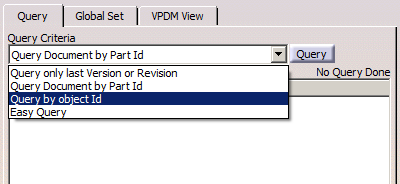
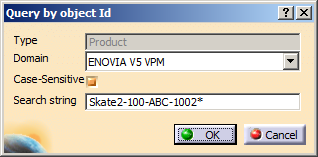
Select Query by object Id in the Query
Criteria combo box, then click the Query button.
The Query dialog box is displayed and contains the following fields:
-
In the
Domain list, select the domain from which the product needs to be
searched.
-
Modify the Search string, e.g. to Skate*.
-
Click OK to launch the query.
The query result appears on the Query page.
|
|
Query
only last Version or Revision
|
|
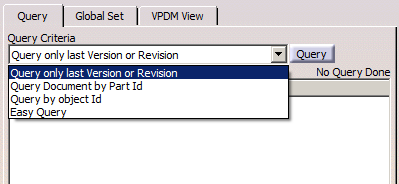
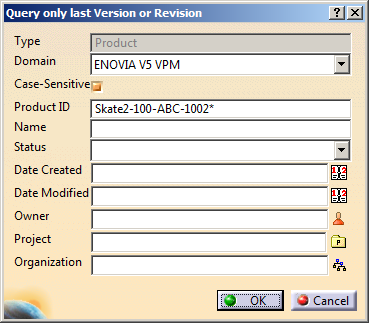
- Query only last Version or Revision
enables you to query only the preferred Part Version, document
revision or document attached to the preferred Part Version in
ENOVIA V5 VPM
- The Query
only last Version or Revision dialog box contains the:
Note: Query only last Version or Revision
does not map the PVR associated to a PRC (root product). |
|
The search criterion depends on the type of objects searched for.
The different types include:
-
Product Root Class (PRC): For a
Product Root Class (PRC), the search behavior is
similar to Easy Query criterion.
- Part Version (PV): For Part Version (PV),
the search behavior is similar to Easy Query where the Version Number will be omitted and replaced by a condition such
that the query result displays only the selected parts of preferred
version.
- For
CATShape,
CATIA V4 model,
CATPart
and
CATProduct
stored as Publication
Exposed, the
document search is conducted across
Part Version.
Note:
CATShape
and CATIA V4 model
are managed in this way only if they are associated as default 3D representation to
a Product
in CATIA.
- Other Documents: For Other Documents, the
search behavior is similar to Easy Query where the
Revision Number will be omitted and replaced by a condition such
that the query result displays only the selected documents of preferred
revision.
|
|
|
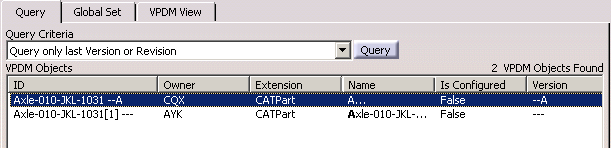
Let us take an example of
Part Version, where the query result displays only the
latest version.
-
Connect ENOVIA V5 VPM.
-
In CATIA, open a product to reconcile.
-
Launch the
Reconciliation window
-
Select
Query only last Version or Revision in the Query Criteria
combo box.
-
Click the
Query button.
The Query only last Version or Revision dialog box appears.
-
In the
Domain list, select the domain from which the product needs to be
searched.
-
Modify the search string, example to
Axle*.
-
Click OK to launch the query.
The query result appears on the
Query page.
|
|
|
|
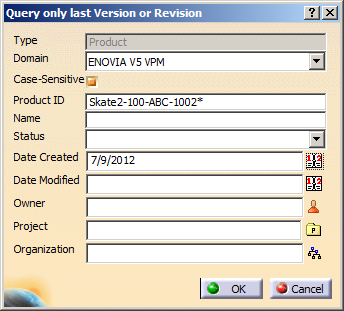
 Selecting Owner, Project and Organization Attributes in Query Dialog Box
 .
. .
. .
.