
You can create a 2D layout view from:

You can create:
An associative view from a 3D plane, 3D sketch, FTA view.
An isolated view from a 3D plane, 3D sketch, FTA view and from any object which is viewed as a 3D face (e.g. the face of a pad, or a sub-plane of an axis system).
To know more about creating a view from a FTA (Functional Tolerancing and Annotation) view, refer to Creating/Modifying a View From FTA and Creating a Filtered View From a FTA capture.


Creating a View from a 3D Plane, Face or SketchIn this scenario, you will create a view from a 3D plane. |
 |
-
Click View From Reference
 in the Layout toolbar (Views sub-toolbar).
The Tools Palette toolbar is displayed:
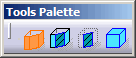
By default, the view type selected in the tools palette is the view type selected in the previous use of this command.-
 Auxiliary View: creates an auxiliary view.
 -
 Section View: creates a section view.
 -
 Section Cut: creates a section cut.
  Axonometric View: activate this option to create
an axonometric view.
Axonometric View: activate this option to create
an axonometric view. 
- These options are also available from the contextual menu.
- Furthermore, the contextual menu displays the Invert Normal
option: usually available from the view via the green arrow) and
the Create Datum option: leaving this option
unselected creates an associative view whenever possible (if the
view cannot be created associative, a specific mask
 is immediately displayed on the view icon in the specification
tree to indicate this.
is immediately displayed on the view icon in the specification
tree to indicate this.
-
-
Select a plane from the specification tree or from the geometry area (the xy plane, for example). A new section view item is added to the specification tree.
- You could also select a 3D plane created using the 3D
Plane command
 .
For more information, refer to Creating a
3D Plane.
.
For more information, refer to Creating a
3D Plane. - When creating a view from a planar face, the new view origin point is superposed to the {0,0,0} shape point projected on the planar face to ensure that the view origin is stable during face modification.
- You could also select a 3D plane created using the 3D
Plane command
-
Click on the sheet at the location where you want the view to be positioned.
An empty view is created and added to the specification tree, displaying a blue axis in a red frame, as well as the view name and scale.
For detailed information, refer to More about View Creation Dialog Box.Notes: - When you move the view for placement, the view stays aligned
and oriented according to the preference selected in Tools
> Options > 2D Layout for 3D Design > View Creation > View From
Reference section.
That is, if the Align according to the active view (SHIFT toggles) and Set orientation according to the active view options are selected, then the following are considered for positioning the view:
If these preferences are cleared, the view can be moved freely in the sheet.- The view can be moved either along the folding direction or perpendicularly to it. Both these directions are represented by two dashed lines.
- The origin of the created view stays on the folding line containing its projection in the 3D background of the active view.
- The view is oriented according to the current orientation of the active view.
- You can also modify the 3D definition of the view plane in the View Creation dialog box to update the position and orientation of the view and make it consistent with the active view. This is unavailable for views created from 3D Tolerancing & Annotation views and captures
- When the view is created, if a geometric element is selected
as a support for the view, the set containing it is
automatically added to the created display filter. This can
happen if the following criteria are satisfied:
- The automatic creation of display filter is selected. To set the filter preferences, see Filter.
- The filtering of the set containing the view support is selected.
- The geometric element is inside the same 3D shape.
- When you move the view for placement, the view stays aligned
and oriented according to the preference selected in Tools
> Options > 2D Layout for 3D Design > View Creation > View From
Reference section.
-
In the View Creation dialog box, enter the required parameters.
You can create a view that follows the scale of the active view.
Click to change the scale.
 -
Select the Isolated check box to create an isolated view.
By default, this check box is cleared.
Before creating the view, if you have selected Create Datum from the context menu, then the Isolated check box is already selected. -
Select the Reverse view direction check box.
The direction of the view is reversed.
You can also isolate or reverse the view direction while changing the view support. -
Click OK.
The newly-created view is activated. You can now create 2D geometry in this view.
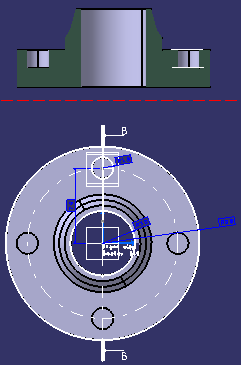
command is used, the last created view is active by default.
Creating a View from an Existing Layout View |
|
-
Click View From Reference
in the Layout toolbar (Views sub-toolbar).The Tools Palette toolbar is displayed.
By default, the created view type is the reference view type. It cannot be modified. Select a view from the specification tree or from the geometry area, the front view for example. A new Front view item is added to the specification tree.
Click on the sheet at the location where you want the view to be positioned.
- When you move the view for placement, the view
stays aligned and oriented according to the preference selected in
Tools > Options > 2D Layout for 3D Design > View Creation >
View From Reference section.
That is, if the Align according to the active view (SHIFT toggles) and Set orientation according to the active view options are selected, then the following are considered for positioning the view:
If these preferences are cleared, the view can be moved freely in the sheet.- The view can be moved either along the folding direction or perpendicularly to it. Both these directions are represented by two dashed lines.
- The origin of the created view stays on the folding line containing its projection in the 3D background of the active view.
- The view is oriented according to the current orientation of the active view.
- You can also modify the 3D definition of the view plane in the View Creation dialog box to update the position and orientation of the view and make it consistent with the active view. This is unavailable for views created from 3D Tolerancing & Annotation views and captures
- "Views from" scale always created using the sheet scale. The primary view scale, when it is different from the sheet scale, is not propagated to other "views from".
- If you change the sheet scale (defined in the sheet properties), the scale of all existing views (defined in the view properties) is multiplied by that of the sheet. For example, if existing views already have a scale of 1/10, and if you change the sheet scale to 1/10, then existing views will now have a scale of 1/100.
- When the view is created, if a geometric
element is selected as a support for the view, the set containing it
is automatically added to the created display filter. This can
happen if the following criteria are satisfied:
- The automatic creation of display filter is selected. To set the filter preferences, see Filter.
- The filtering of the set containing the view support is selected.
- The geometric element is inside the same 3D shape.

Note how the view is previewed in the part window. You need to zoom out, as the view box defined in the ISO_3D standard used by the current layout has sides of 1000mm. For more information on the standards, see Administration Tasks.
An empty front view is created, with the same position in space as the front view from which it was created.
You can now create 2D geometry in this view.
- When you move the view for placement, the view
stays aligned and oriented according to the preference selected in
Tools > Options > 2D Layout for 3D Design > View Creation >
View From Reference section.
More about Creating a 2D Layout View From...
... an existing layout view
You can use an existing layout view as a template for creating a new layout view, in the same document or another. The newly created view has the same type and position in space as its template view. However:
- There is no parent/child relationship between these views.
- The created view cannot be linked in position with another view.
- The view is created empty.
- If the created view is a projection view, then it also features an associated view box which is equivalent to that of the template view. Thus, it is possible to add projection views to this new view set.
- In a product context, a view created for a Part can be associative only with a 3D plane, sketch or FTA view belonging to the same Part.
- The view is created using the reference view scale.
... a 3D plane, face or sketch
You can use an existing 3D plane as a support for creating a new design view, whether this 3D plane is defined in the same document or not. You may also use a sketch or a Functional Tolerancing and Annotation (FTA) view for the same purpose.
The created design view has the following characteristics:/p>
- It is either an auxiliary view, a section view or a section cut.
- The view normal (N) can be inverted.
- The created view cannot be linked in position with another view.
- The view is created empty, except for the view name.
- The view is created using the sheet scale
... inverse or rotate operations
You can use existing inverted or rotated features as a support to create a non-associative view. However:
- Only the inverted and rotated features of a plane are selectable (for example, the inverted orientation of a rotated plane is not available).
- The XY orientation of a view created from a rotated plane is not
guaranteed.
View origin point
When creating a section view from a 3D plane, the new section view origin point is superposed with the 3D plane origin point.
