
This task shows you how to create a 2D layout view with visualization associative to a FTA (Functional Tolerancing & Annotation) capture. This operation automatically creates an equivalent filter.
Read also More about views created from FTA.

When creating a view from a FTA capture, the capture definition is saved in a layout as an equivalent filter (mask filter
type).
Once created, the filters equivalent to FTA captures are accessible from the Layout View filters dialog box and can be applied to any kind of layout views.
However, these filters are not editable.

Open the Annotations_Part_05.CATPart document and select Start > Mechanical Design > 2D Layout for 3D Design to create a layout alongside the 3D window.
In the 2D window, click View From Reference
 in the Layout toolbar (Views sub-toolbar).
The Tools Palette toolbar is displayed.
Note: Though the Tools Palette toolbar shows Auxiliary View, Section View, Section Cut and Axonometric View options, the view type is automatically set as per the FTA view or FTA capture.
Right-click and check that the Create Datum
 option is not activated
(you will then create an associative view).
option is not activated
(you will then create an associative view).-
In the 3D window, select the Initial State capture from the specification tree.
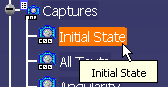

The content of the selected capture must be visible in the FTA workbench to be displayed in the 2D layout view. Check elements are not in No show mode when proceeding. 
You can only select 3D Functional Tolerancing & Annotations captures associated with a view\annotation plane. The Tools Palette is disappeared and only the Create Datum
option is
displayed in the contextual menu.
In the 2D window, click on the sheet at the location where you want the view to be positioned.
The 3D background is displayed in the 2D layout according to the definition of the reference capture, and along the plane of the associated view.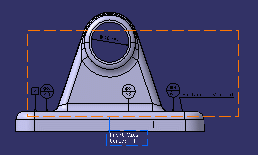
Notes: - When you move the view for placement, the view stays aligned
and oriented according to the preference selected in Tools
> Options > 2D Layout for 3D Design > View Creation > View From
Reference section.
That is, if the Align according to the active view (SHIFT toggles) and Set orientation according to the active view options are selected, then the following are considered for positioning the view:
If these preferences are cleared, the view can be moved freely in the sheet.- The view can be moved either along the folding direction or perpendicularly to it. Both these directions are represented by two dashed lines.
- The origin of the created view stays on the folding line containing its projection in the 3D background of the active view.
- The view is oriented according to the current orientation of the active view.
- You can also modify the 3D definition of the view plane in the View Creation dialog box to update the position and orientation of the view and make it consistent with the active view. This is unavailable for views created from 3D Tolerancing & Annotation views and captures
- When the view is created, if a geometric element is selected
as a support for the view, the set containing it is
automatically added to the created display filter. This can
happen if the following criteria are satisfied:
- The automatic creation of display filter is selected. To set the filter preferences, see Filter.
- The filtering of the set containing the view support is selected.
- The geometric element is inside the same 3D shape.
- When you move the view for placement, the view stays aligned
and oriented according to the preference selected in Tools
> Options > 2D Layout for 3D Design > View Creation > View From
Reference section.
Right-click the Front view from the geometry area or from the specification tree, and select Filter > Change View Filter.
The Change View Filter dialog box is displayed.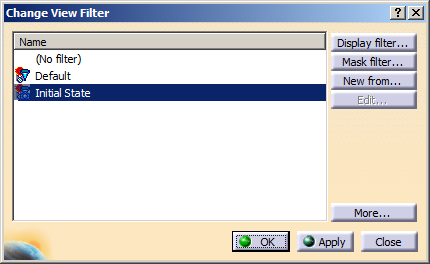
You can see that an equivalent filter is created. This filter is associative with the Initial State capture.
- The Edit command is not available for equivalent filters.
- From an equivalent filter, the New from... command creates a classical filter, which is not associative with the FTA capture.
- You can also create new filters from the resulting equivalent filter.
About filtered views from FTA
- The deletion of its reference FTA capture does not delete an equivalent filter.
- Only one filter can be created from a FTA capture. If several 2D layout views are created from the same FTA capture, the same equivalent filter is re-used to filter the created views.
- The name of equivalent filters does not support national languages after creation.
