
What are Use-Edges?
Use-edges are key in a concurrent engineering process, helping you with your design by letting you re-use existing elements from a part coming from another designer for example. In other words, use-edges help you create geometry from existing 3D shapes as well as Body or Geometrical Set Element.
By default, use-edges are associative to the geometrical inputs. If input geometry (3D shape) is modified then the use-edge is also modified.
The Sketcher workbench provides the following use-edge functionalities:
- Project 3D elements: lets you project edges (elements you select from the 3D area) onto the sketch plane.
- Intersect 3D elements: lets you create geometry in the current design view by intersecting a 3D element with the sketch plane.
- Project 3D silhouette edges: lets you create silhouette edges to be used in sketches as geometry or reference elements onto the sketch plane.
- : lets you create geometry projecting the cylindrical edges of a 3D cylindrical element onto the sketch plane.
About Multi-Domain Use-Edges
You can create multi-domain use-edges (silhouette, intersections, projections) containing multiple marks.
Update of Multi-Domain Use-Edges
-
During update, use-edges are modified according to their geometrical input specifications and use-edge marks are also modified to match these changes.
-
Multi-domain use-edges are composed of multiple marks. Therefore, any modification done on the geometrical input specification is reflected on mark geometries. As a result, during update, marks can be created, deleted or modified.
Consider the following case of multiple domain use-edge with multiple marks:
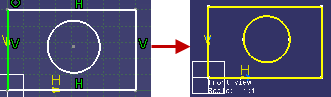
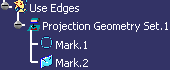
The following table describes the possible geometrical modifications which are done on this use-edge and their effect on mark geometries:
| Geometrical Modification | Use-Edge after Update | Marks after Update | What Happens |
| Domain associated to mark is removed. | Constraints relying on mark are also destroyed and the associated mark is removed. |
||
| Domain is merged into another domain. | In this case, marks corresponding to merged domains
are not destroyed, but both are associated to the whole merged
domain. |
||
| New domain is created into earlier domain and existing domain is modified. | When domain is modified, each mark associated to previous operator result domain is transformed to match the new geometrical result of this domain. When new domain is created, with no mark associated to it, a new mark is created, and is associated to this domain. |
Note: While creating a use-edge using the Project 3D Elements command, you can select a sketch or a face of 3D part and directly create one or many marks instead of selecting edge by edge.
About Associative Use-Edges
-
Associative use-edge marks are used as other 2D curves to create dimensions, or constraints.
-
Use-edges are visualized in yellow color as defined in the settings of the Sketcher workbench for protected elements..
-
A mark is always a curve or a point. This curve can be the result of an edge, a vertex or the concurrence of several edges coming from the projection of face. The last kind of mark is also called composite mark which symbolized by an letter box icon in the specification tree.
-
Use-edge is always a fixed geometry. It cannot be moved, copied, or pasted.
-
You can also break or trim the use-edges. This results in creating an arc of the use-edge.
-
When the input geometry of a use-edge or the plane support of sketch changes, the use-edge mark are updated automatically. In the case of manual update, the update icon appears in the specification tree on the node of the pertinent sketch.
-
When a use-edge is deactivated, then it is not updated even if input geometry or view plane changes. Activating or deactivating a use-edge mark will activate or deactivate all marks for that use-edge.
-
When deleting a use-edge mark, the whole use-edge is deleted.
-
Use-edges, which have geometry imported from other 3D parts as an external reference or a datum geometry, will not be deleted when the use-edges are deleted. You must delete these imports specifically, if you do not need them anymore.
-
You can isolate a use-edge using the contextual menu available on each mark. When isolating a use-edge mark, this use-edge and its marks are deleted and replaced by identical standard 2D geometries, with no link to input geometrical element.
Dimensions and annotations created on this use-edge mark are not automatically rerouted to the newly isolated geometries.
The Isolate command is also available using Insert > 3D Geometry > Use Edges > Isolate from the menu bar, as well as in the Projections/Intersections tab of the Sketch Analysis dialog box using the Sketch Analysis command. -
When creating a new part from Product Data Filtering workbench, the use-edges in the new part are isolated.
-
The Edit > Search command can be launched for associative use-edges of the following type:
-
Projection
-
Intersection
-
Silhouette
-
Mark.
-
-
List of associative use-edge inputs are displayed in specification tree under the Use-edges node.
-
You can delete use-edge inputs from the specification tree. When you delete a use-edge input, all use-edges impacted by this input will be marked as up-to-date.
-
Use-edges can be analyzed in the Sketch Analysis command, in the Projections/Intersections tab of Sketch Analysis dialog box.
-
You can create a driving dimension between a simple use-edge and a geometrical element. In this case, if the use-edge is isolated, the driving dimension takes into account the geometrical element created from the isolated use-edge.
-
Dimension on associative use-edge: There is no automatic update. If there is a modification in the 3D geometry or in the associative use-edge, you need to explicitly update the corresponding dimension with the layout, sheet, or view.

Input Geomteries of Associative Use-Edges
Geometrical inputs of a use-edge can be located in the same CATPart as the Sketcher CATPart, or in an external document. The following types of geometries can be given as inputs:
| Use-edge functionalities | 2D Geometries | 2D Use-edges | Vertices | Edges | Faces | Volumes | Bodies |
| Projection | Yes | No | Yes | Yes | Yes | Yes | No |
| Intersection | Yes | No | Yes | Yes | Yes | Yes | Yes |
| Silhouette | No | No | No | No | Yes | Yes | No |
| Offset | Yes | No | No | Yes | Yes | Yes | No |
Note: You can also select faces and features in the specification tree as an input for the silhouette use-edge.
When creating a use-edge from a geometrical input external to the part containing the edited 2D Layout, a geometrical import will be created in the current part. Whether this geometrical import is linked to the original geometry depends on the option Keep link with selected object, in Tools > Options > Infrastructure > Part Infrastructure, General tab.
