Intersect 3D Elements

This task shows how to intersect a face and the sketch plane.


-
Click Intersect 3D Elements
 in the Operations toolbar (3D Geometry sub-toolbar).
The Intersection dialog box appears.

-
In the Element(s) to intersect box, select the face of interest.
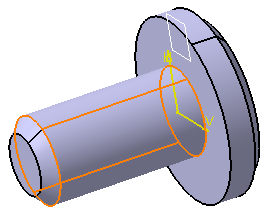
-
Optional: In the Near element box, select the element of interest.
The minimal distance is computed between each domain and the near element to keep the nearest solution. -
Optional: Select the No Canonical Curve check box to create a composite curve instead of canonical curve.

The No Canonical Curve check box is cleared by default. In this case, a canonicity detection is performed on intersected curves according to the application tolerance, in other words the application tries to recognize sketcher elements like line or conic curves.
-
Click OK.
The application computes and displays the intersection between the face and the sketch plane. The intersection is yellow meaning that you cannot move it.
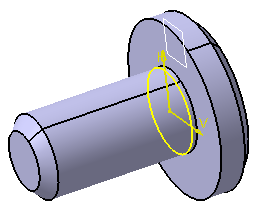
The node (identified as Intersection.x) is added to the specification tree.
- Circular edge: This is the default selection.
- Axis: Right-click the selected surface and choose Select Axis.
- You can apply the Relimitation
 ,
Corner
,
Corner
 and Chamfer
 commands on intersections.
- A canonicity detection is performed on intersected curves according to
the application tolerance, in other words the application tries to
recognize sketcher elements like line or conic curves.
Due to the canonicity approximation changes may occur in resulting intersected curve types. - If No Canonical Curve check box is selected, a composite
curve is created instead of a canonical curve.
A composite curve is a curve which can represent a simple or complex shape, like a line or a contour, which can be constrained. - The No Canonical Curve check box is unavailable when editing a use-edge mark of composite curve type in the specification tree.
- The No Canonical Curve option is not taken into account if you activate the Create Datum mode.
- If you apply the Parents/Children... command to a sketch containing an intersection obtained after selecting a face or an edge, the Parents command shows the last solid feature that modified the intersection geometry. To see an example of this, refer to Parents/Children paragraph of Projecting 3D Elements onto the Sketch Plane.

- When the intersection of multi-domain element leads to the creation of multi-domain use-edge, the marks constitute a group where deleting a mark leads to the deletion of all the marks.
- If you isolate a composite mark, as many simple geometry elements as the mark was containing are created, associativity will not be available anymore.
- If the intersected geometry is a plane face and there is no intersection between this face and the sketcher plane, the resulting intersection is an infinite line.
Intersect Using Select Boundary Edges
-
Right-click the faces of interest and select Select Boundary Edges from the contextual menu.
-
Click Intersect 3D Elements
.
The Intersection dialog box appears.
Every element of the selected faces is now pointed as a Reference Element.
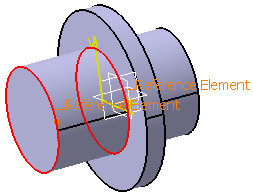
-
Click OK.
The intersections of the selected boundary edges with the sketch plane are displayed on the sketch plane in yellow color.
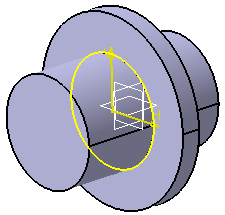
An intersection node is created in the specification tree (identified as Intersection.x) with a mark (identified as Mark.x) under it for each projected element.

Information about No Canonical Curve option
