The Job Manager
The Job Manager allows you to do the following:
Create an analysis job.
Customize an existing analysis job.
Write input files without submitting them for analysis.
Submit jobs for analysis.
Monitor a job as it progresses.
Attach the results from a job to the current analysis document.
Kill a job that is currently running.
Delete the selected job.
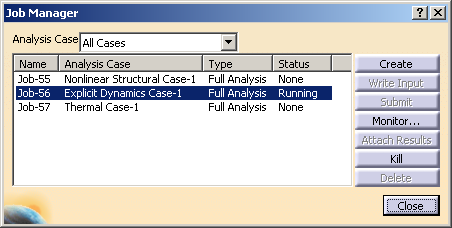
The Analysis Case field at the top of the Job Manager indicates the analysis case (or cases) for which jobs are listed. The four columns of the Job Manager display the following:
Name
The Name column displays the name of the job.
Analysis Case
The Analysis Case column displays the name of the analysis case associated with the job.
Type
The Type column displays the job type that you selected when you configured the job using the job editor. The job type can be Full Analysis, Syntax Check, Data Check, Continue Analysis, or Restart. (See Choosing the Job Source and Type for more information.) You can use the job editor to change the job type as long as the job is not running.
Status
The Status column displays the current status of the job and is updated continually while your job is running. The status can be one of the following:
None
The job has not been submitted for analysis.
Submitted
The input file has been written, and the job is being submitted for execution.
Running
The job has been submitted for analysis and is running.
Completed
The job is complete. You can click Results to view the contents of the output database and graphically verify your results.
Aborted
The job has been aborted due to problems such as fatal errors in the input file or lack of disk space.
Terminated
The job has been killed by the user.
INP error
An error occurred while writing the input file.
Wrote INP
The input file was written successfully.
This task shows you how to display the Job Manager.
Click the Job Manager icon
 .
.The Job Manager dialog box appears with a list of the jobs that you have created for the current analysis case.
Select the analysis case or cases for which you want to see the jobs.
For detailed instructions on using the Job Manager to create, edit, submit, and manage jobs, see the following sections :