Pocketing Operations
|
|
The information in this section will help you create and edit Pocketing operations
in your Manufacturing Program.
Select Pocketing
 then select the geometry to be machined
 . .
A number of strategy parameters
 are available for defining:
Specify the tool to be used
 ,
NC macros ,
NC macros
 ,
and feeds and speeds ,
and feeds and speeds
 as needed.
Pocketing Strategy Parameters
Pocketing Machining Parameters
Tool path style
Indicates the cutting
mode of the operation:
- Inward helical: the tool starts from a point inside the pocket and
follows inward paths parallel to the boundary.
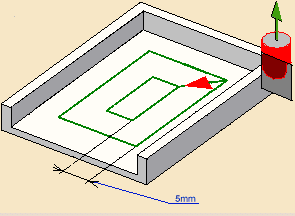
- Outward helical: the tool starts from a point inside the pocket
and follows outward paths parallel to the boundary.
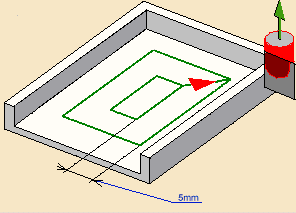
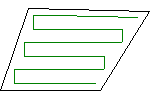
- Back and forth: the machining direction is reversed from one path
to the next.
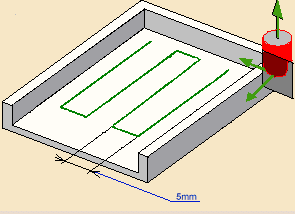
- Offset on Part One-way: tool motion is always done in
the same direction following paths parallel to the
boundary.
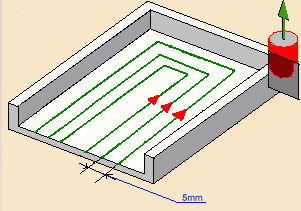
- Offset on Part Zig-zag: tool motion is done alternately
in one direction then the other following paths parallel
to the boundary.
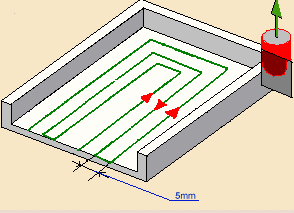
|
 |
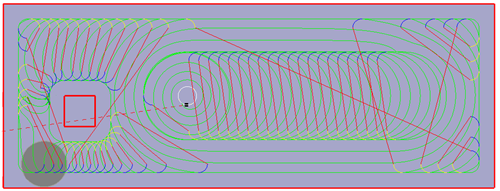
Concentric: Builds a safe-cutting trajectory by controlling
the engagement of the tool.
The trajectory created by the
Concentric strategy adapts itself dynamically to ensure a safe
cutting at nominal speed.
The engagement of the tool is controlled
to never exceed a maximum value, even in corner areas.
This strategy
is particularly recommended for hard-material milling.
In this type
of material(e.g. titanium, stainless steel, ceramic, ...) the tool needs
to be protected.
This has also been enhanced to reduce the computation time to make it acceptable for these cases.
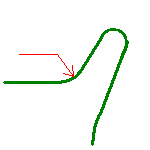
Other tool path styles -based on a constant distance
between passes- are not appropriate because the tool load increases
significantly when milling the inside of a radius.
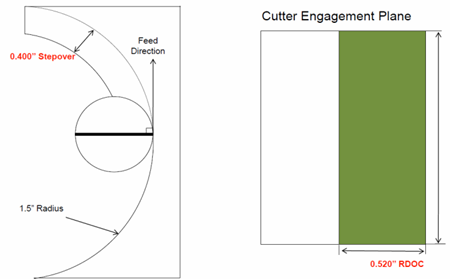
whereas the engagement is equal to the step over when milling in a
straight line.
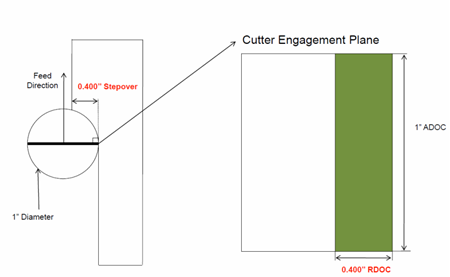
The Concentric strategy controls the tool load by modifying
the distance between passes for each motion.
As a result, the tool
lifetime is increased and the machining time is optimized.The circular pattern builds the tool path mainly with circular arcs
(G2/G3 in NC code).
The tool path is smooth and never exceeds the
maximum engagement.
On the downside, the engagement is most of the
time lower than the maximum engagement, usually leading to a tool path
length longer than the dynamic pattern.
This pattern is preferred by
auto mode for milling closed areas with a starting drilling hole.
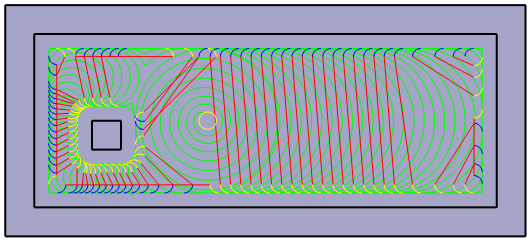
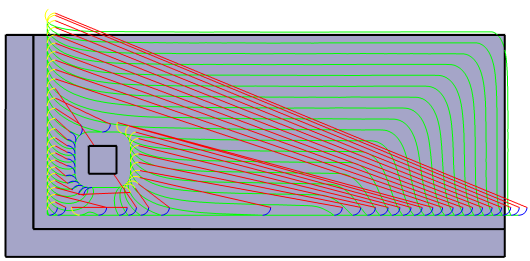
The dynamic pattern builds the tool path mainly with segments.
Each
point is precisely computed to match the maximum engagement, and the
trajectory follows the stock shape.
On the downside, the tool path
cannot be as smooth as the one from the circular pattern and its
computation takes more time.
This pattern is preferred by the auto
mode for milling opened areas.
|
|
|
- Inward spiral morphing: the tool follows
an inward
spiral path parallel to the boundary. End point is not supported for
both Inward\Outward spiral morphing.
- Outward spiral morphing: the tool follows
an outward
spiral path parallel to the boundary. Start point is supported for
the
Outward spiral morphing. If the start point is
reachable, the spiral motion starts from this point. Non reachable
points are silently ignored. Only one start point is supported in
this release.
For parts containing island, the tool path starts and ends around
the island. The too path includes retract and linking motions for
parts containing many islands with reachable start points.
Revamp Inward and Outward Spiral morphing to include the management
of the islands
Island management:
if an island is selected, the tool path will start (or finish
depending of inward/outward flavor) around the island. If more than
one island is selected or a reachable start point is given, the tool
path will contain retract and linking motions.
In Case of start point and island with OUTWARD flavor:
The spiral starts at the start point and progress toward the
external contour. Then it comes back to the start point (after a
linking motion) and progress toward the island (cutting mode
respected).
Note in HSM tab, Guide
Cornerization option is accessible when Concentric or
Inward/Outward spiral morphing are selected in the Tool Path
Style. See Guide
Cornerization
|
| |
Direction of cut
Specifies how milling
is to be done:
Climb milling
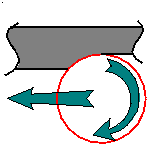 or Conventional milling
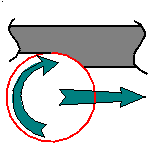
In Climb, the front of the advancing tool (in the machining direction)
cuts into the material first
In Conventional, the rear of the advancing tool (in the machining direction)
cuts into the material first.
|
| |
Machining tolerance
Specifies the maximum
allowed distance between the theoretical and computed tool path. |
| |
Fixture accuracy
Specifies a tolerance
applied to the fixture thickness. If the distance between the tool and fixture
is less than fixture thickness minus fixture accuracy, the position is eliminated
from the trajectory. If the distance is greater, the position is not eliminated.
|
| |
Limit machining area
with fixture
Limits the area to machine to compute the tool path without
jumping around the chek elements.
Compensation
Specifies the tool
corrector identifier to be used in the operation.
The corrector type (P1, P2, P3, for example), corrector identifier, and
corrector number are defined on the tool. When the NC data source is generated,
the corrector number can be generated using specific parameters.
Percentage of machining feedrate
Specifies the feedrate at start of spiral. This is available
only with "Concentric" Tool path style.
The range of values (20% to 100%).
By default, the value is 70%.
Pattern
Lets you define the
concentric tool path pattern:- Auto: The pattern is automatically
selected according to the shape of the pocket.
- Circular: The pattern is constructed with circular motions.
- Dynamic: The pattern is constructed with segments and follows
the stock shape.
Movement
- When Movement is set to One-Way, the tool path
uses the selected cutting direction.
- When Movement is set to Zig-Zag, the tool
path is optimized using both cutting directions (Climb
and Conventional).
The selected cutting mode is the
main direction. Modifying it could change the trajectory.
Max. discretization
Lets you define the computation step for
dynamic patterns.
This parameter controls the general quality of the
tool path.
Smaller steps results in a higher quality, but may
heavily affect the computation time.
The step is used internally for
the computation and does not reflect the distance between each point in
the final trajectory.
If the option is not activated, a default value is
used.
Channel width %
Lets you define the
relative width of the channel opening.
A channel opening modifies the
tool path by opening the pocket in its center, with either a circular or
a dynamic pattern.
Then the dynamic pattern follows the sape that has
already been machined.
A value equal to 100% deactivates the feature.
The channel uses the pattern defined by the Pattern
parameter.
Reverse pass (radial %)
Lets your
define the reverse radial engagement when milling in the reverse
direction, that is in the direction that is not selected as the
Direction of cut.
The value is a percentage of the main radial
engagement.
A value equal to 100% keeps the same engagement for the
main and the reverse direction.
|
Pocketing Radial Stepover Parameters
Pocketing Axial Stepover Parameters
Axial strategy mode
Specifies how the
distance between two consecutive levels is to be computed:
- Number of levels without top.
|
Maximum depth of cut
Defines the maximum
depth of cut in an axial strategy. |
Number of levels
Defines the number
of levels to be machined in an axial strategy. |
Automatic draft angle
Specifies the
draft angle to be applied on the sides of the pocket. |
Breakthrough
Specifies the distance
in the tool axis direction that the tool must go completely through the
part. Breakthrough is applied on the bottom element, which must be specified
as soft. |
Pocketing Finishing Parameters
Finishing mode
Indicates whether or
not finish passes are to be generated on the sides and bottom of the area
to machine. There are several possible combinations:
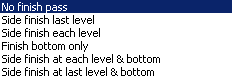
Side finishing can be done at each level or only at the last level of the
operation.
Bottom finishing can be done without any side finishing or with different
combinations of side finishing. |
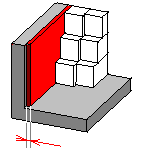
Side finish thickness
Specifies the
thickness of material that will be machined by the side finish pass. |
 |
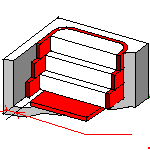
Side thickness on bottom
Specifies
the thickness of material left on the side by the bottom finish pass. |
 |
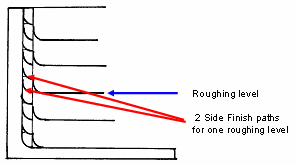
Number of side finish paths per
level
Specifies the number of side finish paths for each level in a multi-level
operation.
This can help you reduce the number of operations in the program.
|
 |
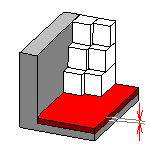
Bottom finish thickness
Specifies the
thickness of material that will be machined by the bottom finish pass. |
 |
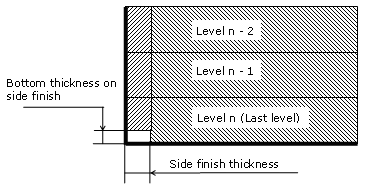
Bottom thickness on side finish
Specifies
the bottom thickness used for last side finish pass, if side finishing is
requested on the operation.
|
Spring pass
Indicates whether or not
a spring pass is to be generated on the sides in the same condition as the
previous Side finish pass. The spring pass is used to compensate the natural
spring of the tool. |
Avoid scallops on bottom
Defines whether
or not the distance between paths can be adjusted by the program in order
to avoid scallops on the bottom. Available for single-level and multi-level
operations with bottom finish pass. |
Compensation output
Allows you to manage
the generation of Cutter compensation (CUTCOM) instructions for the pocketing
operation's side finish pass.The following options are proposed:
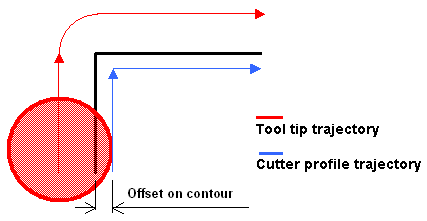
- If 2D Radial profile is selected, both the tool tip and cutter
profile will be visualized during tool path replay. Cutter compensation
instructions are automatically generated in the NC data output. An approach
macro must be defined to allow the compensation to be applied.
- If 2D Radial tip is selected, the tool tip will be visualized
during tool path replay. Cutter compensation instructions are automatically
generated in the NC data output. An approach macro must be defined to
allow the compensation to be applied.
- If None is selected, cutter compensation instructions are
not generated in the NC data output. In this case, please refer to
How to generate CUTCOM syntaxes.
Any user-defined PP words in macros are added to the cutter compensation
instructions generated in the NC data output. Therefore, you should be careful
when specifying CUTCOM instructions in macros.
A negative Offset on contour (parameter in
Geometry tab page) is possible for 2D radial profile output.
|
Pocketing High Speed Milling (HSM) Parameters
Pocketing Geometry
A Pocketing operation can be created for machining:
- Open pockets: the tool machines the area that
has a least one soft boundary.
You can specify the following Geometry:
- Pocket Bottom (planar face or surface) with possible Offset on Bottom. Bottom
may be Hard or Soft.
- Pocket Boundary (edges or sketch) with possible:
- Offset on Hard Boundary
- Offset on Soft Boundary
- Offset on Contour. If you specify an Offset on Contour, it is added
to any defined Offset on Hard Boundary, Offset on Hard
Boundary, and Offset
on Island.
- Pocket Top plane with possible Offset on Top.
- Islands (defined by hard boundaries) with possible Offset on each island.
- Fixture or check elements with possible Offset on Check.
- Start and End points.
Specifying the Pocket Boundary
The pocket boundary must be closed. It can be specified in several ways:
- if the Contour Detection contextual command is set, select the pocket
bottom. The boundary of the selected face will be proposed as pocket boundary.
- select the By Belt of Faces or By Boundary of Faces contextual
command. In this case the
Face Selection toolbar appears to help you specify the pocket boundary.
- select the Sectioning contextual command. Please refer to
Sectioning for details of how to use this capability.
Please note that the sectioning selection method is not associative.
Specifying Start and End Points
You can select a Start
point and an End point as preferential start and end positions for the
operation. This allows better control for optimizing the program according to the
previous and following operations.
Note that the Start point can be located outside an open pocket. In this case,
you must specify a clearance with respect to the pocket boundary.
Pocketing Tools
Recommended tools for pocketing are End Mills, Face Mills, Conical Mills, and
T-Slotters.
Pocketing Feeds and Speeds
In the Feeds and Speeds tab page, you can specify feedrates for approach, retract,
machining and finishing as well as a machining spindle speed.
Feedrates and spindle speed can be defined in linear or angular units.
A Spindle output check box is available for managing output of the SPINDL instruction
in the generated NC data file. If the check box is selected, the instruction
is generated. Otherwise, it is not generated.
Feeds and speeds of the operation can be updated automatically according to tooling
data and the Rough or Finish quality of the operation.
This is described in
Update of Feeds and Speeds on Machining Operation.
Feedrate Reduction in Corners
You can reduce feedrates in corners encountered along the tool path depending
on values given in the Feeds and Speeds tab page:
reduction rate,
maximum radius, minimum angle, and distances before
and after the corner.
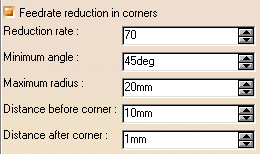
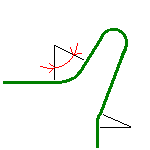
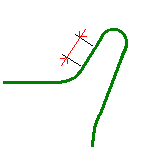
Feed reduction is applied to corners along the tool path whose radius is less
than the Maximum radius value and whose arc angle is greater than the Minimum angle
value.
For Pocketing, feedrate reduction applies to machining and finishing passes:
- for all corners in Back and forth, and Concentric mode
- for inside corners in Inward and Outward Helical modes, in offset on
Part One-Way and Zigzag, in Inward and Outward Spiral Morphing.
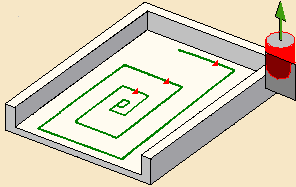
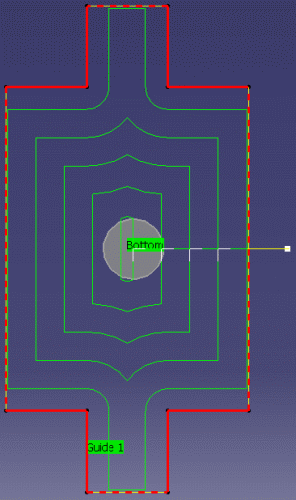
The figure below shows that feedrate reduction is not applied in Inward Helical
for most of the corners, as these are not inside corners.
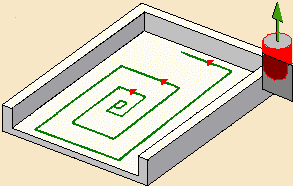
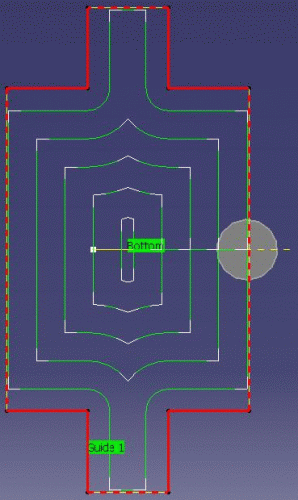
The figure below shows that feedrate reduction is applied in each corner in Outward
Helical, as these are inside corners.
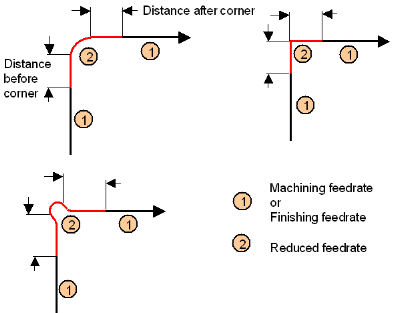
Feedrate reduction does not apply for macros or default linking and return motions.
Corners can be angled or rounded, and may include extra segments for HSM operations.
Slowdown Rate
You can use Slowdown rate in the Feeds and Speeds tab page to reduce the
current feedrate by a given percentage.
The reduction is applied to the first channel cut and to the transitions between
passes.
Combining Slowdown Rate and Feedrate Reduction in Corners
If a corner is included in a Slowdown path, the general rule is that the lowest
percentage value is taken into account.
For example, if the Slowdown rate is set to 70% and Feedrate reduction rate
in corners is set to 50%, the feedrate sequence is:
100%, 70% (entry in slowdown), 50% (entry in corner), 70% (end of corner, still
in slowdown), 100% (end of slowdown).
If Feedrate reduction rate in corners is then set to 75%, the feedrate sequence
is:
100%, 70% (entry in slowdown), 70% (entry in corner: 75% ignored), 70% (end
of corner, still in slowdown), 100% (end of slowdown).
Pocketing NC Macros
You can define transition paths in your machining operations by means of NC Macros.
These transition paths are useful for providing approach, retract and linking motion
in the tool path.
An Approach macro is used to approach the operation start point.
A Retract macro is used to retract from the operation end point.
A Linking macro may be used, for example:
- to link two non consecutive paths
- to access finish and spring passes.
A Return on Same Level macro is used in a multi-path operation to link two consecutive
paths in a given level.
A Return between Levels macro is used in a multi-level machining operation to
go to the next level.
A Return to Finish Pass macro is used in a machining operation to go to the finish
pass.
A Clearance macro can be used in a machining operation to avoid a fixture, for
example.
Note: When a collision is detected between the tool and the part or a check element,
a clearance macro is applied automatically. If applying a clearance macro would
also result in a collision, then a linking macro is applied. In this case, the top
plane defined in the operation is used in the linking macro.
Specifying Ramping Approach Macros
When specifying a Ramping Approach macro in Pocketing, you can select the
Parameter contextual command to access the parameters of the macro path.
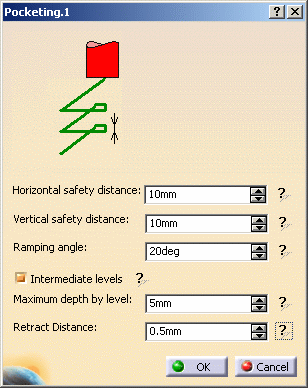
If you select the Intermediate Levels check box, the approach macro is
divided into three parts:
- a ramping approach from the top of the pocket to the intermediate level
- a horizontal path, which is the same as the first path if the machining
mode is Back and Forth or the first closed path if the machining mode is Helical
- a ramping approach from the intermediate level to the machining level.
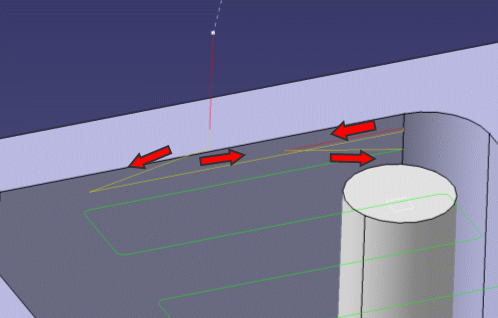
The yellow path in the figure below illustrates an intermediate level for a ramping
approach macro in Back and Forth mode.
Editing
Parameters of Several Pocketing Operations
You can modify the common parameters of several Pocketing operations in one shot as
follows:
- Select two or more Pocketing operations either in the Specification tree
or in the Process table.
- Right-click the highlighted operations and select Selected Objects
> Definition...
The Pocketing dialog box appears.
- Modify any of the parameters that are available for edition.
Note: Parameters (including Geometry and macro definitions) can be edited if all the
selected operations already have identical values. The parameters
which are different in the selected operations are not editable; the
displayed value is the one of the first operation selected. Tool parameters
cannot be edited and Replay icon is disabled.
This command is enabled only if you have selected at least two operations of
same type. This command is limited to the following operations: Multi Axis Flank
Contouring, Multi Axis Curve Machining, Contouring, Isoparametric Machining, and
Pocketing.
- Click OK to apply the modified parameters of all the selected operations.
Pocketing P1/P2 Considerations
Note that P2 functionalities for Pocketing include Automatic Draft Angle,
all Finishing parameters, and Sectioning for guiding element selection.
To edit in P1 a Pocketing operation that was created in P2, the following
parameter values must be set:
- Automatic draft angle = 0 deg
- Finishing mode = No finish path
- Side finish thickness = 0.0 mm
- Side finish thickness on bottom = 0.0 mm
- Bottom finish thickness = 0.0 mm
- Avoid scallops on bottom = no
- HSM Cornering on side finish path = no
- HSM Limit angle = 10 deg.
Checking for
Collisions with Part from Part Operation
When you select Collision checking on the Geometry tab
page, the following dialog box appears.
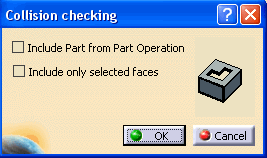
When the Include Part from Part
Operation check box
is selected, the part is retrieved from the Part Operation if part is not
defined at the Machining Operation level and used in collision check for
approach/retract macro.
By default, the check box is not selected.
When the Include only selected faces check box is selected,
faces are selected in the authoring window for collision checking. Face selection is activated only on selection of this check box, and the
selected faces are considered for collision checking with the macro.
The Include Part from Part
Operation and Include
only selected faces
options are mutually exclusive.
By default, the check box is not selected.
 or Stepover ratio
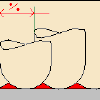 .
.