|
This task shows how to insert a Pocketing
operation in the program when the pocket to be machined comprises hard
boundaries only (that is, a closed pocket).
To create the operation you must define:
|
||
 |
Open the PrismaticMilling_New.CATPart document, then select Machining > Prismatic Machining from the Start menu. Make the Manufacturing Program current in the specification tree. | ||
 |
1. |
Select Pocketing
 . .
A Pocketing entity along with a default tool is added to the program.
|
|
 |
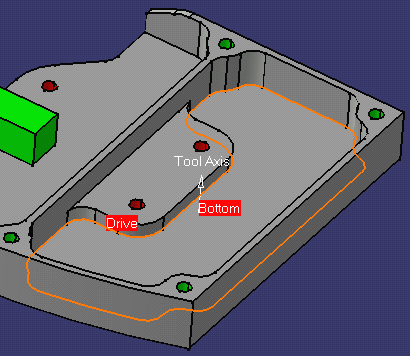
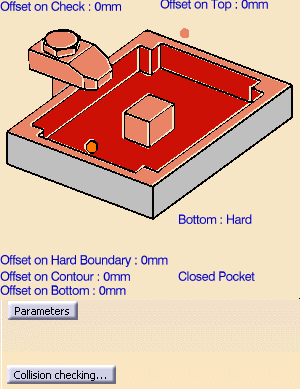
The bottom and flanks of the icon are colored red
indicating that this geometry is required for defining the pocket. All other pocket geometry is optional. |
||
| Make sure that the Pocketing style is set to Closed
Pocket. Selecting the icon |
|||
| 2. | Right click the red
Bottom in the icon and select Contour Detection from the
contextual menu.
Click the red Bottom then select the desired pocket bottom in the 3D window. The pocket boundary is automatically deduced thanks to the Contour Detection setting. This is indicated by the highlighted Drive elements.
|
||
|
|
The bottom and flanks of the icon are now colored
green indicating that this geometry is now defined.
For parts containing islands, you can right click the red Bottom in the icon and select Island Detection from the contextual menu. This allows island boundaries to be deduced automatically. |
||
| 3. | Click the Top Plane in the icon then select the desired top element in the 3D window. | ||
| 4. | Set the following offsets:
|
||
|
|
If your part includes islands, you can specify different offsets on individual islands using the Offset on Island contextual command (right click the Island label in the 3D window). | ||
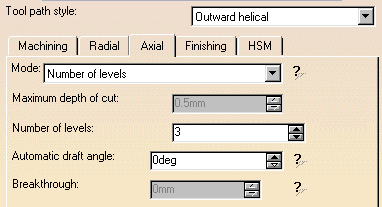
| 5. | Select the Strategy tab page
 and choose the desired tool path style: Inward
helical, Outward helical,
Back and forth, Offset on part One-Way,
Offset on part Zig-Zag,
Concentric, Outward spiral morphing,
or Inward spiral morphing.
and choose the desired tool path style: Inward
helical, Outward helical,
Back and forth, Offset on part One-Way,
Offset on part Zig-Zag,
Concentric, Outward spiral morphing,
or Inward spiral morphing.
|
||
You can then use the tab pages to set parameters for:
|
|||
|
|
A tool is proposed by default when you create a machining
operation. If the proposed tool is not suitable, just select the
Tool tab page  to specify the tool you want to use.
This is described in Edit the Tool of an Operation . |
||
| 6. | Select the Feeds and Speeds tab
page  to specify the feedrates and spindle speeds
for the operation.
to specify the feedrates and spindle speeds
for the operation. |
||
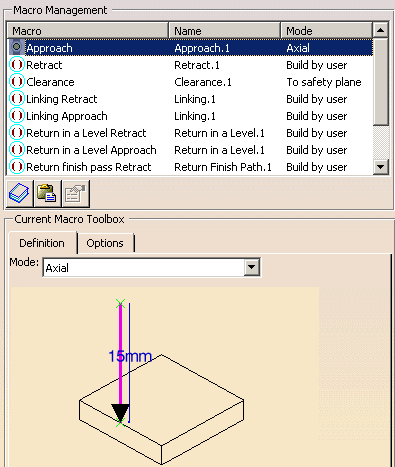
| 7. | Select
the Macros tab page  to specify the operation's transition paths (approach and retract motion, for
example).
to specify the operation's transition paths (approach and retract motion, for
example).
|
||
| See Define Macros of an Operation for another example of specifying transition paths on a machining operation. | |||
|
|
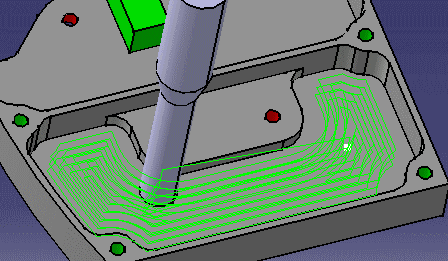
Before accepting the operation, you should check its validity by
replaying the tool path.
|
||
| 8. | Click OK to create the operation. | ||
More About Pocketing OperationsCollision CheckingA Collision Checking capability is available in the Geometry tab page, which allows checking for collision with part from part operation. See Reference section for more information. |
|||
|
|
|||


 .
. .
. 
 would give you a way to identify a Prismatic machining area feature visually in
the 3D viewer by moving the cursor over the feature or selection in the
manufacturing view. This also gives you the capability where the system would
add representations of PMA and MAF in the 3D viewer. This way you could
identify and select a feature from 3D viewer and use them directly in
operations.
would give you a way to identify a Prismatic machining area feature visually in
the 3D viewer by moving the cursor over the feature or selection in the
manufacturing view. This also gives you the capability where the system would
add representations of PMA and MAF in the 3D viewer. This way you could
identify and select a feature from 3D viewer and use them directly in
operations.