operations in your Machining program.
Click
 , then select the
geometry to be
machined
, then select the
geometry to be
machined  .
.
A number of strategy parameters
 are available for
defining:
are available for
defining:
Specify the tool
to be used
 ,
feeds and
speeds
,
feeds and
speeds  , and
NC macros
, and
NC macros
 as needed.
Multi-Axis Isoparametric Machining: Strategy Parameters
Multi-Axis Isoparametric Machining: Machining Parameters
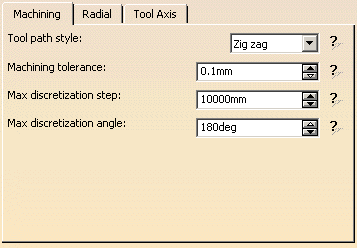
Tool path style
Indicates the cutting mode of the operation:
- Zig Zag: the machining direction is reversed from one path to the next
- One way: the same machining direction is used from one path to the next.
Machining tolerance
Specifies the maximum allowed distance between the theoretical and
computed tool path.
Consider it to be the acceptable chord error.
Maximum discretization step
Ensures linearity between points that are far apart.
Maximum discretization angle
Specifies the maximum angular change of tool axis between tool
positions.
It is used to add more tool positions (points and axis) if value is
exceeded.

- The Maximum discretization step and Maximum discretization angle influence the number of points on the tool path.
- The values should be chosen carefully if you want to avoid having a high concentration of points along the tool trajectory.
- These parameters also apply to macro paths that are defined in
machining feedrate.
They do not apply to macro paths that do not have machining feedrate (RAPID, Approach, Retract, User, and so on). - Default value for Maximum discretization step is 100 m. Default value for Maximum discretization angle is 180 degrees.
Multi-Axis Isoparametric Machining: Radial Parameters
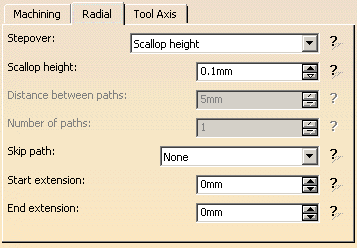
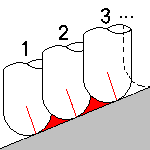
Stepover
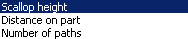
Defines how the distance between two consecutive paths is to be computed.
You can choose to define it by
- Scallop height,
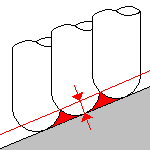
The associated parameter is Scallop height that specifies the maximum scallop height between
two consecutive tool paths in a radial strategy.
Note that the machining tolerance influences the distance between two consecutive paths.
When the machining tolerance value is increased, the distance between two consecutive paths is decreased according to the specified maximum scallop height value. - Distance on part,
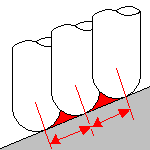
The associated parameter is Distance between paths that defines the maximum distance between
two consecutive tool paths in a radial strategy.
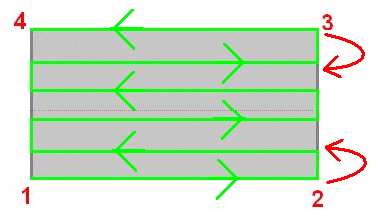
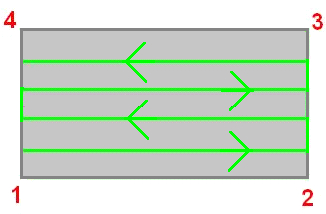
- In Zig zag mode, the tool path generated always starts from
point 1 to point 2 and finishes from point 3 to point 4.
For this purpose, an additional path may be added on top of the radial strategy criterion. - In One way mode, all paths are oriented from point 1 to
point 2.
For this purpose, the tool path may finish on point 3 or point 4. - Those rules also applies when Skip path or Start extension/End extension are active.

You may also choose to skip (not machine) the first or last path or both of the tool path in all three of the radial strategies.
Start
extension
Specifies the length of an additional machined area
located before the first path on part.
This value can be either positive (the global machined area is extended) or
negative (the global machined area is shrunk).
End extension
Specifies the length of an additional machined area located after the last
path on part.
This value can be either positive (the global machined area is extended) or
negative (the global machined area is shrunk).
| Example : | |
Case 1 : Tool path generated with the Radial strategy set to
Number of paths=5.
|
|
Case 2 : the same with Skip path set on First
and last.
|
Multi-Axis Isoparametric Machining: Tool Axis Parameters
Tool axis guidance
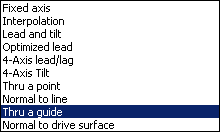
Specifies how the tool axis is to be guided.
Note that modifications of the tool axis generated by the mode you have selected apply only to the machining passes, not to the between paths passes.
Below you will find the explanations of the various Guidance types, then
the explanations of the associated parameters.
(Only Tool Axis Parameters tabs containing parameters have been captured)
Lead and Tilt
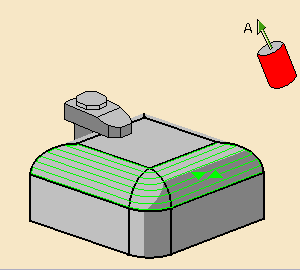
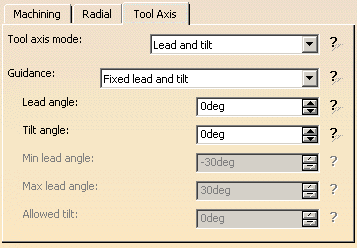
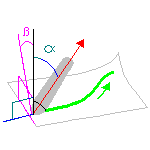
In this mode the tool axis is normal to the part surface with respect to
a given lead angle (alpha)
in the forward tool motion
and with respect to a given tilt angle (beta) in the perpendicular direction
to this forward motion.
There are several types of lead and tilt modes as follows:

- Fixed lead and tilt:
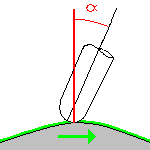
Here both the lead and tilt angles are constant. -
Variable lead and fixed tilt:
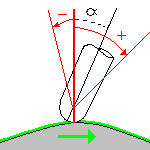
Here the tool axis is allowed to move from the specified lead angle within a specified range,
the tilt angle remaining constant. -
Fixed lead and variable tilt:
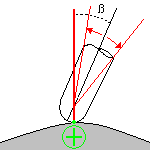
Here the tool axis is allowed to move from the specified tilt angle within a specified range,
the lead angle remaining constant.
Fixed Axis
The tool axis remains constant for the operation.
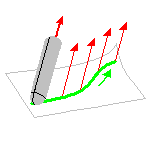
Interpolation
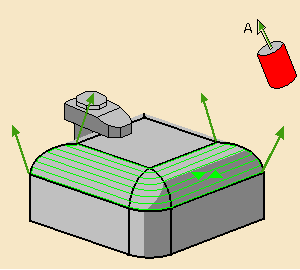
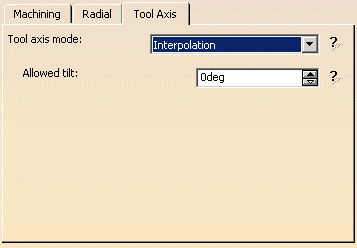
The tool axis is interpolated between two selected axes. Enter the
Allowed tilt value.
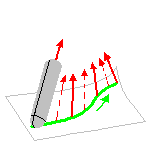
More information about the definition of interpolation axis is available
in Multi-Axis Isoparametric Machining:
Interpolation.
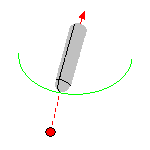
Thru a Point
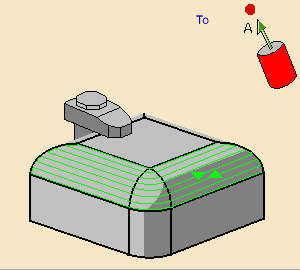
The tool axis passes through a specified point.
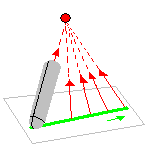
The tool axis can be oriented To the point
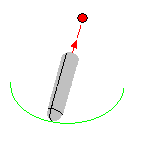
or From the point.
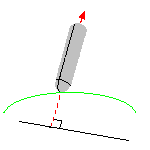
Normal to Line
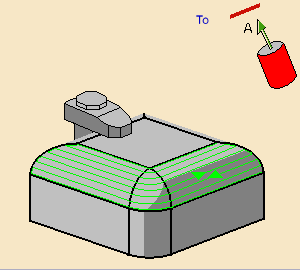
The tool axis passes through a specified curve, and is normal to this
curve at all points.
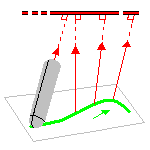
The tool axis can be oriented To
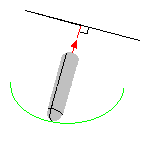
or From the line.
Optimized Lead
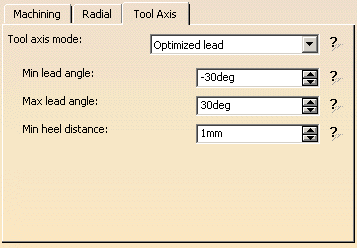
The tool axis is allowed to vary from the specified lead angle within an
allowed range.
The allowed range is defined by Minimum and Maximum lead angles.
The back of the cutter is to be kept clear of the part by means of a Minimum
heel distance.
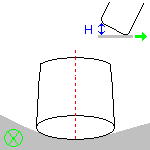
Optimized lead works as follows:
- lead defined as minimum to fit the part curvature
- lead increases if necessary to respect the Minimum heel distance.
If the required lead is outside the allowed range, the tool position will
not be kept in the tool path.
The maximum material removal is obtained when the tool curvature along
the trajectory matches the part curvature.
4-axis Lead/Lag
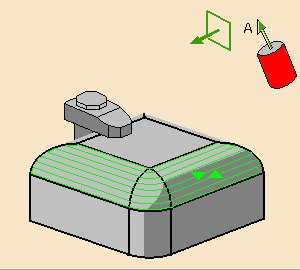
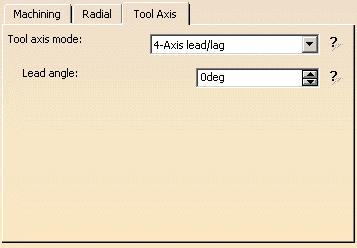
The tool axis is normal to the part surface with respect to a given lead
angle in the forward direction and
is constrained to a specified plane.
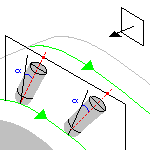
The tool axis is computed like in Lead and Tilt mode and then projected
into the constraint plane.
4-axis Tilt
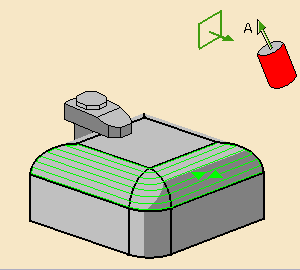
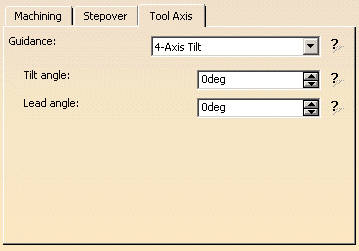
The tool axis is normal to the part surface with respect to a given tilt
angle and is constrained to a specified plane.
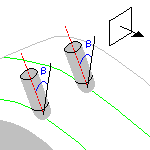
This is dedicated to milling parts with tool axis nearly parallel to the
part itself (near flank milling).
This axis strategy is primary dedicated to NC machine whose configuration
is A+C,
but can be used on any other multi-axis machine.
The figure below shows a machine with A and C axis on the table.
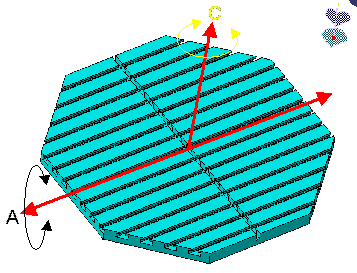
When A=C=0.00, the normal to the table is equal to the spindle
orientation of the machine
(which is fixed and equal to Z, there is no rotary axis on the head).
On such a configuration, 4-axis Tilt strategy can be used to achieve a tool
path in which the value
of the A machine axis will be constant.
Tool axis variation is provided by the C machine axis variation.
You are able to define the 4-axis constraint direction (that is, the
direction in which tool axis component will be constant).
In the figure below, the highlight of the table shows that this direction
has been defined by the normal to the table.
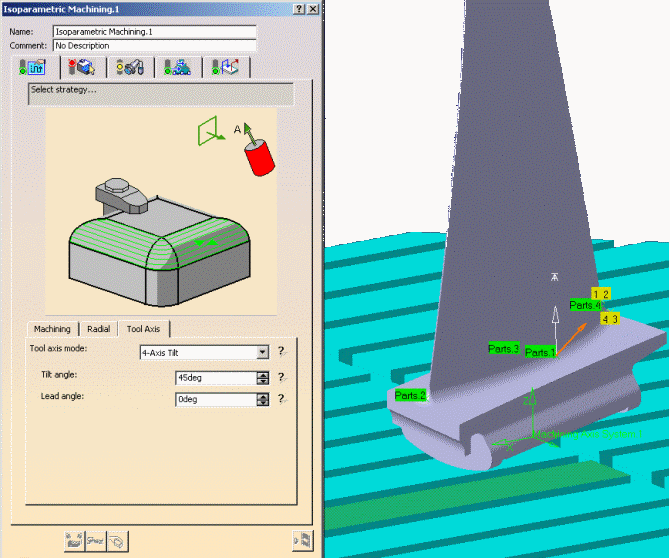
The Tilt angle is set to 45.00 degrees.
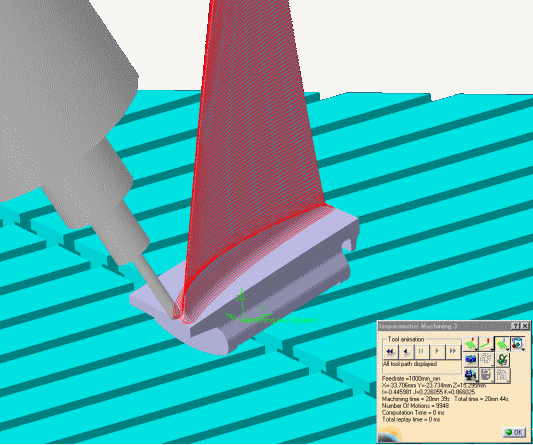
Lead angle
Specifies a user-defined incline of the tool axis in a plane defined by the
direction of motion
and the normal to the part surface.
The lead angle is with respect to the part surface normal.
Maximum lead angle
Specifies a maximum lead angle.
Minimum lead angle
Specifies a minimum lead angle.
Tilt angle
Specifies a
user-defined incline of the tool axis in a plane normal to the direction of
motion.
The tilt angle is with respect to the part surface normal.
Allowed tilt
Specifies the range of allowed tilt variation.
Minimum heel distance
Allows the back of the cutter to be kept clear of the part
(for example, when machining a smooth concave ruled part with Optimized Lead
tool axis guidance).
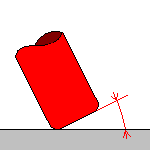
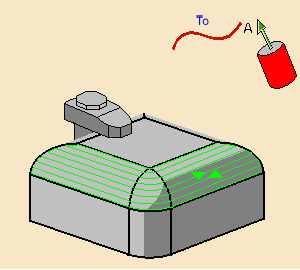
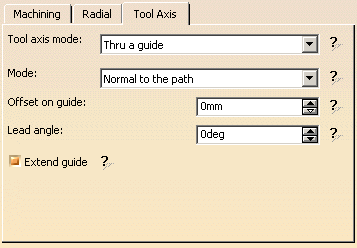
This strategy is used mainly to machine revolute surfaces, e.g. hub machining, deep pockets, ...
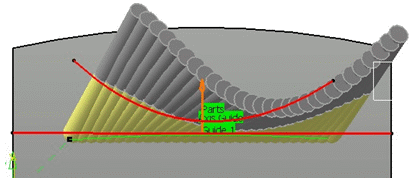
The tool orientation is controlled by a geometrical curve (guide), that must be continuous.
An open guide can be extrapolated at its extremities.
Click the red curve in the sensitive icon and select a curve in the 3D viewer.
The tool can be oriented From or To the guide.
Mode
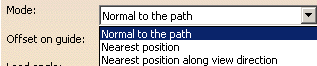
Defines how the position of the tool is computed:
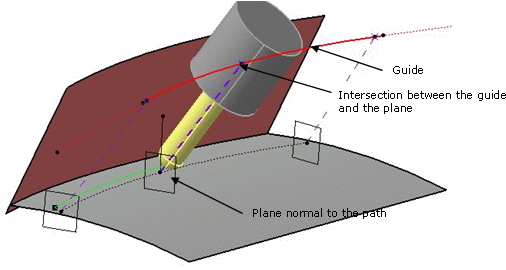
- Normal to the path: for a given contact point, the
intersection of the plane normal to the path with the guide give the tilt
angle of tool.
If several intersection are found, the nearest one is taken into account.
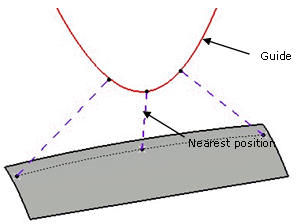
- Nearest position: the tool is oriented by the point that
gives the shortest distance between the guide and the contact point.
-
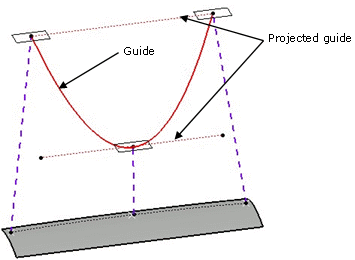
Nearest position along view direction: the guide is
projected on a plane normal to the view direction.
The tool is oriented by the point that give the shortest distance between the projected guide and the current contact point.
Offset on guide
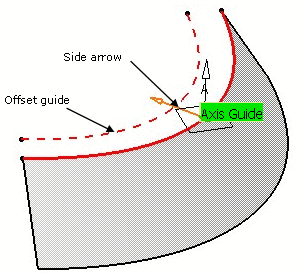
You can define an
offset on the guide. The offset is computed on a plane defined by the
tangent of the guide and the view direction.
Click the Axis Guide arrow to define on which side the offset is
applied.
Specifies an angle in the forward direction, between the default tool axis and the actual tool axis:
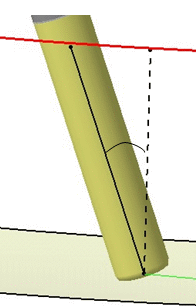
Note
that depending on the Lead angle, the tool axis will not remain on the
tilting guide:
Example:
Lead angle=0
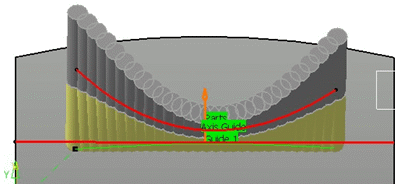
Lead angle=20
Extend guide
Select this check box to
extrapolate the extremities of an open guide.
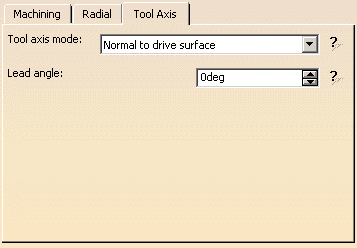
Normal to drive surface
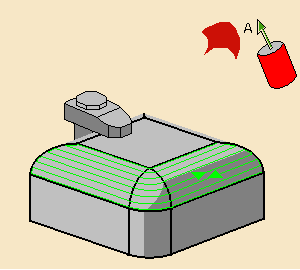
Use the red surface in the graphic icon to select the drive surface.
We recommend that you use a smooth surface.
Lead angle
Specifies an angle in the forward direction, between the default
tool axis and the actual tool axis:
Multi-Axis Isoparametric Machining: Cutter Compensation Parameters
(Double-click the part operation and push the Machine icon to open the
Machine Editor)
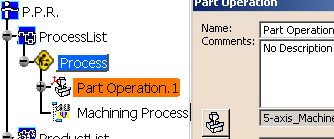
In the Machine Editor, the Compensation tab contains options for:
- globally defining the 3D contact cutter compensation mode: None/Contact/Tip and Contact
- imposing the compensation mode to all operations supporting the
selected mode
whatever the choice defined at machining operation level.
If the options are set as follows, compensation can be managed at
machining operation level.

In this case a Compensation tab appears in the Strategy page of the
machining operation editor,
and the following options are available.
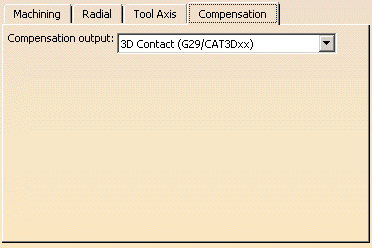
Output type
Allows you to manage the generation of Cutter compensation (CUTCOM)
instructions in the NC data output:
The following options are proposed:
3D Contact (G29/CAT3Dxx)
The tool contact point will be visualized during tool path replay.
Cutter compensation instructions are automatically generated in the NC data
output.
An approach macro must be defined to allow the compensation to be applied.
Example of generated APT source:
$$ Start generation of : Multi-Axis Isoparametric.1

      FEDRAT/ 1000.0000,MMPM

      SPINDL/ 70.0000,RPM,CLW

      CUTCOM/NORMPS

      $$ START CUTCOM NORMPS XC, YC, ZC, XN, YN, ZN, I, J, K

      .../...

      CUTCOM/OFF

      $$ END CUTCOM NORMPS XC, YC, ZC, XN, YN, ZN, I, J, K

      $$ End of generation of : Multi-Axis Isoparametric.1
None
Cutter compensation instructions are not automatically generated in the
NC data output.
However, CUTCOM instructions can be inserted manually.
For more information, please refer to How to generate CUTCOM syntaxes
provided in the Prismatic Machining User's Guide.
Multi-Axis Isoparametric Machining: Geometry
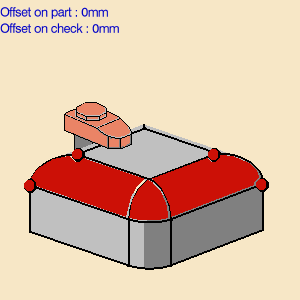
You can specify the following Geometry:
- Part elements (faces or belts of faces) with possible Offset on Part.
- Faces and belts of faces can be adjacent or non-adjacent.
- The thickness of the offset can be negative.
- If you want to use a negative value, the tool corner radius must be greater than the absolute value of the offset.
- Check elements with possible Offset on Check.
- Up to four Corner points for each face or belt of faces.
Non-Adjacent Belts of Faces
The following selection of part elements can be machined in a single
Isoparametric Machining operation.
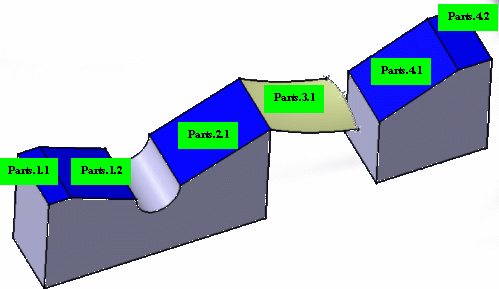
- Parts 1.1 and 1.2 make up a belt of adjacent faces.
- Part 2.1 is a non-adjacent face.
- Part 3.1 is a non-adjacent face (for example, an IGES design part).
- Parts 4.1 and 4.2 make up a belt of adjacent faces.
Also an orientation (side to mill) must be defined for each face and belt of faces.
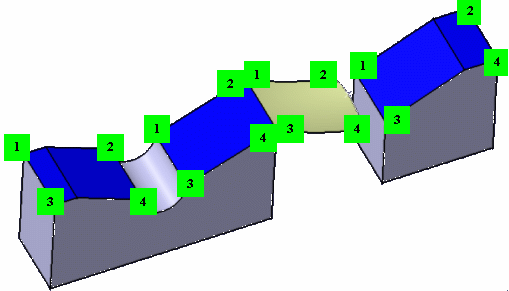
Collision Checking is also available.
Multi-Axis Isoparametric Machining: Tools
Recommended tools for Multi-Axis Isoparametric Machining are End Mills, Face Mills, Conical Mills and T-Slotters.
Multi-Axis Isoparametric Machining: Feeds and Speeds
In the Feeds and Speeds tab page, you can specify:
- feedrates for approach, retract and machining
- as well as a machining spindle speed.
Feedrates and spindle speed can be defined in linear or angular units.
A Spindle output checkbox is available for managing output the SPINDL
instruction in the generated NC data file.
If the checkbox is selected, the instruction is generated. Otherwise, it is
not generated.
Feeds and speeds of the operation can be updated automatically according
to tooling data and
the Rough or Finish quality of the operation.
This is described in
Update
of Feeds and Speeds on Machining Operation.
Multi-Axis Isoparametric Machining: Macros
General information about macros can be found in
NC Macros.
Information about the operating mode can be found in
Defining Macros.
Information about Surface Machining macro parameters can be found in
Macro Parameters.
Editing Parameters of Several Isoparametric Machining Operations
You can modify the parameters of several Isoparametric machining operations in one shot as follows:
- Select two or more Isoparametric machining operations either in the Specification tree or in the Process table.
- Right-click the highlighted operations and select Selected Objects > Definition...
- The Isoparametric machining dialog box appears. Modify any of the
parameters that are available for edition.
Note:
Geometry and macro definitions can be edited if all the selected operations already have identical values.
Some parameters may not be available for edition.
Tool parameters cannot be edited and the Replay icon is disabled. - Click OK to apply the modified parameters of all the selected operations.