
This task shows how to create a single patch from several adjacent patches.

Open the PatchFromPatches.CATPart document.

-
Click the Patch from Patches icon
 .
.
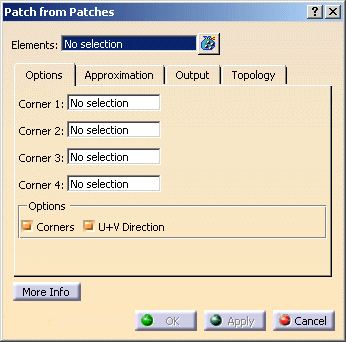
The Patch from Patches dialog box is displayed.
-
Select Surface.1 to .3
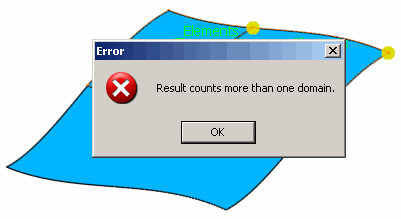
After selecting the first surface, a warning will appear.
Close the warning window with OK and change tolerances set on the Topology tab.
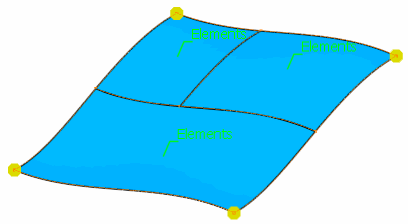
Select the third surface and terminate the selection.
The calculated corner points are now displayed.
-
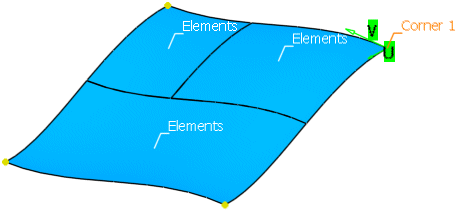
Select Vertex/Surface.1 as Corner 1. The U+V Direction of the patch created is displayed.
-
Select the other corner points and click OK to create the patch.
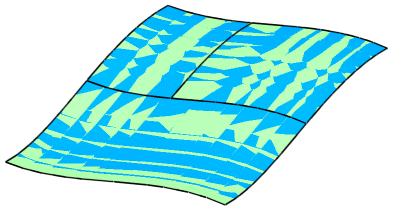

- Elements: Selection of the elements from which a patch shall be created.
The distance between the selected elements must be within the tolerances set on the Topology tab.
Joins must have at least G0 continuity.
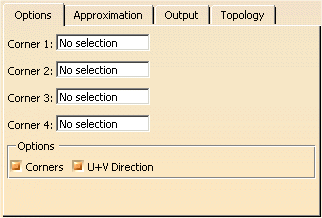
- Corner 1-4:
With these options, the four points defining the result are selected.
The system computes the topological boundary, as well as the corner points of the selected patch cluster. The calculated corner points are displayed graphically at the patch cluster. - Options:
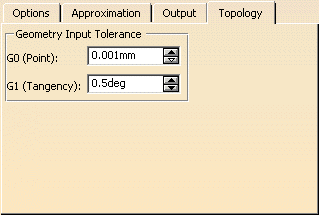
Here you can specify topology values G0 (Point) and G1 (Tangency) for the selected input elements.
These values are set cross-functionally in the menu Tools – Options – Shape – ICEM Shape Design on the Topology tab, and can be overridden for this function.
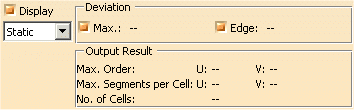
- Display: Depending on the options selected, values are displayed in the graphics area.
- Static, None: See Apply Modes
- Deviation:
- Max. : Indicates the maximum deviation of the result from the selected elements.
- Edge: Indicates the maximum deviation of the result edges from the edges of the selected elements
- Output Result: See Output Result
