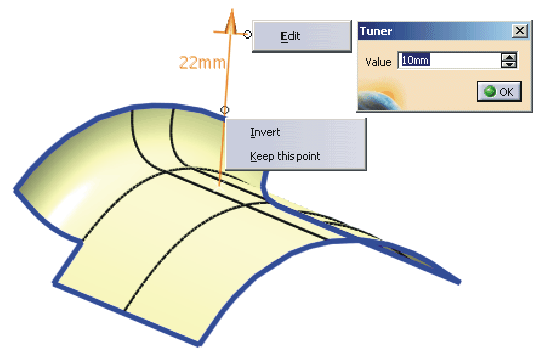
The system tries to combine the selected surfaces to form common areas, and to keep the transition qualities as far as possible during the offset computation. If required, the offset surfaces are trimmed or extrapolated


-
Click the Global Surface Offset icon
 .
.
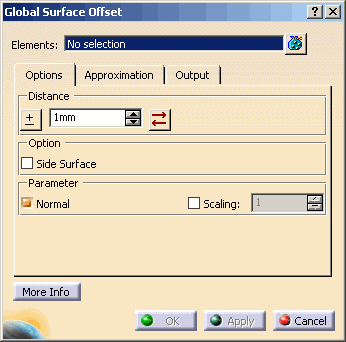
The 'Global Surface Offset' dialog opens.
-
Select the surface you want to modify.
-
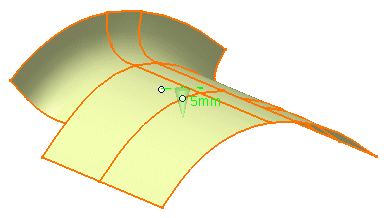
Specify an offset distance of 5 mm and click Apply to create the offset surface.
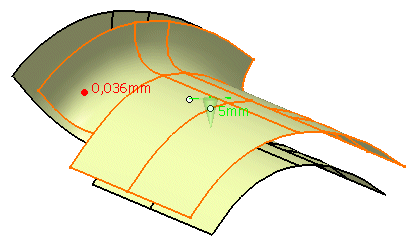
-
Click OK to exit the command.

- Elements: Selection of the surfaces to be offset.
- Distance
 Invert direction: The direction is inverted.
The Distance value is also inverted.
Invert direction: The direction is inverted.
The Distance value is also inverted.- Text field: Specifies the distance of the offset surface from the original surface (offset distance).
 Revert direction: Only the direction is inverted.
The Distance value remains unchanged. This allows, for example, to use positive values only.
Revert direction: Only the direction is inverted.
The Distance value remains unchanged. This allows, for example, to use positive values only.
- Option:
- Side Surface: Connecting surfaces are generated between original and offset surface.
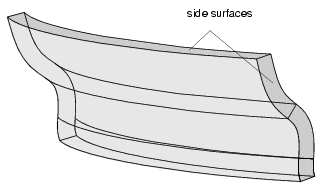
- Parameter
- Normal: Display of the direction of the original surfaces in the graphics area. With the manipulator, you can change the distance and invert the direction.
- Scaling: The size of the manipulator in the graphics can be scaled.
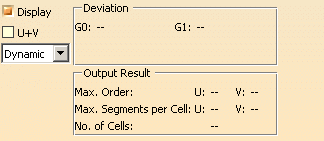
- Display: Graphical display of the deviation values.
- U+V: Display of the UV vectors of curves and surfaces.
- Dynamic, Static, None: See Apply Modes.
- Deviation
- G0/G1: Display of the maximum deviation of the actual result from the calculated mathematical result.
- Output Result: See Output Result
Contextual commands of the manipulator
The contextual commands will be activated by clicking the right mouse button on a vector manipulator handle. The following options can be defined:
- Edit: Changes the offset distance.
- Invert: Inverts the offset direction.
- Keep this point: Creates the point at the picked position.