
| Shown geometry and component Graphic attributes Axis system Naming |
always kept |
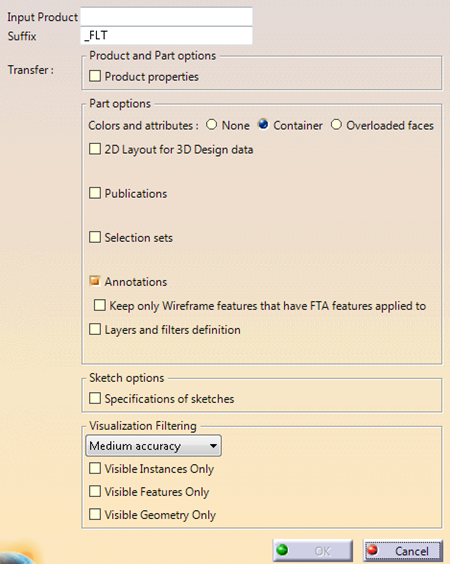
| Product properties | optional |
| Colors and attributes on subelements | optional |
| 2D Layout for 3D Design data | optional |
| Publications | optional |
| Selection sets | optional |
| Annotations | optional |
| Keep only Wireframe features ... | optional |
| Layers and filter definitions | optional |
| Specifications of sketches | optional |
| Visualization Filtering | optional |
Any data other than the ones described above are removed in the newly created CATPart and CATProduct (Publications, annotations, spot weldings, etc. on the product structure are not kept).
In this task, you will find:
- A simple example,
- The description of the standard behavior.

- To avoid the transfer of integrity errors in data, and to improve the
filtering performances,
we recommend that you use CATDUA V5 and make sure the data are up-to-date before performing any Product Data Filtering. - If a memory error or a memory warning occurs, or if the input document is corrupted, the output part will be empty or partial.
- If the geometry to filter is not up-to-date, the result will not be coherent.

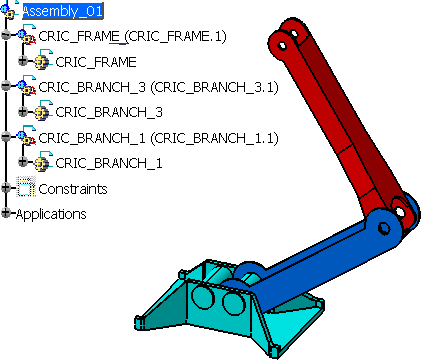

-
Click Product to Product
 and select the node Assembly_01.
 -
The dialog box is displayed:
-
Click OK. A progress bar is displayed while the new CATProduct and its new CATParts are created.
It looks like this: 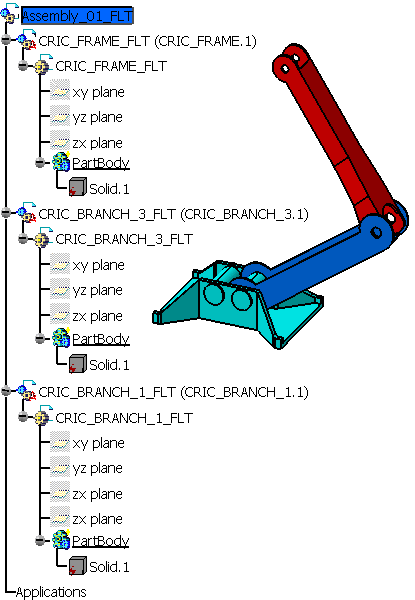

Standard Behavior
For the product structure:
- The structure instance/reference is kept.
- You can select any node in the product structure: Only this node and the elements it contains will be processed, enabling you to create a new CATProduct from only a portion of the initial CATProduct. The result depends only of the reference of the node you have selected. Therefore the positions of the geometries, the visibility and the colors that are transferred are those of the reference of the node you have selected (if the node you have selected is an instance, Product Data Filter ignores the overloaded properties of the instance and takes the initial properties of the reference into account).
- An option in the 3D Shape Infrastructure Settings enables hybrid design inside part bodies and bodies. Product Data Filtering does not take the status of this option into account: The structure is always copied with the same types, without transformation nor re-ordering.
- A CATProduct and CATParts are created:
- The default name of the CATProduct is "Name_of_Node_of_Original_CATProduct"_FLT and can be edited.
- Starting with R21, an empty default PartBody is no longer created.
- The part numbers of the resulting CATProduct and CATParts are "Original_PartNumber"_FLT.
- If you select an instance of a CATPart, a new CATPart is created.
- The CATParts contained by the CATProduct are processed as described in Part to Part.
- A component is created in the resulting CATProduct for each component under the node that is visible in the reference of the node you have selected, that contains visible geometries.
- The components thus created keep the name of their counterparts in the original CATProduct.
- The graphic attributes of the components are kept.
- The reference planes are always hidden.
Management of invisibility instances in assemblies
Please note that:
- Invisible instances of a product or a component are not transferred.
- An instance is considered as invisible for Product to Product in a given product or component if all instances of the same reference are invisible in this given product or component.
Example:
Let's consider the instances of PART_A in the products below:
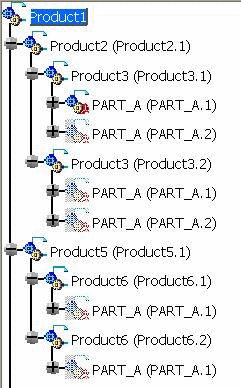
- PART_A is considered as visible for Product to Product in Product3, because at least one instance of PART_A is visible in at least on instance of Product3.
- PART_A is considered as not transferred for Product to Product in Product6 as it is invisible in all instances of Product6.
If you apply Product to Product at Product1 level, this is what you get:
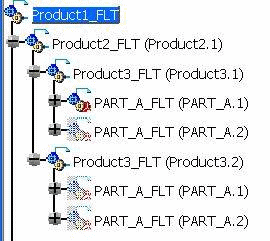
- All the instances of PART_A are transferred in Product3 context, because at least one of the instance of PART_A is visible.
- In that case, the no-show attribute is kept.
- Product5 and Product6 are not transferred, because all the geometry is in no-show.
Options
You can select several options to transfer some elements that are not transferred in the standard behavior. For more information, see the Product to Part chapter for Visualization Filtering and the Part to Part chapter for other options.
The only option that modifies the behavior for the product structure is the option Product properties.
