You can select several options to change the standard behavior.
By default, these options are not selected.
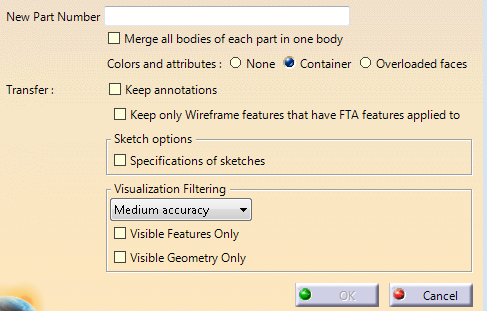
Merge all bodies of each part in one body
The Merge all bodies of each part in one body option allows you:
- For solids:
- To merge in one body the solids found in all the bodies of each CATPart.
- For surface elements:
- To merge ordered geometrical sets in one hybrid body, if you have enabled hybrid design.
- To merge geometrical sets in one body, if you have not enabled hybrid design.
Colors and attributes
This option is available in Data Product Filtering
 ,
,
not in Assembly Design:
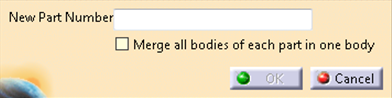
This option defines how colors and applicative attributes are transferred.
Note: Graphic
attributes other than color and transparency (line type, thickness, symbol,
...) are copied regardless of the status of this
option.
- Overloaded faces: This option overrides the
standard behavior for colors and attributes and keeps the
visual aspect of the original data. For example, if the
color of one face has been changed like this
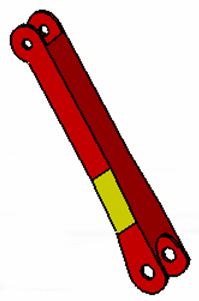
the result of the transfer looks exactly the same. - Container: The whole transferred solid takes
the color of the original body, as explained in the standard
behavior in the Part to Part chapter.
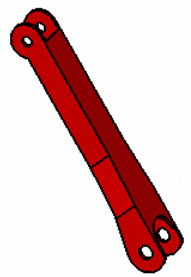
- None: The result takes the default color of
the body.
Keep Annotations and Keep only Wireframe features...
The behavior is the same as in the Part to Part chapter.
Specifications of sketches
The behavior is the same as in the Part to Part chapter.
Visualization Filtering
- Visible Instances Only
- Visible Features Only
- Visible Geometry Only
If an instance, feature or a geometry is at least partially visible from a number view points controlled by accuracy values, the instance, feature or the geometry is kept in the result product. If an instance, feature or a geometry is completely hidden, it is removed from the result product. - Accuracy (Low, Medium, High,
Very High) controls the number of view points to consider an
element as visible or not.
Low provides fewer view points, Very High much more. Low is the default value.

More information
- Filtering applies only to the contents of Bodies, Geometrical Sets or Ordered Geometrical Sets.
- Only visible geometries are transferred. In some cases, no empty
bodies are created in the resulting CATPart, with the following exception:
- Since a CATPart is always created with a PartBody, you will always find an empty one in the result CATPart.
- Non-empty PartBodies or Bodies found in the original Product are transferred into Bodies.
- The options Checking Operation When Renaming: Under the same tree node and In the main object in Tools > Options > Infrastructure > Part Infrastructure > Display are inefficient in Product Data Filtering. Therefore be aware that you can find several elements with the same name under one node.
- Elements other than the geometry, the axis system or the colors and attributes on subelements are never transferred.
- V4 data are processed according to the standard V4 Integration.
- However changes of the Show/NoShow status or of the colors and graphic attributes made since their import in V5 are not taken into account, e.g. if you have sent a V4 element to the NoShow in V5, it will be transferred since it is its V4 status that is taken into account. To make those changes effective, you need to make those changes in a V4 session, save the data in V4 and re-import them to V5.
- For V4 models:
- All wireframe features are created in a single specific Geometrical Set named Wireframe.
- Some data may be transferred into the PartBody of the result CATPart.
