
To create the operation you define:
- the geometry
of the
part to machine
 ,
, - the parameters of the
machining
strategy
 ,
, - the
tool
to use
 ;
; - the feedrates and spindle speeds,
- the macros
 .
.
Only the geometry is obligatory, all of the other parameters have a default value.
More information is available in Probing Operations Parameters.

start Surface Machining and make sure that Manufacturing Program.1 is active.

-
Click Corner Probing
 .
.
A Corner Probing entity has been added to the program.
The dialog box opens at the geometry page .
.
This page includes a sensitive icon to help you specify the geometry to be machined.
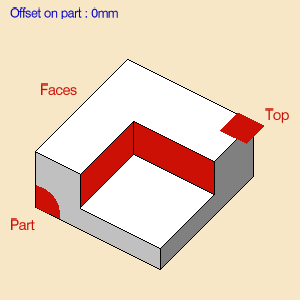
Click the red area in the sensitive icon select the part in the viewer.
Then double-click anywhere in the viewer to confirm your selection and redisplay the dialog box.
Similarly, click Face in the sensitive icon and select the faces that limit the corner in the viewer.
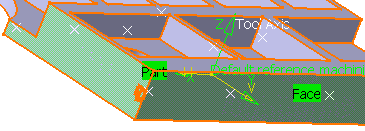
Note that a corner symbol appears to visualize how the corner will be processed.
If this information is not correct

click the wings of the corner until they show the correct way.

Then Top and select the top plane.
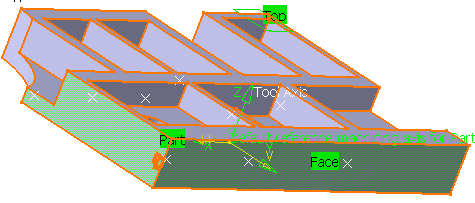
-
Click Tool Path Replay
 to compute the probing tool path.
A progress indicator is displayed.
You can cancel the computation at any moment before 100% completion.
Click OK in the Tool Path Replay dialog box, and again in the main dialog box.
The probing tool path is created.
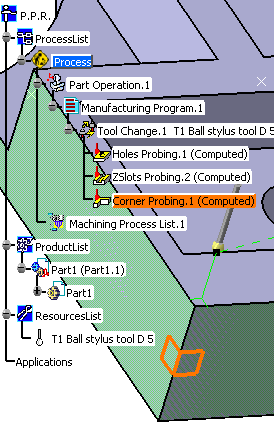
Note that you can add your own probing parameters, and create your own tool bars with the probing operations you have defined. See NC Manufacturing.
