
An action is an elementary modification of the shape.


-
Select an existing step.
-
Click Process Action
 in the Process Definition toolbar.
-
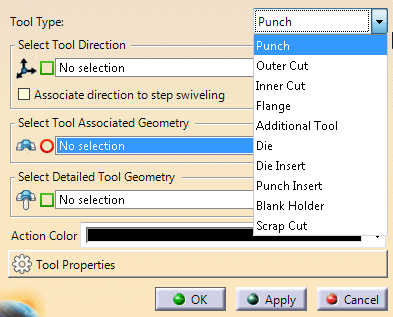
Select an action from the list.
The dialog box changes according to the selected type.
Enter the requested information.
Make sure you select the smallest possible surfaces to ensure a good computation of the intermediate geometries.

-
Select Associate direction to step swiveling to apply modifications of the swiveling to the tool direction.
Edition of the step blank swiveling/part swiveling should impact the cam direction, not the press direction. This is what selecting the check box allows.
The check box is automatically selected if the tool direction is a cam direction.-
Initial position without swiveling, with cams in yellow and
other cut tools using the press direction.
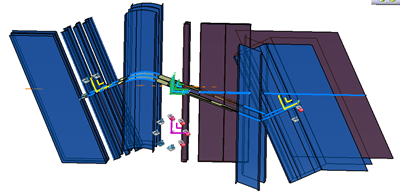
- After a blank swiveling, the cam axis has followed the
swiveling and the tool cutting surface direction, whereas
the cutting tool in the press direction has kept the same
direction.
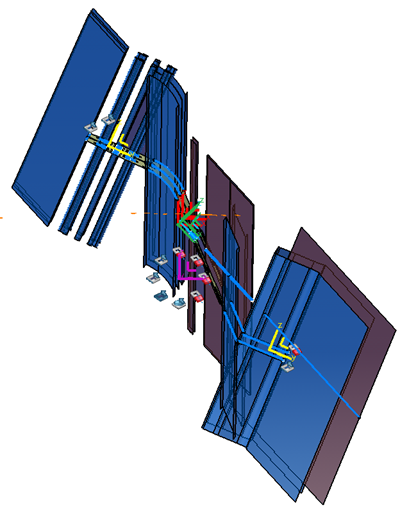
-
Initial position without swiveling, with cams in yellow and
other cut tools using the press direction.
-
Select detailed geomery for the tool.
It can be: - A curve (for a cutting tool)
- A surface (for a punch tool)
- A folded surface (for a flange tool).
-
Press Tool Properties.
See Using the Process Generator Wizard- Properties of Press Tools for more information. -
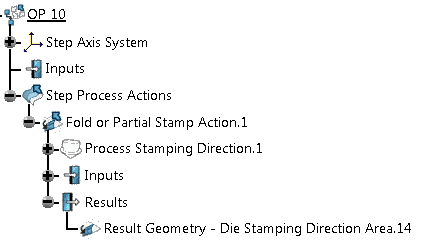
Click OK.
The Process Action is added under the Step Process Actions. For example
-
In the specification tree
- Drag a step to another location to reorder steps.
- Drag one action from one step to another step.
- Use the contextual menu of the DFD Process Body to rename its process steps.
- Alternatively, double-click the first step to edit the suffix in the Common Options.
-
Click Play Process
 to view an animated simulation.
If you have selected Check Process Result, a
geometrical check is performed at each update.
Differences are
displayed in the graphic area, warnings are issued when necessary.
