|
You can create complex volumes from complex
surfaces created with an other workbench. You can choose
between three Free Form Surface types:
-
Free: the feature result is non-connected and is similar to
existing hopper feature result.
-
Connected: the feature result is connected with the existing sheetmetal features.
-
Fixed Edges: you can define the edges from the surface to
keep them distortion free.
|
This task shows you how to:
|
|
 |
For each free form surface types, you must create a complex surface
with an other workbench. |
|
|
Create a Connected Surface
You can connect a complex surface to a sheetmetal feature. |
|
|
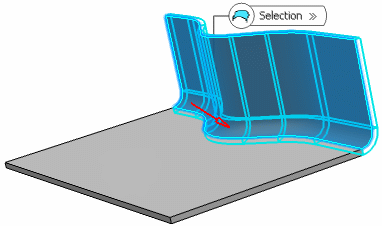
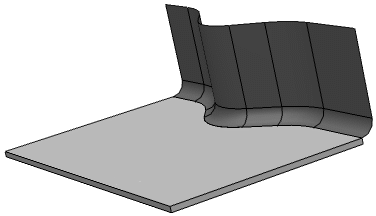
Create a complex surface to be connected to a sheetmetal
feature as shown below.
 |
|
 |
-
Click Free Form Surface
 in the Rolled
Walls toolbar.
in the Rolled
Walls toolbar.
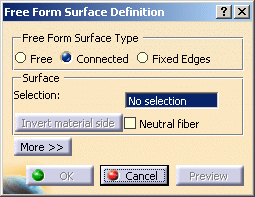
The Free Form Surface Definition dialog box appears.
-
In the Fee Form Surface Type area, select Connected.
-
In the Selection box, select the surface you want to connect.
The red arrow indicates in which direction the material
will be created.
-
Click OK to validate.
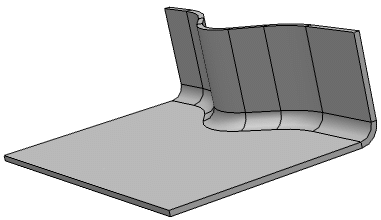
The connected surface is created with the same sheetmetal
parameters defined for the wall.
-
Click Fold/Unfold
 . .
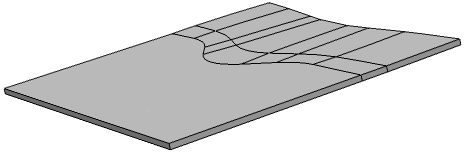
The distortion is taken into account when unfolding the volume.
 |
The Connected type is available only if a
surface is connected to a sheetmetal feature. If you start only with
a surface, the Connected type is disabled. |
|
|
|
Create a Free Surface
You can create a sheetmetal feature from a complex surface created
with another workbench. |
|
|
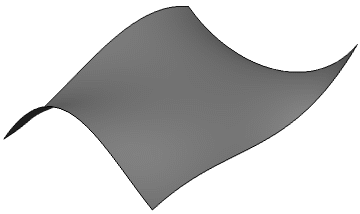
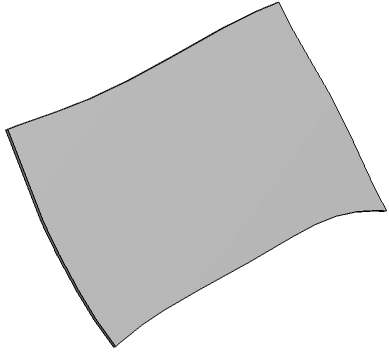
Create a complex surface as shown below.
 |
|
|
-
Click Free Form Surface
.
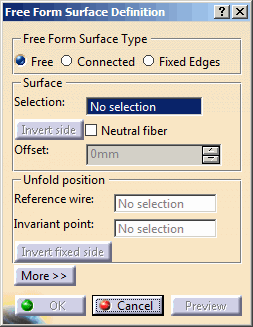
The Free Form Surface Definition dialog box appears.
-
In the Fee Form Surface Type area, select Free.
New options appear on the dialog box.
-
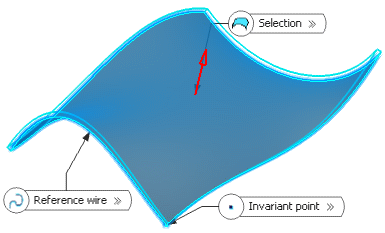
In the Selection box, select a surface.
The reference wire and invariant point are
automatically selected and displayed in the Reference wire
and Invariant point boxes respectively. You can change them.
The red arrow indicates the direction in which material
will be created.
-
To offset the free form surface,
type the desired value in the Offset
box.
By default, there is no offset and the value is set to 0mm.
The offset of the free form surface is previewed.
-
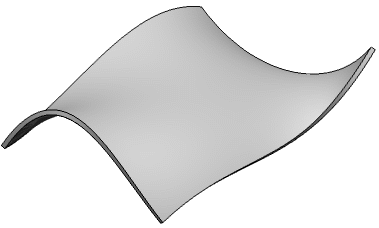
Click OK to validate.
The volume is created.
-
Click Fold/Unfold
.
The volume is unfolded according to the Reference wire and
the Invariant point you have defined in the Free Form
Surface Definition dialog box.
|
|
|
Create a Free Form Surface with Fixed Edges
You can create a sheetmetal feature from a complex surface by
determining a fixed edge for the Unfold mode. |
|
|
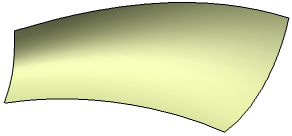
Create a complex surface as shown below.
 |
|
|
-
Click Free Form Surface
.
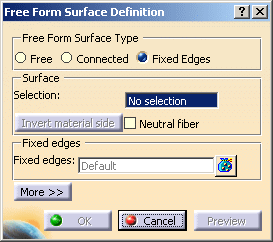
The Free Form Surface Definition dialog box appears.
-
In the Fee Form Surface Type area, select Fixed Edges.
New options appear on the dialog box.
-
In the Selection box, select a surface.
-
In the Fixed edges
box, select the edge you want to be fix when unfolding.
In our example, we have selected the edge at the bottom of the surface.
 |
The selected edge must be planar. |
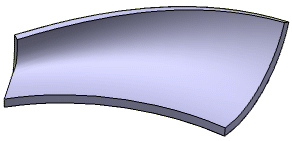
-
Click OK to validate.
The volume is created.
-
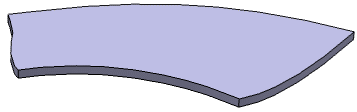
Click Fold/Unfold
.
The volume is unfolding with respect to the fixed edge you chose.
|
|
 |