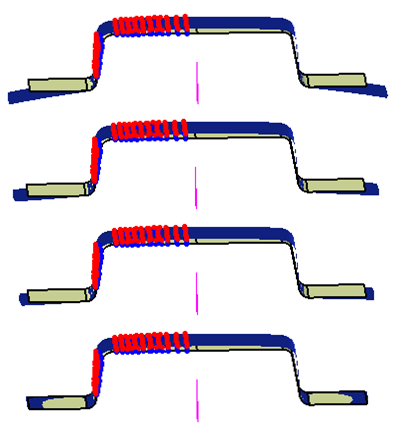
This ensures that:
- Applying a Digitized Morphing on a symmetric part results in a symmetrical deformation.
- Applying a Digitized Morphing on half a model, i.e. with a limit element, will result in a deformation consistent with further symmetry operations.
You can also enforce a symmetric deformation on a non-symmetric part.

The file of vectors used to compute the deformation is ForSymmetry01.txt in the samples directory.

-
Select the Element to deform and the Deformation Element as explained in Digitized Morphing.
-
Go to the Limit Element tab, and select the zx plane as the symmetry plane.
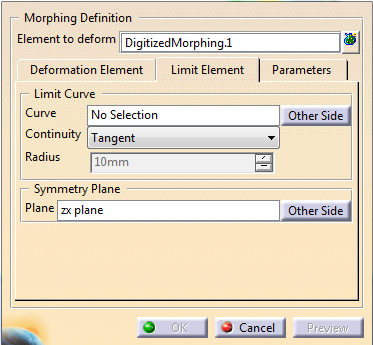
Digitized Morphing considers half of the vectors fields.
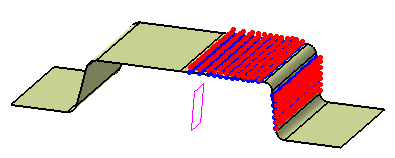
-
Optional: Click Other Side to take the other half of the vectors field into consideration.
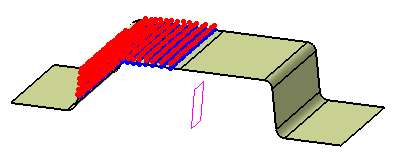
-
Optional: Go to the Parameters tab to apply an attenuation to the deformation.
-
Optional: Still in the Parameters tab, apply a Smooth factor.
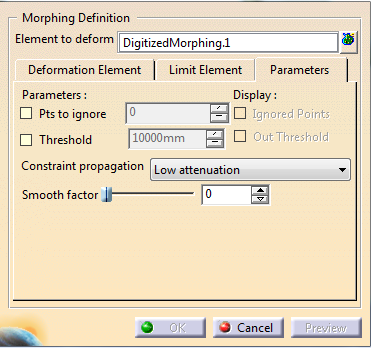
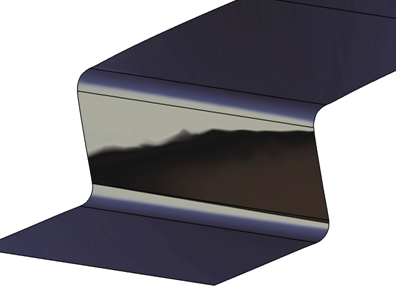
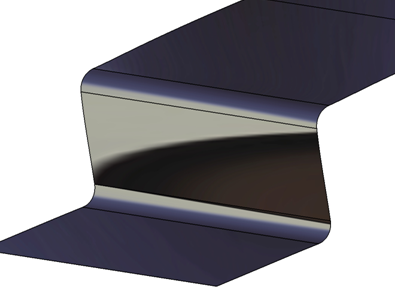
This slider defines the quality of the resulting shape:
The quality of the shape is obtained to the detriment of the respect of the precision.
A check can be done from the Statistics.
The Smooth factor range is between 0 (no smoothing)
and 1.
-
Click Preview.
Digitized Morphing performs one symmetrical deformation of the whole part,
based on the half of the vectors field you have selected.
If the part is partially symmetric, the deformation is partially symmetric. -
Click OK to validate and exit the dialog box.