then select the geometry
 to be machined.
The information in this section will help you create and edit Facing operations in your manufacturing program.
Select Facing
then select the geometry
to be machined.
A number of strategy parameters
 are available for
defining:
are available for
defining:
Specify the tool to be used
 ,
NC macros
,
NC macros  , and
feeds and speeds
, and
feeds and speeds  as needed.
| Finishing
mode Indicates whether or not a finish pass is to be generated on the bottom of the area to machine. |
|
| Bottom
finish thickness Specifies the thickness used for bottom finishing. |
For Facing operations using an Inward helical tool path style only.
| High Speed
Milling Specifies whether or not cornering for HSM is to be done on the trajectory. |
|
| Corner
radius Specifies the radius used for rounding the corners along the trajectory of a HSM operation. Value must be smaller than the tool radius. |
|
| Limit angle Specifies the minimum angle for rounding corners in the tool path for a HSM operation. |
|
| Extra
segment overlap Specifies the overlap for the extra segments that are generated for cornering in a HSM operation. This is to ensure that there is no leftover material in the corners of the trajectory. |
|
|
Transition radius Specifies the radius at the start and end of the transition path when moving from one path to the next in a HSM operation. |
|
|
Transition angle Specifies the angle of the transition path that allows the tool to move smoothly from one path to the next in a HSM operation. |
|
|
Transition length Specifies a minimum length for the straight segment of the transition between paths in a HSM operation. |
You can specify the following Geometry:
The drive contour must be closed. It can be specified in several ways:
You can select start and end points as preferential start and end positions on the operation. This allows better control for optimizing the program according to the previous and following operations.
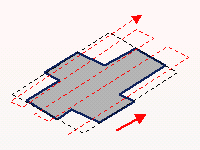
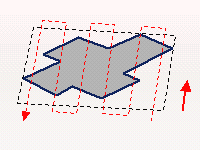
For One way and Back and forth tool path styles, you can select the Bounding envelope check box to machine the maximum bounding rectangle of the part. After selecting the geometry to be machined, this rectangle is computed after defining a machining direction.
The figures below illustrate how machining is done for different machining directions.
Recommended tools for Facing are End Mills, Face Mills and T-Slotters.
In the Feeds and Speeds tab page, you can specify feedrates for approach, retract, machining and finishing as well as a machining spindle speed.
Feedrates and spindle speed can be defined in linear or angular units.
A Spindle output check box is available for managing output of the SPINDL instruction in the generated NC data file. If the check box is selected, the instruction is generated. Otherwise, it is not generated.
Feeds and speeds of the operation can be updated automatically according to tooling data and the Rough or Finish quality of the operation. This is described in Update of Feeds and Speeds on Machining Operation.
You can define transition paths in your machining operations by means of NC Macros. These transition paths are useful for providing approach, retract and linking motion in the tool path.
An Approach macro is used to approach the operation start point.
A Retract macro is used to retract from the operation end point.
A Return on Same Level macro is used in a multi-path operation to link two consecutive paths in a given level.
A Return between Levels macro is used in a multi-level machining operation to go to the next level.
A Return to Finish Pass macro is used in a machining operation to go to the finish pass.
A Clearance macro can be used in a machining operation to avoid a fixture, for example.
Note that P2 functionalities for Facing include all Finishing
parameters and Sectioning for guiding element selection.
To edit in P1 a Facing operation that was created in P2, the
following parameter values must be set:
When you select Collision checking on the Geometry tab page, the following dialog box appears.
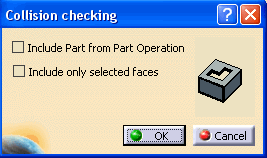
When the Include Part from Part
Operation check box
is selected, the part is retrieved from the Part Operation if part is not
defined at the Machining Operation level and used in collision check for
approach/retract macro.
 By default, the check box is not selected.
When the Include only selected faces check box is selected,
faces are selected in the authoring window for collision checking. Face selection is activated only on selection of this check box, and the
selected faces are considered for collision checking with the macro.
The Include Part from Part
Operation and Include
only selected faces
options are mutually exclusive.
By default, the check box is not selected.
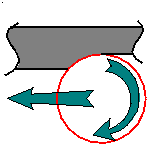 or
Conventional milling
or
Conventional milling
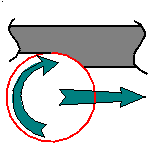
 or Stepover
ratio
or Stepover
ratio  .
.