

Note: Multi-plane section views are not associative to FTA views or captures.

The CATPart has a 2D layout with front view created, a multi-plane section view created in FTA, and one FTA capture associated to a multi-plane section view.

-
In the 2D window, click View From Reference
 in the Layout toolbar (Views sub-toolbar).
The Tools Palette toolbar is displayed. You will not need it for this scenario.
-
Perform either of the following operations:
- Select the FTA multi-plane section view.
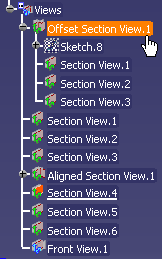
- Select the FTA capture associated to a multi-plane
section view.
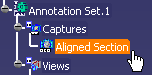

You can select the following types of FTA multi-plane section views or captures associated with a multi-plane section view: - Offset section view
- Offset section cut
- Aligned section view
- Aligned section cut
The Tools Palette toolbar automatically disappears, as the views are considered to be fully defined by their reference FTA multi-plane section views in naming, type, orientation, and scaling.
A preview of the created 2DL multi-plane section view is displayed under the pointer and moves along with it. - Select the FTA multi-plane section view.
-
Click on the sheet at the location where you want the view to be positioned. In case you have selected several multi-plane section views, click in the sheet as many times as necessary to position all the 2D Layout views.
The multi-plane section view is created and is represented in the specification tree along with its sub-views as children nodes. -
Optional: If a message box is displayed, prompting you to confirm the creation of a callout, click OK and select a suitable view for callout creation. For more information, refer to Creating a View From Another Element.
The multi-plane view is created along with its callout.
- If you selected the FTA multi-plane section view:
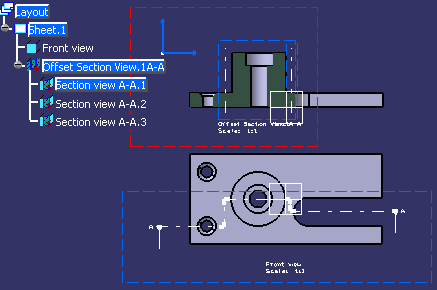
- If you selected the FTA capture associated to a multi-plane
section view:
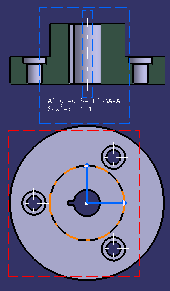
Note: - When selecting a capture, FTA annotations are added in sub-view's filters. Furthermore, the FTA annotation set is added in the section view's filter (it is therefore invisible in the clipped background).
- When selecting an FTA view, by default, annotations are not displayed. You need to add them manually in the sub-view's filters.
- If you selected the FTA multi-plane section view:
-
To modify the 3D Tolerancing & Annotation multi-plane section profile, go to the 3D window and modify it.
-
In the 2D Layout window, click Update
 .
.
The view is updated accordingly.
If the 3D Tolerancing & Annotation reference is isolated or deleted, the 2DL section view is associated to its own 2DL section profile.
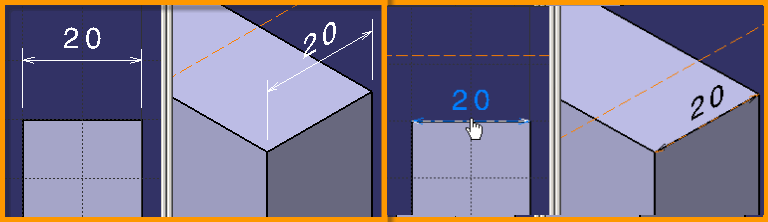
About 3D Annotation Manipulation from 2D Layout for 3D Design
You can manipulate the 3D annotations and dimensions through the
layout view background.
Handles are displayed in the view background where an annotation or a
dimension is selected.
However, when a 3D annotation or a dimension is selected through the 3D
work area, handles are not visualized in the 2D work area.
You can manipulate the 3D annotations or dimensions by selecting through
any layout view background of the same work area. However, the handles
are displayed only in the view through which they are selected.
| Left: Original annotation Right: Manipulated annotation (manipulation done in the layout is reflected in the 3D) |
 |
