|
This task explains how to create an Expert Rule.
In the task below, you create a rule which, whenever a hole has a diameter
of 50mm, replaces the hole diameter with a 10mm value. |
 |
- To perform this scenario, a basic knowledge of the Part Design
product is required.
- The document Update mode must be set to Automatic.
|
|

|
-
Create a two-hole pad. One hole must have a 50.0 mm
diameter, the other a 10.0 mm diameter.
-
Access the Knowledge Expert workbench.
-
Click the Expert Rule icon ( ).
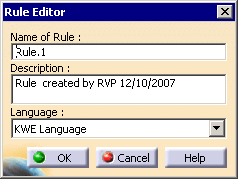
The following dialog box is displayed. ).
The following dialog box is displayed.
-
If need be, replace the default name and description of
the check to be created, the description will be displayed at the first
line. Select the KWE Language, then click OK. The
expert rule editor is displayed.
-
Enter the
H:Hole statement in the
 area to specify that the rule is to be applied on all the holes and that
H will be used as a variable. To get a full description of the available
types, see the Reference section of this
guide.
area to specify that the rule is to be applied on all the holes and that
H will be used as a variable. To get a full description of the available
types, see the Reference section of this
guide.
-
Copy/Paste the rule below from your browser to the
edition box of the editor:
if (H.Diameter
       == 50.0 mm)

       H.Diameter = 10.0 mm

       else

       H.Diameter = 20.0 mm
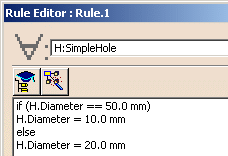
The rule editor now looks something like this:
-
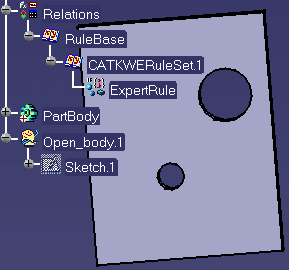
Click OK. A rule is added to the rule set in
the specification tree. Click the
 icon to solve the rule base. If need be, update the document. Here is
what you get onscreen:
icon to solve the rule base. If need be, update the document. Here is
what you get onscreen:
-
Keep your document open and proceed to the next task.
|
| |
Editing an Expert Rule
About Expert Rules |