


-
Click Erasing
 in the Styling Surfaces toolbar.
You can also access this command by pressing ALT+SHIFT+E. -
Select the face to erase.
A Tools Palette is displayed: 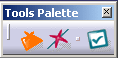
The following icons let you:  apply the command. This command is active after the first
selection. Clicking this command validates the selection and further
executes the command.
apply the command. This command is active after the first
selection. Clicking this command validates the selection and further
executes the command.
Erasing a Face |
-
Click Face Erasing
(it is selected by default). -
Click the face or faces to erase.
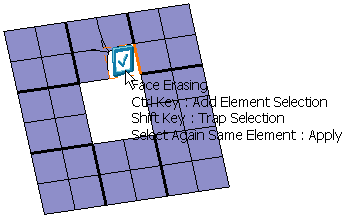
-
Press Ctrl to select multiple elements to erase.
-
Apply the command by clicking Apply (Enter)
or validating in geometry.
Release the mouse when you are satisfied with the new shape of the surface.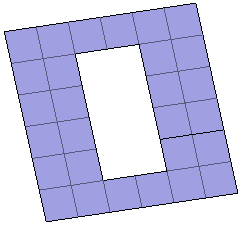

The same face cannot be cut twice by the same cutting command. In the Modification toolbar, click Multi-Selection  to validate the current operation and select the next face to
erase without exiting the Face Erasing
command.
to validate the current operation and select the next face to
erase without exiting the Face Erasing
command.
You can also press Ctrl +Space to validate the current operation and select the next surface to cut.
Erasing an Edge
-
Click Edge Erasing
 .
. -
Click the edge to erase.
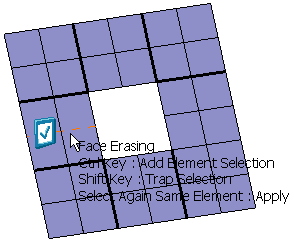
The erasing propagates to the connected edges: 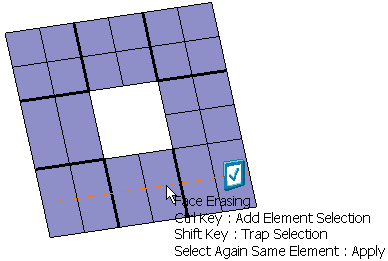
-
Apply the command by clicking Apply (Enter)
or validating in geometry.
Release the mouse when you are satisfied with the new shape of the surface.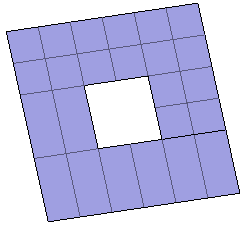
In the Modification toolbar, click Multi-Selection
to validate the current operation and select the next face to
erase without exiting the
Edge Erasing
command.
You can also press Ctrl +Space to validate the current operation and select the next surface to erase.

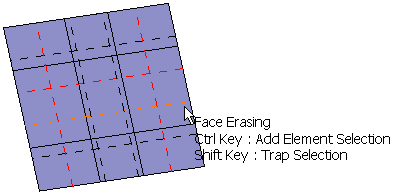
- Multiple edges
can be erased at the same time. Select multiple edges using
Ctrl or Shift keys and validate by
clicking
Apply
.
The help text describes the edge selection modes.
- Press
Ctrl to:
-
Add an unselected element to the selection.
-
Remove a selected element from the selection.
-
-
Press Shift to select using a trap:
- Press
Ctrl to:
Press Shift.
Draw the trap.
Release Shift.
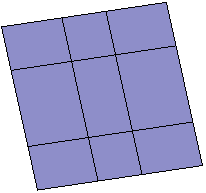
Selection of Multiple Edges using Ctrl key Result
- Only closed propagation or propagations up to a free edge are
available.
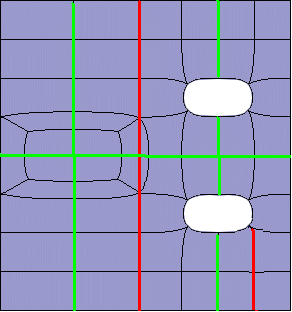
Applying the Erase Command
Click
Apply (Enter)
to
validate every face you erase or use
Ctrl key to multi-select the surfaces and then click Apply
(Enter) to erase them.
 .
In case a element can be
validated
but is not active the
.
In case a element can be
validated
but is not active the
 icon is seen and the pointer
does not change.
icon is seen and the pointer
does not change.
