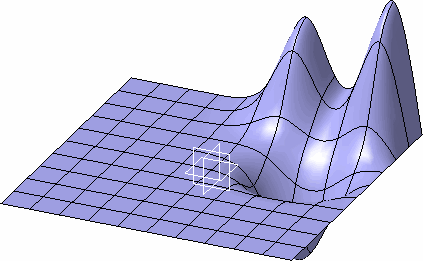
-
From the Modification toolbar, click Smooth a mesh
 .
. -
Select the subdivision surface.
A Tools Palette appears:

The following icons let you: -


 select elements
 -
 propagate edges
 -
 inverts the selection
 -
 apply the command
The 3D shape representation with subdivision surfaces 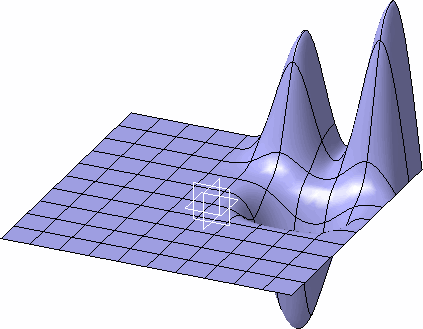
-
-
Select the elements to be smoothed.
The selected elements are highlighted, and the slider appears.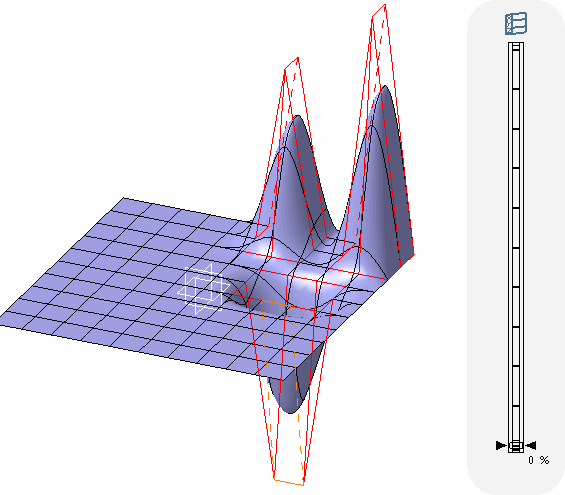
- Drag and move the cursor over the slider to
reach the desired value.
The result is previewed in lowlight mode.
For more information about the slider, see About the Slider.The elements with 75% smooth ratio 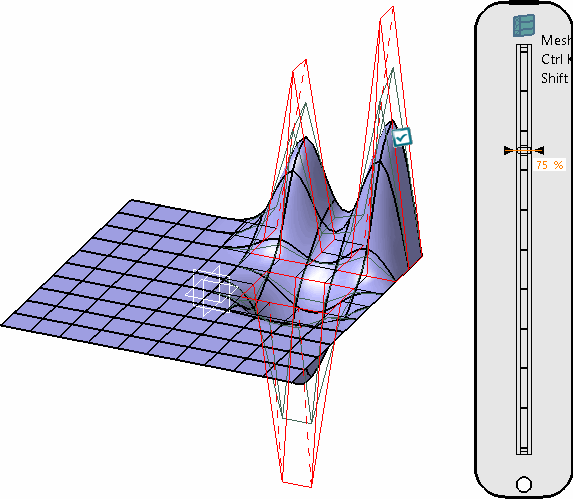
- Click Apply (Enter)
.
Note: Smoothing of base mesh changes its shape.
You can perform the same operation repeatedly till the required shape of the surface is achieved.
In the Modification toolbar, click Multi-Selection to validate the current operation and select the
next subdivision surface without exiting the
Smooth a mesh
command.
to validate the current operation and select the
next subdivision surface without exiting the
Smooth a mesh
command.
You can also press Ctrl +Space to validate the current operation and select the next subdivision surface.
The 3D shape representation after smoothing