This task explains how to create an offset surface, based on an existing surface.

Open the OffsetSurface.CATPart document.

-
Click the Surface Offset icon
 .
.
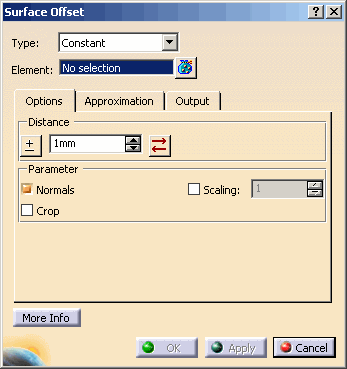
The 'Surface Offset' dialog box is displayed.
-
Select Surface.1, choose the Offset Type Constant and specify a Distance of 20 mm.
-
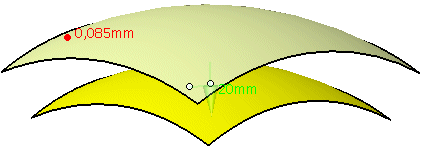
Click Apply to display the offset surface.
-
You can manipulate the offset distance by drawing the handle at the end of the manipulator.
-
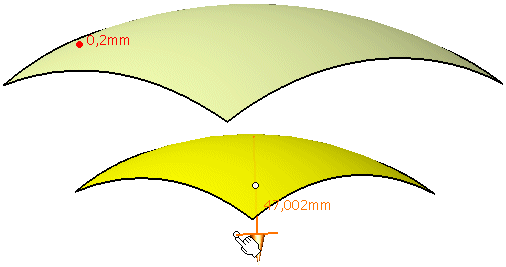
You can invert the offset direction by clicking the middle handle of the manipulator.
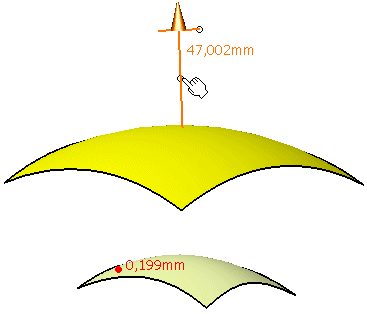
-
Choose the Offset Type Variable and click Apply.
Manipulators appear at each corner of the surface. They can individually be modified to set different offset distances.
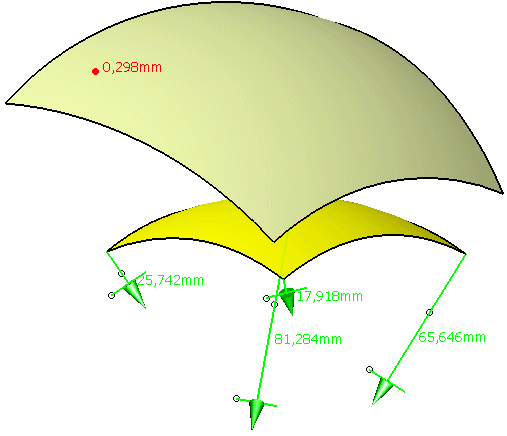
-
Click OK to create the offset surface.

- Type:
 |
Note: In case of constructions on top, these options are not available for subsequent edition, as updates cannot be guaranteed to be free of errors. |
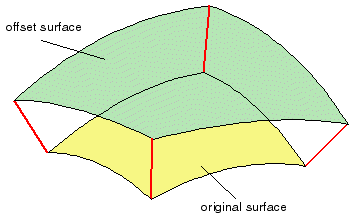
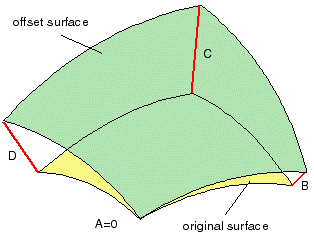
- Element: Selection of the surface(s) to be offset.
The manipulators are aligned with the surface selected first.
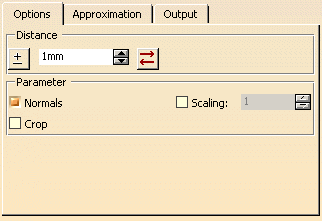
- Distance
 Invert direction: The direction is inverted.
The Distance value is also inverted.
Invert direction: The direction is inverted.
The Distance value is also inverted.- Text field: Specifies the distance of the offset surface from the original surface (offset distance).
 Revert direction: Only the direction is inverted.
The Distance value remains unchanged. This allows, for example, to use positive values only.
Revert direction: Only the direction is inverted.
The Distance value remains unchanged. This allows, for example, to use positive values only.
- Parameter
- Normals: Displays the original surface in the graphics area. With the manipulator, you can modify the distance and invert the direction.
- Crop: If the surface to be offset is a face, this operation is applied to the basic surface which will be
trimmed afterwards. By using the Crop option, the basic surface will initially be cropped in a way that it
is smaller than the original but sufficient in size to cover the face. The offset is then applied to this temporarily
created surface.
This may reduce computing time and self-intersections of the resulting surface. - Scaling: The size of the manipulators at the geometry can be scaled.
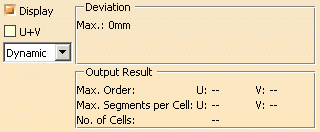
- Display: Depending on the options selected, values are displayed in the graphics area.
- Deviation
- Max: Display of the maximum deviation of the actual result from the calculated mathematical result.
- UV: Display of the UV vectors of curves and surfaces.
- Dynamic, Static, None: See Apply Modes.
- Output Result: See Output Result
Contextual commands of the manipulators
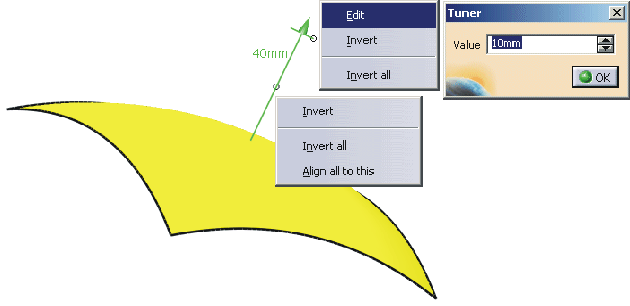
The contextual commands will be activated by clicking the right mouse button on a vector manipulator handle. The following options can be defined:
- Edit: Changes the offset distance.
- Invert: Inverts the offset direction.
- Invert all: Inverts the offset direction for all manipulators.
- Align all to this: Aligns all manipulators to this manipulator.