
This task shows how to create tolerances automatically for user features using the Tolerancing Advisor.

For a general introduction of the Tolerancing Advisor, refer to Introducing the Tolerancing Advisor.

- Improve the highlight of the related geometry, see Highlighting of the Related Geometry for 3D Annotation.
- Define the tolerancing schema. In this case the tolerancing schema has been defined (in BlindHole_1_Tolerancing_Schema.CATPart) and the catalog (in Tolerancing_User_catalog_TS1.catalog).
- Give the path to the tolerancing schema catalog in Tools > Options > Mechanical Design > Functional Tolerancing & Annotation > Tolerancing tab, User Features Tolerancing Schemas Catalog.

-
Click Tolerancing Advisor
 in the Annotations toolbar.
 -
The Semantic Tolerancing Advisor dialog box appears.
-
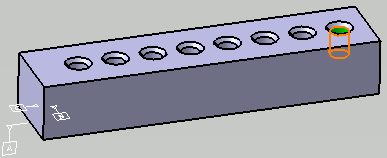
Select the technological result of user feature as shown in 3D or from specification tree.

- You can select a single face or edge of the user feature or technological result of user feature.
- Multiple selection of edges, vertices or surfaces of the user feature or technological result of user feature is not supported.
-
The Semantic Tolerancing Advisor dialog box is updated according to the selected surface. The User Feature Tolerance
 command is available only if you have defined a
tolerancing schema feature for the corresponding user feature type in
the referenced catalog.
command is available only if you have defined a
tolerancing schema feature for the corresponding user feature type in
the referenced catalog.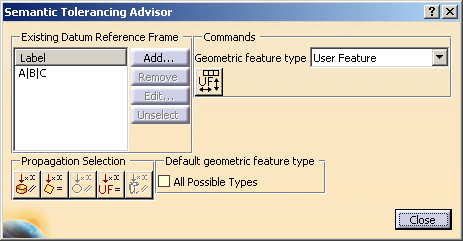
-
Click User Feature Tolerance
.
The User Feature Tolerances Creation dialog box is displayed.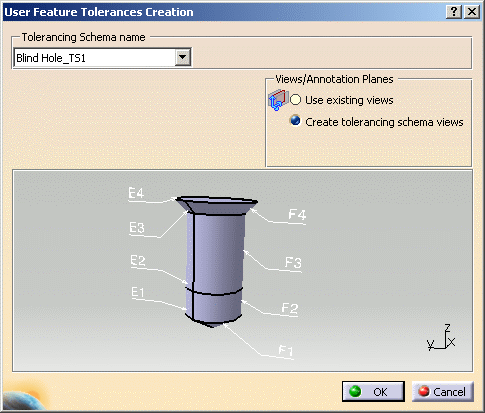
- Tolerancing Schema name: Lists all the
available tolerancing schemas defined the catalog for
the selected user feature type.
If the selected schema is not-up-to-date (may be modified after its creation) a warning message is displayed. After selection of another up-to-date schema, the OK button is activated. - Views/Annotation Planes
- Use existing views: The existing views that have the same relative position with respect to the user feature geometry and are of same type as the tolerancing schema views. This view is used to create dimensions and annotations that correspond to the tolerancing schema and the display links of captures (created from the tolerancing schema) are rerouted on the found view.
- Creating tolerancing schema views:
New views are created of the same type and same
position as that of the tolerancing schema views.
This new view is used to create dimensions and
annotations that correspond to the tolerancing
schema and the display links of captures (created
from the tolerancing schema) are rerouted on the
found view.
By default, this option is selected.
- The CATPart containing the tolerancing schema is displayed in the 3D viewer area. You can pan, rotate and zoom in the 3D viewer area.
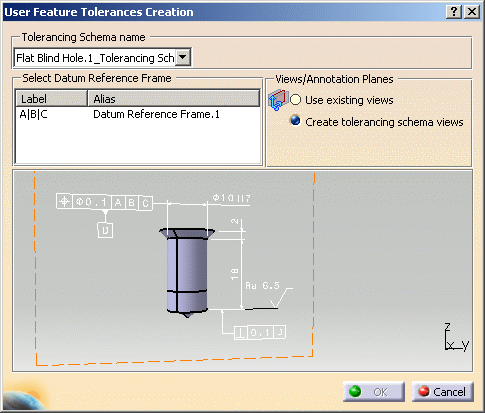
- Select Datum Reference Frame: If a
Datum Reference Frame has not been selected at the
schema creation time, the Select Datum Reference
Frame area is available. After you select a
Datum Reference Frame the OK is
activated in the dialog box.
- Tolerancing Schema name: Lists all the
available tolerancing schemas defined the catalog for
the selected user feature type.
-
Click OK in the dialog box.
The tolerance is are created for the selected user feature. 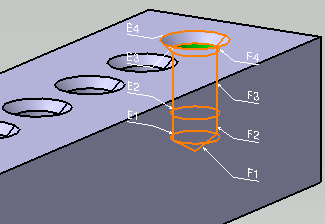
-
Click Close in Semantic Tolerancing Advisor dialog box.
- The geometry propagation selection command All same User
defined features
 is available. If this command is selected and at
least one other user feature of same type is found, the Semantic Tolerancing Advisor
dialog box is updated with Group of User Features Tolerance
Creation
is available. If this command is selected and at
least one other user feature of same type is found, the Semantic Tolerancing Advisor
dialog box is updated with Group of User Features Tolerance
Creation
 .
For more information on geometry propagation, refer to
Propagating
Geometry Selection for Feature Creation.
.
For more information on geometry propagation, refer to
Propagating
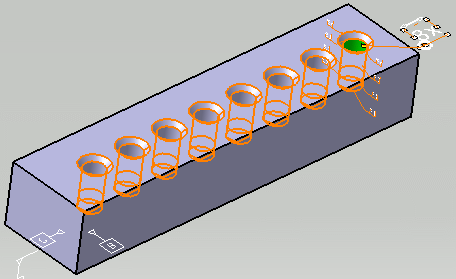
Geometry Selection for Feature Creation. - The tolerance is attached to the first selected user feature.
- The Nx text (this case 8x) represents the
number of user features in this group.
- The following functionalities are available:
- Default Annotation,
- 3D-Annotation-Query Switch On/Switch Off,
- Filter.
