can be used in both design mode and visualization mode. Two scenarios are
provided, one for each mode:
can be used in both design mode and visualization mode. Two scenarios are
provided, one for each mode:- The design mode is mandatory to perform the connections.
- In visualization mode (cache activated),
the model is lighter since the geometry is not loaded.
It allows you to display large assemblies.
When you work in visualization mode, CATIA switches to the design mode only for the elements which will contribute to the connection.

- An electrical link is created between the connected components. See Related Objects.
- If placement constraints have been defined on connection points, the mechanical assembly constraints are automatically created.
You can only connect one device to each connection point, except for filler plugs and contacts in cavities when you can connect both a filler plug and a contact in a cavity.
For information on what connection to what component, see the table at the end of this task.
In Design Mode

The whole geometry is loaded.

-
Click Connect Electrical Devices
to connect two devices.
You are prompted to select the first device.- It is the first selected object that moves to the second one's location
- An electrical connection has been created together with mechanical constraints.
-
Select the first device either in the geometry area or in the specification tree:
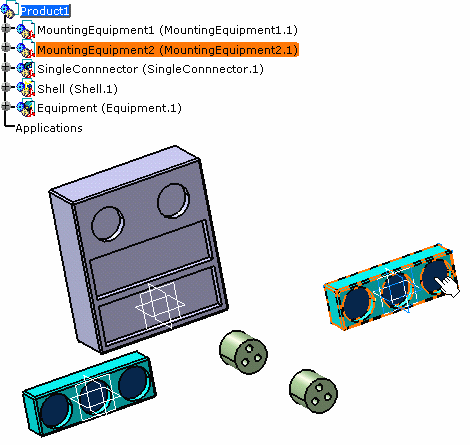
You are prompted to select another device.
-
Move the cursor onto the second device before selecting it, as shown below:
The cavity connection point of the first device and the cavities of the second one are displayed in green: this means that it is possible to connect the first device to any of the four cavities available on the second one. 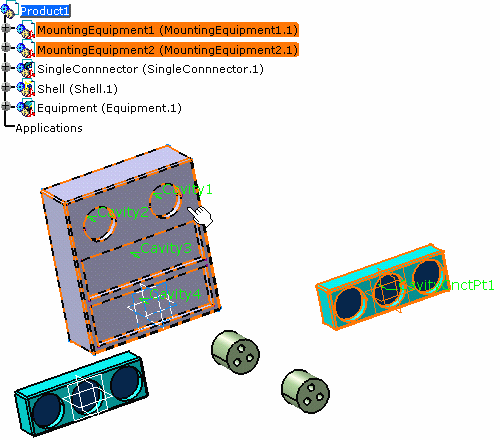
According to the selection, if a cavity is already used or if no connection point is defined onto the second device, it is displayed in red: 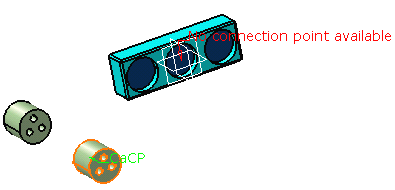
-
Click to select a connection point available on the device, Cavity3 for example.
The devices are connected together and the mechanical constraints are added to the specification tree: 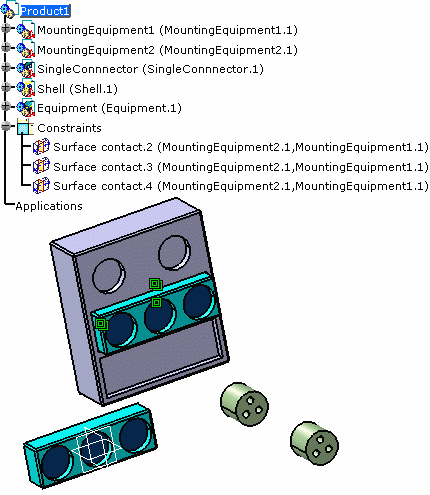

- The representation of the connection point in the geometry
- The label with the name of the connection point
- The connection point in the specification tree.
In Visualization Mode
The geometry is not loaded.
-
Click Connect Electrical Devices
to connect two devices.
You are prompted to select the first device.- It is the first selected object that moves to the second one's location
- An electrical connection has been created together with mechanical constraints.
-
Select the first device either in the geometry area or in the specification tree.
You are prompted to select the second device. -
Move the cursor onto the second device before selecting it, as shown below:
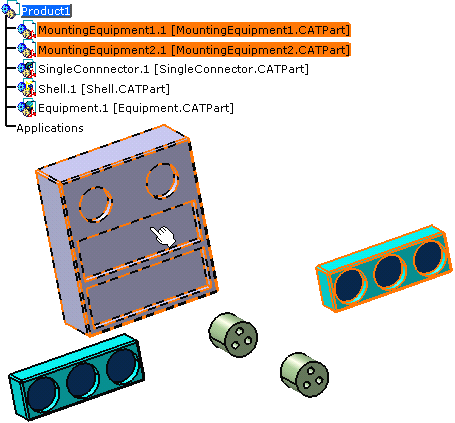
Note that: - You cannot expand the specification tree since you are in visualization mode.
- No annotations are displayed on the device connection points.
-
Click to select the mounting equipment:
The geometry is loaded for both devices and the annotations display: 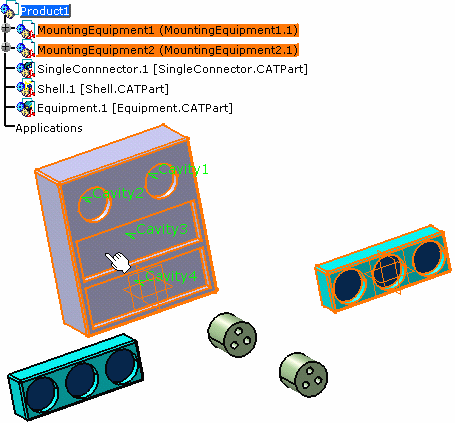
-
Click to select a connection point available on the device, for example Cavity3.
The devices are connected together and the mechanical constraints are added to the specification tree:
 for the other devices: this is
due to the update that loads the publications. However the geometry for
these components is not loaded:
for the other devices: this is
due to the update that loads the publications. However the geometry for
these components is not loaded: