
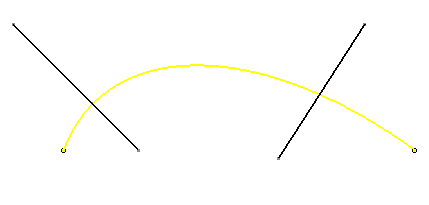
For the purpose of this scenario an example of trimming element is used.


-
Click Trim
 from the Operations toolbar.
-
Select the Use Edge between the two lines.
-
Select a first line.
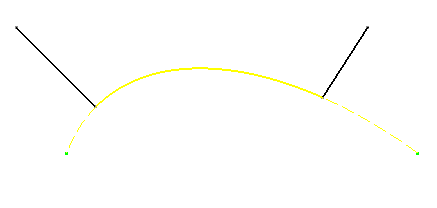
An arc is created based on the use-edge and the original use-edge is put in construction mode as shown here.
 |
-
Click Trim
. -
Select the arc between the two lines.
-
Select the second line.

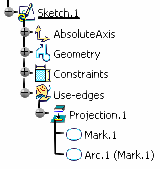 |
- When deleting the use edge (projection, intersection, etc...), all the arcs related to it are deleted too.
- The edition of an arc is only possible in the Sketcher workbench.
- After a trim operation, for instance, the diagnosis is not modified and if the sketch is iso-constraint, it will stay iso-constraint.
- A use edge of a spline curve can be extrapolated beyond its endpoints in a line tangent to the curve at its endpoints.
