
Replacing a geometrical element with another one in the Sketcher workbench and no modification occurs in the 2D. Only the 3D geometrical elements which used the replaced 2D geometrical elements will be modified.
You can visualize the modifications when entering Part Design workbench.

-
Open a sketch .
-
Right-click the element to be replaced and select Element.x object > Replace...
The Replace dialog box appears. -
Select another element as the replacing element.
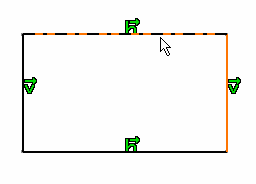
The geometry is unchanged.
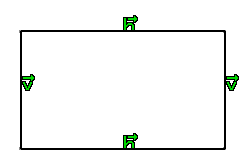
-
Click Ok to confirm the changes.
A new panel appears, displaying the orientation of the previous sketch. -
Optional: Click the green handles to change the orientation of the sketch to the old one.
-
Click Exit
 .
.
The pad (created via the 2D geometry) is modified accordingly.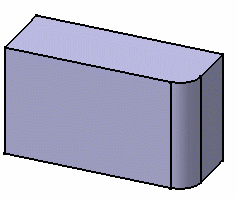
-
Create a three points arc on the sketch geometry.
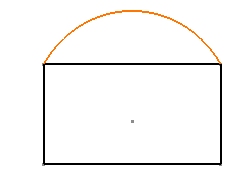
-
Select the created arc.
- Select the Delete replaced elements and
exclusive parents option in the
Replace dialog
box and click
OK.
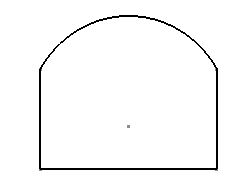
-
Click Exit
.
The pad is modified.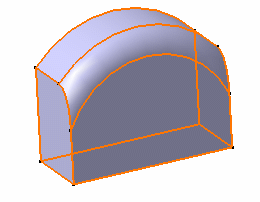

For more information about Replace... command, refer to About Replacing Features.
