|
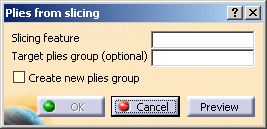
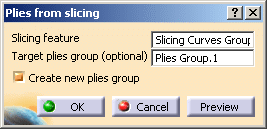
This task shows you how to create plies from a Slicing Curves
Group, in an existing plies group or in a new one. The command
Plies From Slicing:
- Computes the contours of the plies (inner and outer) from the curves
of each Geometrical Level node
of the Slicing Curves Group feature,
- Scans the thickness laws of each zone to define the
material/orientations to be assigned to the plies,
- Generates sequences and plies (contour + material/orientation) that
are compatible with the zones thickness laws:
- A new sequence will be created for each Geometrical Level,
- Inside each sequence, a new ply will be built for each contour
found in the Geometrical Level.
- A knowledge parameter containing the Geometrical Level information
will be stored for each sequence and ply created.
- If incorrect slicing curves are found in a geometrical level
(e.g.
a curve of an inner contour intersects the outer contour or the
contour itself),
making the computation of the contour impossible, the
computation of the plies will fail
for the corresponding sequence
only.
- The
ExtrapolDist
parameter is taken into account.
When a gap greater than ExtrapolDist is found in slicing curves, the
corresponding plies will have open contours.
They will be listed in a
message.
- Plies with an invalid contour will be put in evidence by the new
ply table command.
- Assigns a rosette to the generated plies.
- If you have selected an existing plies group, the plies will
inherit the rosette of this plies group.
- If you create a new plies group and if the Slicing from Solid was
made with the Thickness Law option,
the plies will inherit
the rosette of the zones found in the zones group.
- If you create a new plies group and if the Slicing from Solid was
made with the Constant Thickness option,
you will have to
select a rosette.
Please note:
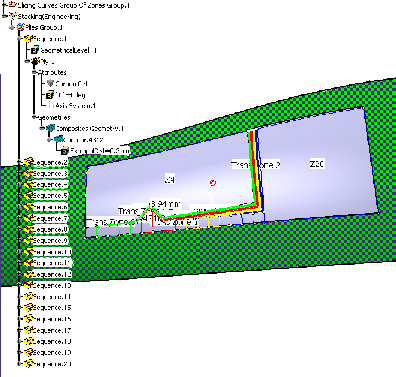
- Window plies (i.e. plies with inner contours) are allowed.
E.g.: in
a given geometrical level, the following configuration will generate 2
plies in the same sequence.
The first ply will have 2 contours (one
inner, one outer) and the second ply will have one contour.

- A smoothing operation is introduced for the “on surface” contours to
reduce the number of micro-edges.
Associativity management
The command Plies From Slicing manages the associativity between the
slicing from solid and the generation of plies:
If plies have already been created from the same Slicing Curves
Group, restart the command Plies From Slicing
on this Slicing Curves
Group to update the plies.
The modifications (deletion, addition and geometry modifications) will be
processed as follows:
- Deletion of a contour involved in a ply contour : as a consequence,
the contour is opened.
The Plies From Slicing command searches a curve
in the corresponding Geometrical Level
that could be used to close the
contour. It is not a manual operation.
- Addition of a contour : for example, new plies have been added to a
zone.
The Plies From Slicing command will generate new contours as well
as the corresponding plies.
It is not a manual operation.
- If a curve involved in a ply contour has been geometrically modified
due to a modification of the solid,
the contour will be automatically
updated.
This way:
- The plies data structure is always synchronized with the zone
definition,
- If downstream operations have been processed on the plies that are
not modified,
those operations will not be lost after the update of the
plies.
|


 in the Plies toolbar.