|
This task explains you how to edit and delete the scallops
created at the corners of the plate. |
 |
Open a document with scallops placed already.
For more information about creating scallop, refer to
Creating Scallops. |
|
|
Edit Scallops
|
 |
-
Click Scallop
 in the
Detailing Tools toolbar. in the
Detailing Tools toolbar.
The
Scallop
dialog box appears.
-
Select the plate whose scallop you want to edit.
| All the scallops on the plate are listed in the dialog box. |
-
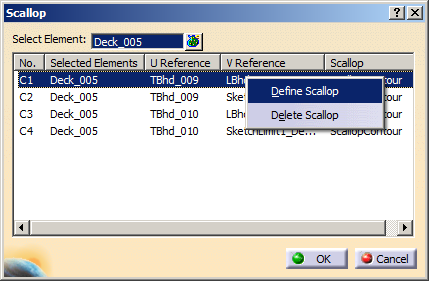
To edit the scallop, select one or more rows, then right-click and
select Define Scallop.
The Scallop Parameters dialog box appears.
-
Edit the dimensions:
- In the Contour Parameters area, edit
the value by double-clicking it.
- In the Position Parameters area,
edit the angle value by double-clicking it.
- Click OK to return to the
Scallop dialog box.
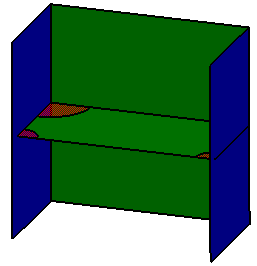
The scallop dimensions are changed.
|
-
Click OK in the Scallop dialog
box.
The scallop is edited.
 |
You can also edit the dimensions of the scallop by
double-clicking the parameters under the
ScallopContour node in the specification tree. The
Edit Parameter dialog box appears. |
|
|
|
|
Delete Scallops
|
|
|
-
Click Scallop
.
| The
Scallop
dialog box appears. |
-
Select the plate whose scallop you want to delete.
All the scallops on the plate are listed in the dialog box.
-
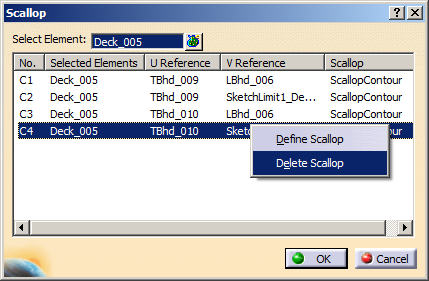
To delete the scallop, select one or more rows, then right-click and
select Delete Scallop.
-
Click OK in the Scallop dialog
box.
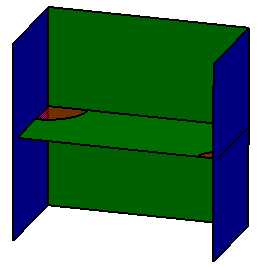
The scallop is deleted.
|
|
|
|
|
 |