
In this example, you will define fit-up for transverse bulkhead TBhd_1132.1.
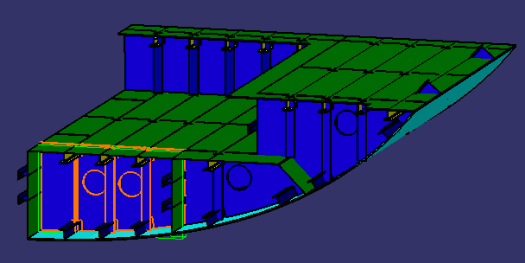

 for the 1100-A_1.CATProduct.
-
Select the Joining Operation command
 .
. -
Select TBhd_1132_1 in the ProductList.
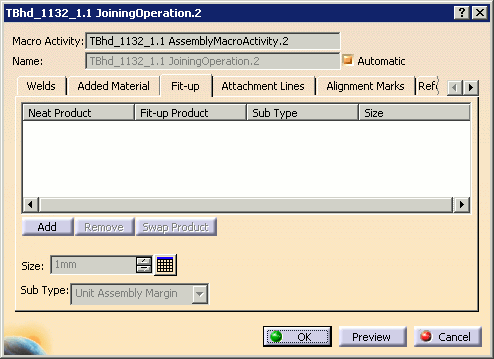
The Joining Operation dialog box appears. -
Select the Fit-up tab in the dialog box.
-
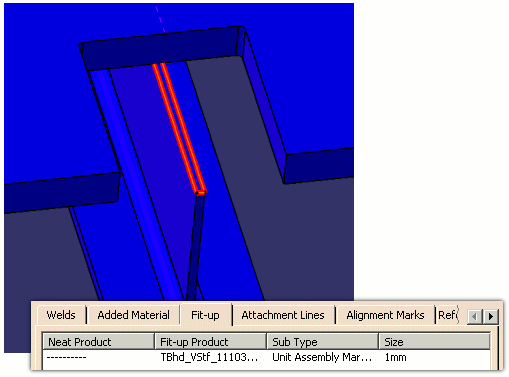
Use the mouse to select edges in the 3D viewer and add products to the Fit-up tab. Click on any edge of the plate or profile in the geometry. The selected edge becomes highlighted in red, and a fit up is generated and listed in the Fit-up tab.
Note: As described in the Adding Material section, you can also click Add to view the list of interim products associated with the selected operation. The Add dialog box appears and presents a list based on the T-weld joints between plates and T-weld joints between stiffeners defined during the detail design phase. Select interim products and click the single arrow to move them to the Selected list, then click OK when done.
-
Set the amount of material to be removed from each fit-up product, for example 10mm.
- Select one or more rows in the list
- Click the design table
 icon opposite the Size box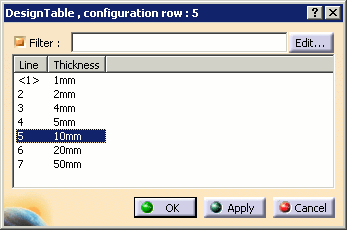
- Select the size in the Design table dialog box that opens then click OK.
The Size column in the Fit-up tab is updated to reflect the selected size:


- To delete a pair of interim products, simply select the row and click Remove.
- To swap products in any one row between the two columns, select the row and click Swap Product.
-
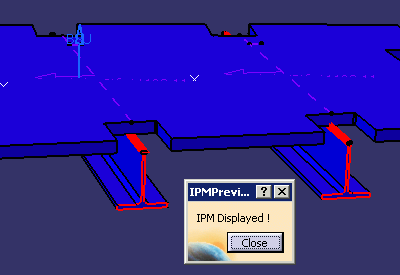
Click Preview. The IPM Preview dialog box is displayed, and a full preview of the IPM part with the defined fit-up is shown:
-
Click Close in the IPM Preview dialog box to return to the Joining Operation dialog box.
-
Click OK when editing of the joining operation is complete, or click Cancel to cancel any changes that were made and dismiss the dialog box.
Note that selected face already contains a margin item. However, you can create margin item again.
If you click OK, you can create a positive margin item.
