
You can define the amount of material to be added for accuracy adjustments when manufactured and assembled.
The system detects and proposes a list of piece parts based on weld joints defined during the detail design phase. You can also add material to edges of plates and shapes by directly selecting the edge in the geometry area.

 for Sample_A.CATProduct.
-
Select the Joining Operation command
 .
. -
Select Sample_A in the ProductList.
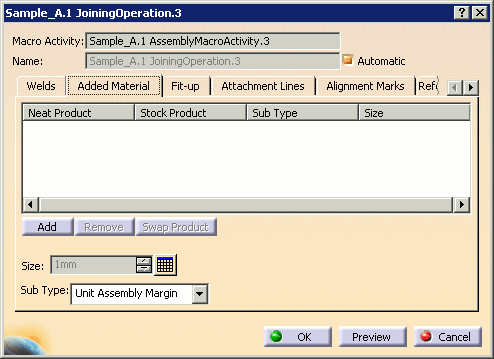
The Joining operation dialog box appears. -
Select the Added Material tab.
-
Click Add.
The Add Items dialog box appears listing piece parts based on weld joints defined during the detail design phase.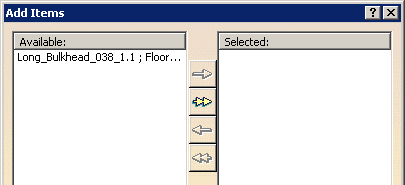
-
Select one or more items and use the arrows to move items from the Available: column to the Selected: column, then click OK.
Note: Double arrows move all items from one side to the other. Selected interim products are listed in the Added Material tab. The system detects the order in which interim products are assembled and proposes them in the form of a list of Neat and Stock products. Material will be added to interim products in the Stock Product column.

You can add or remove interim products from the selection using Add and Remove. You can swap products between neat and stock using Swap Product.
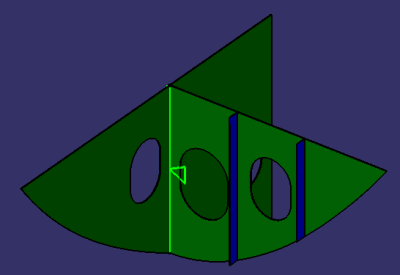
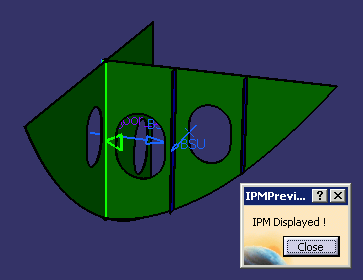
Added material is previewed in the geometry area. A small triangular symbol identifies the stock plate and points towards the edge on which the material will be added.
-
Set the amount of material to be added for each row, for example 50mm.
- Select the row of interest
- Click the design table
 icon opposite the Size box
 - Select the size in the Design table dialog box that opens then click OK.
Note: Multiple selection is available.
The Size column is updated to the selected size.
-
If necessary, and still in the Added Material tab, select any edges of interest.
Edges are listed in the Stock Product column. 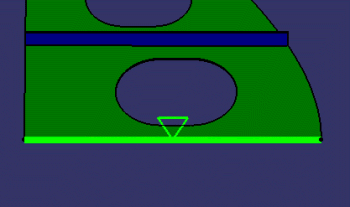
-
Edit the amount of material added to edges as described above.
-
Click Preview. The IPM Preview dialog box is displayed, and a full preview of the IPM part with the defined added material is shown:
-
Click Close in the IPM Preview dialog box to return to the Joining Operation dialog box.
-
Click OK when editing of the joining operation is complete, or click Cancel to cancel any changes that were made and dismiss the dialog box.

Note that selected face already contains a margin item. However, you can create margin item again.
If you click OK, you can create a negative margin item.
