
This procedure describes how to edit the positions of items or resources after their positions have been saved as position objects.
You can make the following kinds of changes:

To perform this procedure, a position object must have already been created under the Mfg Positions node, as described in Creating Positions.

Edit the Position
-
Double-click on the position in the PPR tree.
A new window opens containing the positioned object, the reference object (if any) and the Edit Position(s) dialog box. 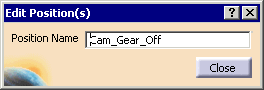
-
Use the compass to move the positioned object to a new position.
-
Click Close when you have completed the modification.
Once you click Close, you may return to the Product Structure workbench or to another workbench that creates or modifies .CATProduct files. To return to your original workbench, double-click the Process node on the PPR tree.
Change Reference Object
-
Select the position.
The Redefine Reference Object dialog box appears. 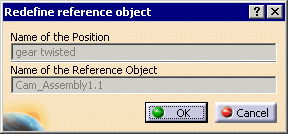
-
On the geometry or PPR tree, click the new reference object.
The Redefine Reference Object dialog box appears. 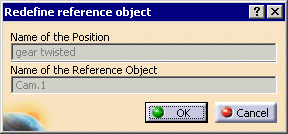
The reference object has been changed.
 .
.Modify and Synchronize Position
This part of the procedure starts with cam gear in this
position: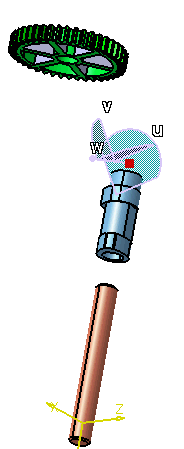 |
-
Modify the position of the object in the manufacturing position.
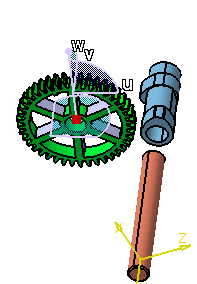
-
The system confirms that you have modified the position. 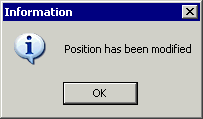
-
Click OK.
-
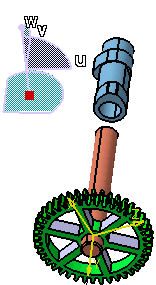
To confirm that you have changed the position, first click Restore Design Position
 .
.
-
To verify that modified position has been saved, click Synchronize Position
 and then click the manufacturing position in the PPR tree.
 .
.