

Make sure the design mode is activated by doing one of the following:
- In the Tools > Options > Infrastructure > Product Structure > Cache Management tab, clear Work with cache system. This sets the Visualization Mode Type to None. OR
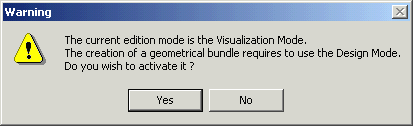
- If you see warning that you are in
Visualization Mode, click Yes to
activate Design Mode.
In the Tools > Options > Infrastructure > Part Infrastructure, General tab, select the Keep link with selected object checkbox in External References.

-
To create the cable, insert a new product that will have all of the data relating to the cable.
-
Select Insert > New Product.
-
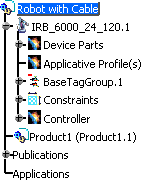
Click Robot with Cable.
This creates a new product, Product1. This is a document that will contain an assembly of connectors, supports and protective coverings, as well as the geometric representation of a harness. The effect of this step is to store the harness information within a different product folder than the robot.
-
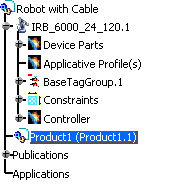
Activate the Product.1 by double-clicking on it.
-
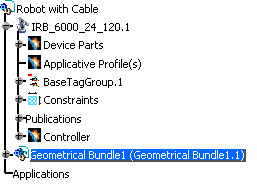
Select the Product1. This automatically changes the name of Product1. The geometrical bundle is created, with appropriate properties and behaviors.
-
Next, we create cable between the two points using a multi-branchable document.
 .
.
Only the following can be selected to become a geometrical bundle:
-
a product that does not already have electrical properties and behavior
-
a product that does not result from the New Part command.
-
a product that does not result from the New Component command (inline product).
