


- Ensure that the dedicated bundle segment create option (Work with one multi-branchable per geometrical bundle) is selected.
- Select the Allow system to use a smaller bend radius value option. Selecting this option optimizes the bend radius in order to keep the flexible curve.

-
Double-click Geometrical Bundle1 to activate it.
The bundle is highlighted. 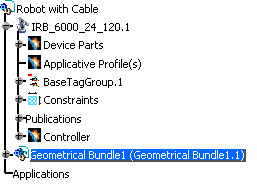
-
Click Multi-Branchable Document
 .
.The workbench automatically changes and the Branch Definition dialog box appears. 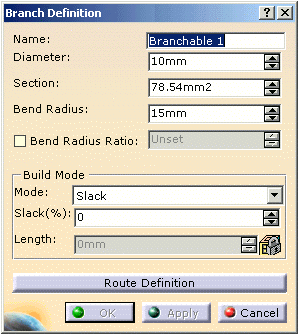
-
Enter a value (e.g., 40mm) in the Diameter field.
The Section is automatically computed. Alternatively, if you enter the Section, the Diameter is computed.
A message warns you that the bend radius must be at least equal to the Diameter value to insure the correct bundle segment route computation. -
Enter a value (e.g., 90mm) for the Bend Radius.
The Bend Radius is the minimum bend radius allowed for the whole bundle segment. The Bend Radius value must be at least equal to the Diameter value to ensure the correct bundle segment route computation. Alternatively, you can select the Bend Radius Ratio option and set the ratio; the Bend Radius is automatically computed. -
Select the Mode: Slack for this example and give a percentage of 50% slack.
The different options are: -
Slack(%):
The bundle segment length is increased by the percentage indicated in the Slack(%) field. The Length field is unavailable. - Length:
The bundle segment length is indicated in the Length field. The Slack(%) field is unavailable. - Bend:
The bundle segment length corresponds to the minimum distance between the points defining its route. The Slack(%) and Length fields are unavailable. -
Straight Bend:
The bundle segment length is computed from a centreline curve with a fixed minimum bend radius.- The main purpose of the Straight Bend Algorithm is to compute a global center line curve with a minimum fixed bend radius from 3D inputs.
-
The center
line curve is made of two
possible elements:
- Arc of a circle, with fixed radius R (minimum bend radius)
-
Line segment or straight line.
The connection points between these elements are continuous in tangency (same tangents on both sides), and imposed tangencies are respected at 3D route points.
Generally, the result is a non-planar curve.

- When this mode is selected, both Slack(%), and Length fields are grayed out.
- Slack is not managed for segments built in this mode.
At this stage, the bundle segment parameters are defined.
Now you need to route the bundle segment to complete the definition and create the geometrical representation of the Flexible Curve.
Note that OK and Apply are deactivated. -
Slack(%):
-
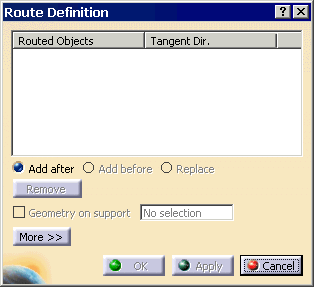
Select the Route Definition bar; the Route Definition dialog box appears.
-
Click the More >> button to expand the Route Definition dialog box.
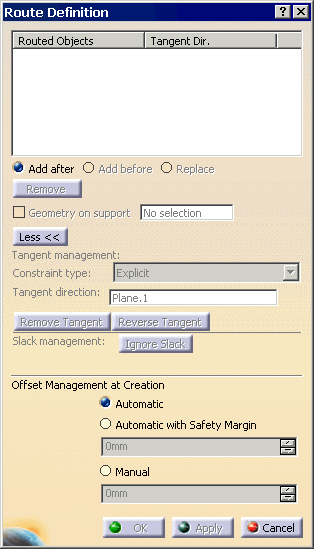
The command prompt states: Select a point, tangent, a device or a support. -
Select the C_END_BOX.1 from the tree.
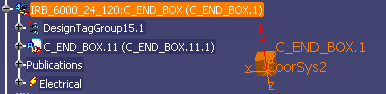
The data is imported into the Route Definition dialog box. -
To connect the cable onto the bottom of the brown box, click the Reverse Tangent button.
This rotates the Red arrow 90 degrees to the correct attachment. 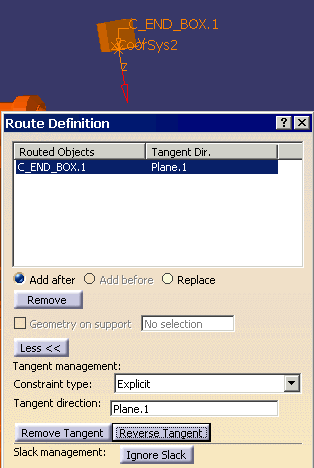
-
Select the C_END_BLOCK_3.1 from the tree.
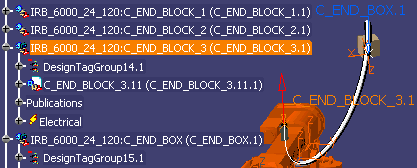
The data is imported into the Route Definition dialog box, and the cable is created. -
To connect the cable onto the top of the block, select the Reverse Tangent button.
This rotates the red arrow 90 degrees to the correct attachment. 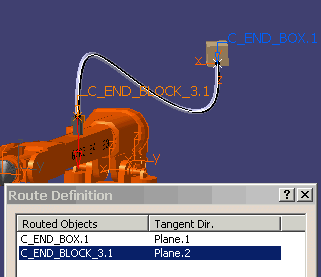
-
Click Apply and OK.
This returns you to the Branch Definition dialog box. -
Make any adjustments required, and click Apply and OK.
-
Double-click Robot and Cable to return to the original workbench.
