

This step creates points on the robot, or a product to which a cable can connect. If the robot already has connection points defined on it, then proceed directly to creating a cable between the connection points.

In the Device Building workbench, start with a empty product.
(If you need a product window, from the menu bar, select File > New.
In the dialog box select Product).

From the menu, select
Insert > Existing Product, and in the tree, click Product1.
The File Selection dialog box appears. Select a robot to
load.
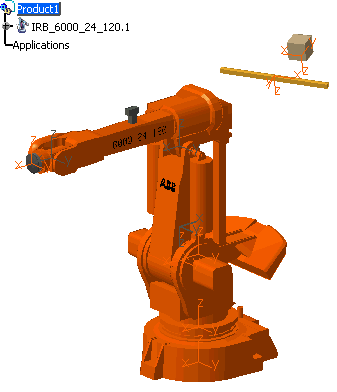
This ensures that the cable that you create is separate from the robot, but still in the same product.

-
Click Define Connector
 ,
and select a product with no
electrical behavior (except connector behavior for to be modified).
,
and select a product with no
electrical behavior (except connector behavior for to be modified).
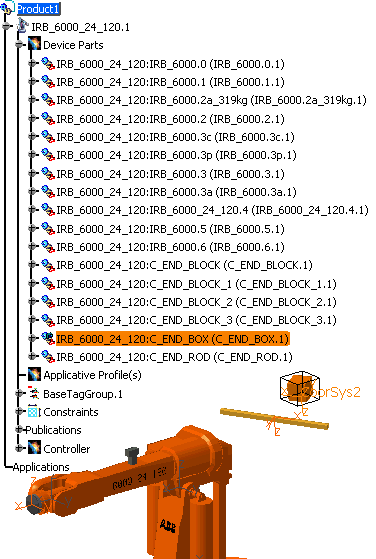
In the specification tree or in the geometry area, select the part of the robot to which you want to connect one end of the cable. In this scenario, select the brown box from the tree for one end of the cable to connect to. (Using the tree ensures you get the whole part, not sections).
The Connector Definition dialog box appears.
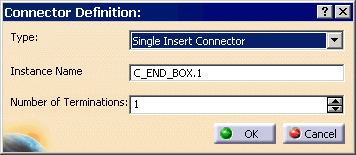
- The only type available is Single Insert Connector: male or female connector applicable to electrical layout.
- Change the name in the Instance Name field if necessary.
- Enter the Number of termination to be defined
onto the connector.
The terminations are used to connect the cables.
-
Select the defaults, and for the Number of Terminations, select 1. Click OK.
-
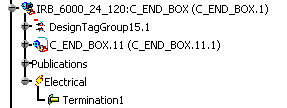
After successful execution of this command, the specification tree is updated. The part is not modified.
The instance of the connector is now an electrical object as the electrical behavior has been added.
-
Define the constraints at the points at which the other end of the cable will be connected to the robot. Click Define Connector
,
and select a product with no
electrical behavior (except connector behavior to be modified). -
Select the C_END_BLOCK_3.1. When the dialog box appears, change the Number of Terminations to 1.
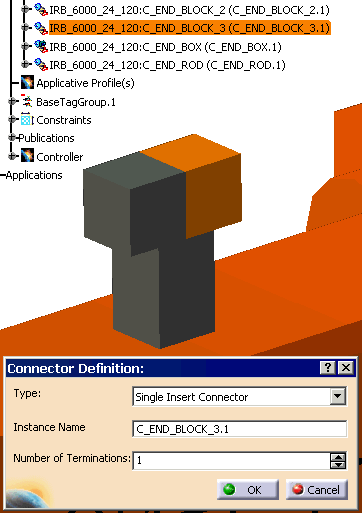
The tree is updated.
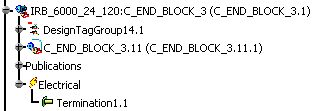
Both ends of where the cable is going to be attached are created.
-
Once this is done, you are ready to define the connection point constraints.

A single insert connector allows one connector connection point, bundle connection points, and terminations.
