 |
-
From the Shop Order Commands toolbar, click
Image Capture Operation
 .
.
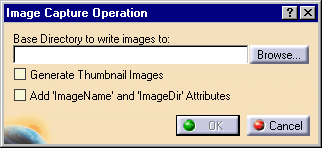
The Image Capture Operation dialog box appears.
-
Enter a path or click on the Browse button. If you
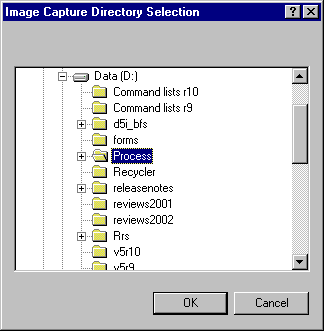
click the Browse button, a search window appears.
-
Select the directory where you want your images
stored and click OK. The name of the directory appears in
the Base Directory box.
 |
The system will create a subdirectory or subdirectories
within the directory specified. The highest level subdirectory will be named "Process." Other directories
will be named and arranged in hierarchies to mirror the process hierarchy for every subprocess that generates an
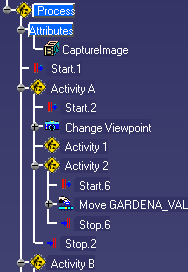
image. Shown below is an example of a process created with a subprocess and the
directory/subdirectories created to store the captured images. Note that there is no subdirectory labeled
Activity 1, because Activity 1 has no simulation activities associated with it. The folder Activity A contains an
image of the Change Viewpoint activity and the Activity 2 folder. The Activity 2 folder contains an image of the
Move GARDENA_VALVE activity.
 If, at any point in the hierarchy, two or more subprocesses have the
same name, the second and subsequent process will have version numbers appended to their names (e.g.,
Change_Viewpoint.jpg and Change_Viewpoint.2.jpg).Any directories and files that
exist from previous image captures will be overwritten. |
-
If desired, select the thumbnail or image attribute
options.
-
The thumbnail option creates a second, small image of the data at that point in the process.
-
The image attributes option stores two attributes with each activity that
generates an image. ImageName lists the file name of the image; ImageDir lists the path name to that file.
-
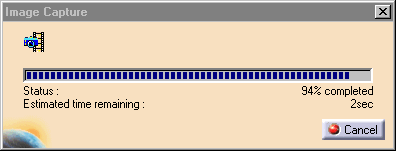
Click OK. A progress bar dialog
appears and quick simulation of the process occurs.
The images (in .jpg format) appear in the directory selected in
Step 3.
|
|
If you have previously run this command, the images created during the
previous instance will be overwritten by this instance, unless you specify a different directory. The images
captured consist of the following:
- If the parent process has CaptureImage set to true and there is at least one simulation activity within a
child process, an image will be captured at the end of the process.
- If the parent process has CaptureImage set to true and there is a viewpoint activity, an image of the
viewpoint will be captured.
-
If the parent process has CaptureImage
not set to true, OR if there are no simulation activities, then no
images will be captured and no directory hierarchy for storing
images (based on the process described in the info below step 3) will be created.
|
|


